
Write
Everything on these pages was done on a swipe badge encoded for an access control system. Site code 114, badge number 048592, holder MARTINEZ/D.
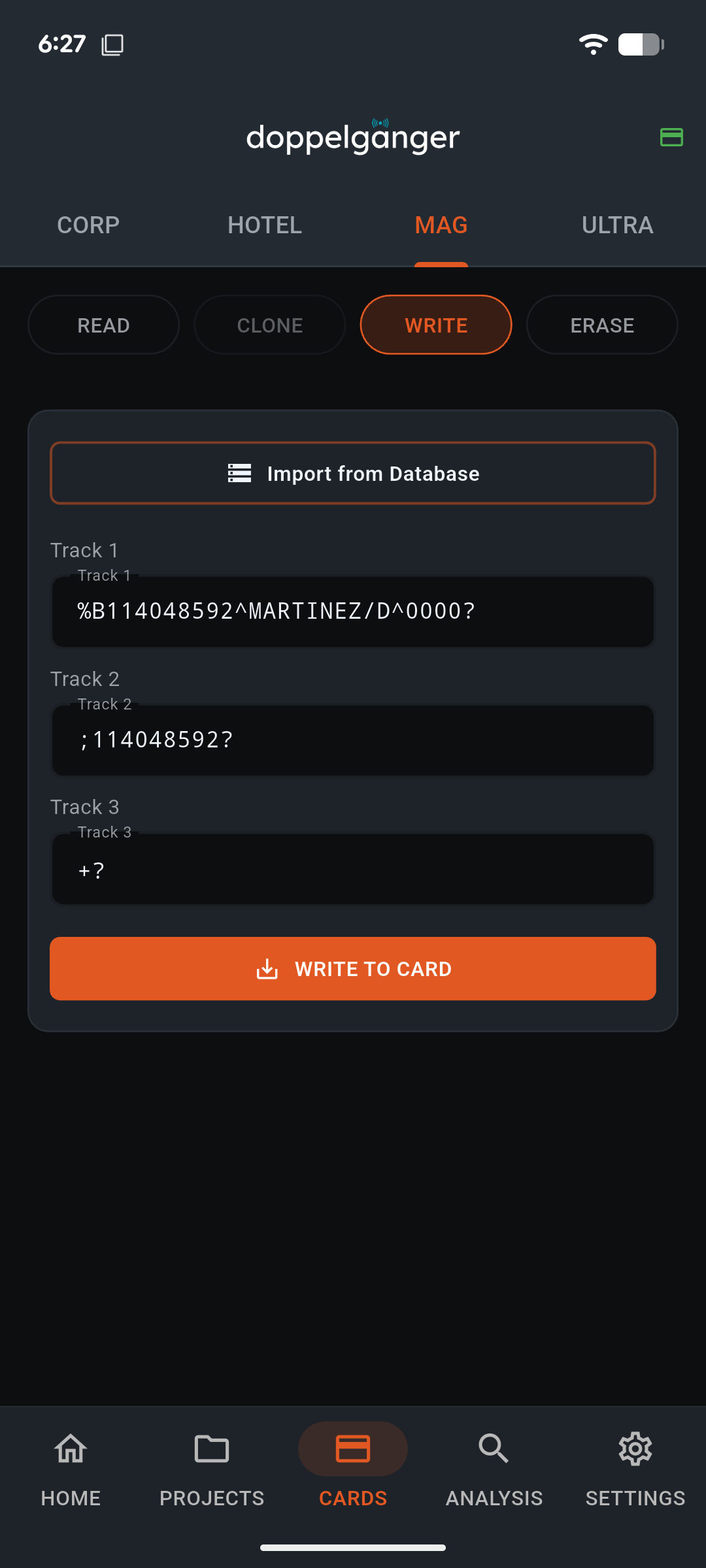
Write a badge from typed tracks
Section titled “Write a badge from typed tracks”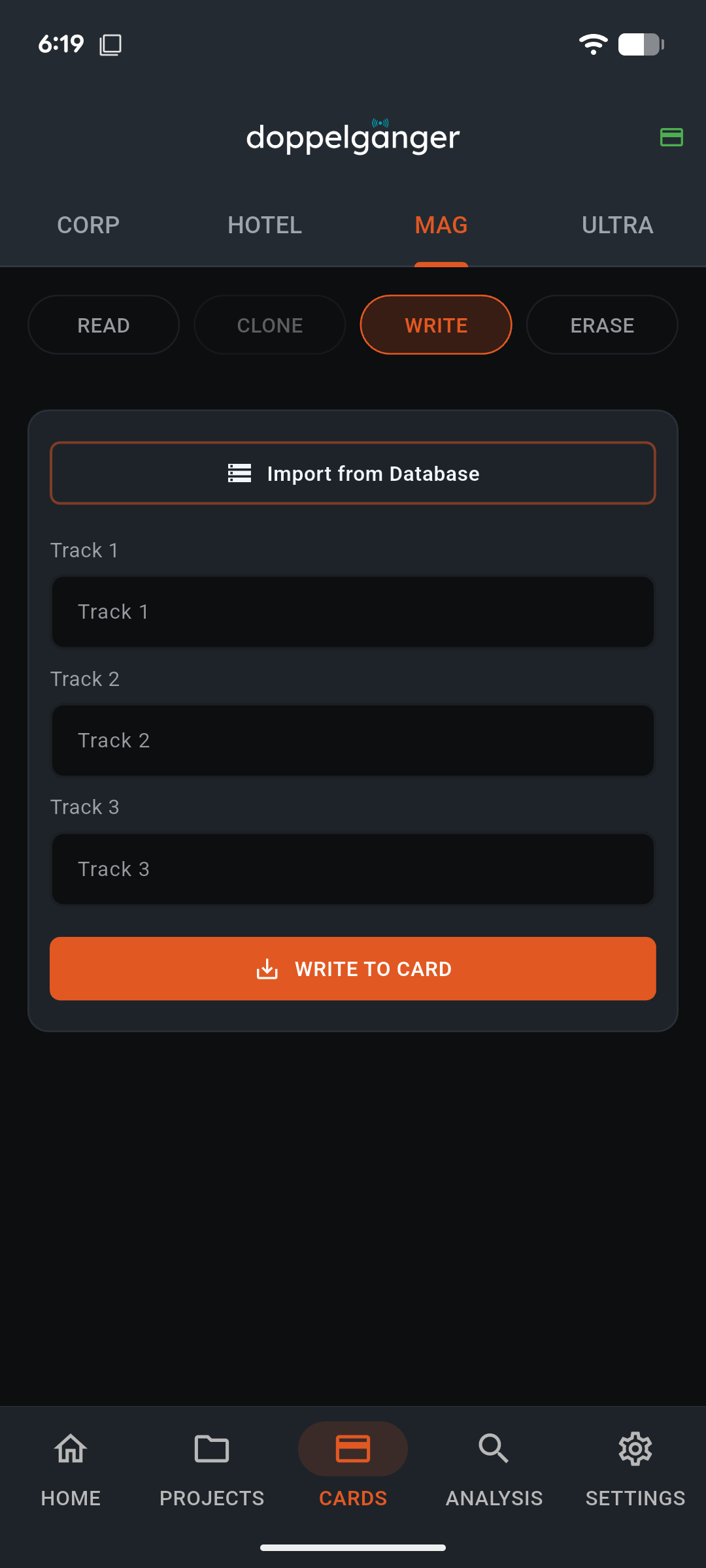
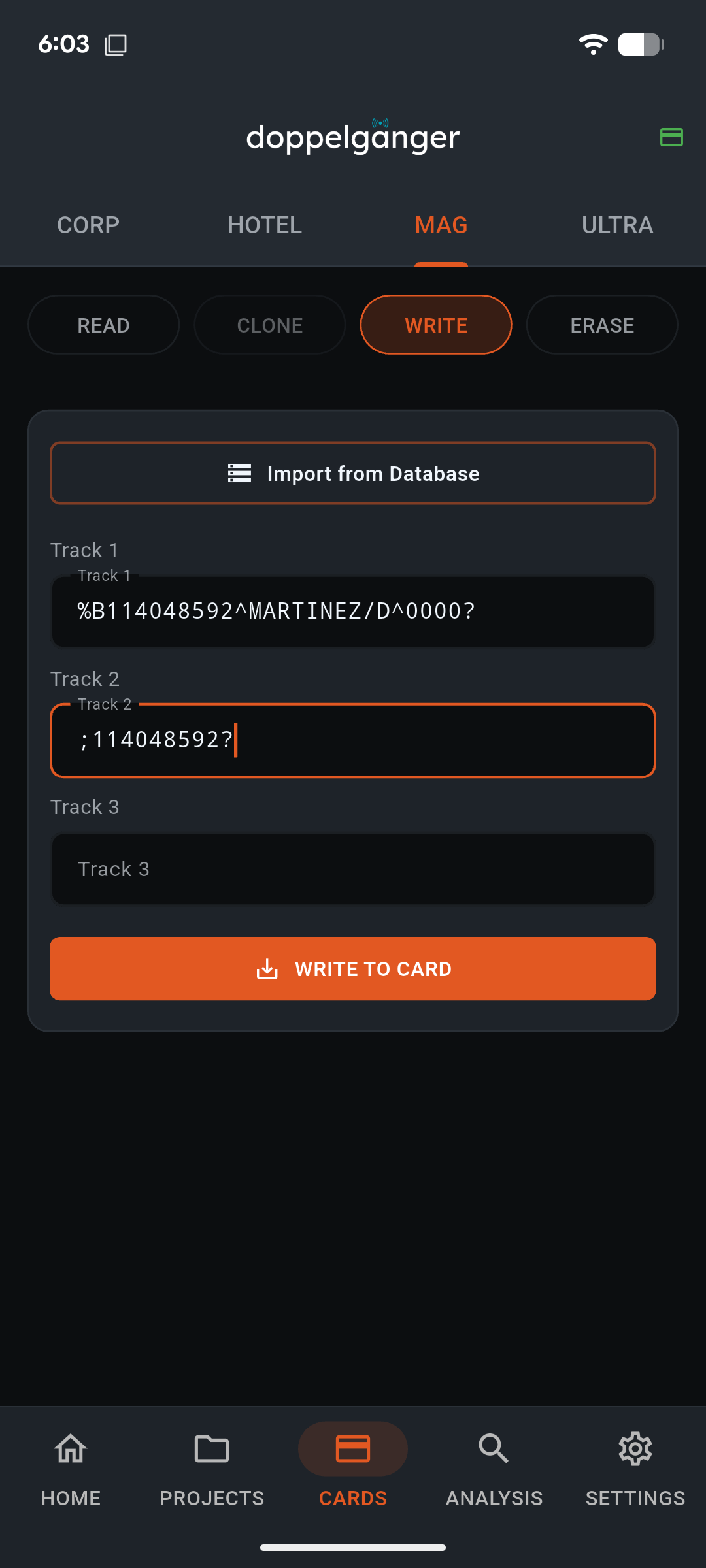
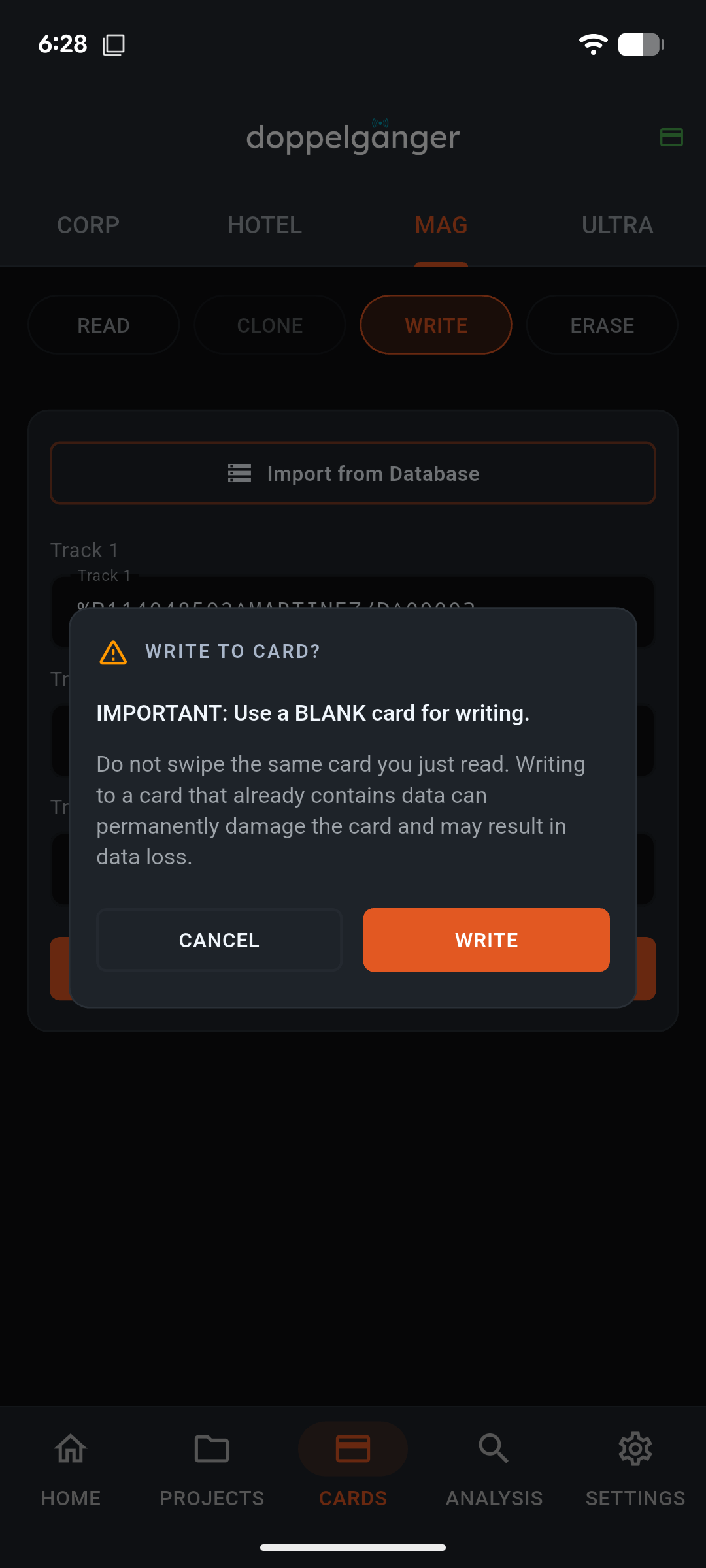
- Import sits above the fields, so it is offered before typing.
- Live with empty fields. It refuses the write rather than arming on nothing.
- Track 1, credential plus holder.
- Track 2, the credential alone. This is the one that matters.
- Left empty on purpose. A track you do not need is one more thing to reject.
- Use a blank. This is the warning that saves a working badge.
- WRITE arms. The swipes come after.
- Tap WRITE. Three fields appear, one per track.
- Type the tracks. Sentinels are added for you if you leave them off, so
114048592in Track 2 becomes;114048592?. - Leave Track 3 empty. Writing a track you do not need only gives a reader more to reject.
- Tap WRITE TO CARD and confirm.
- A toast tells you how many swipes to make. Swipe once for each track you filled.
The swipe count comes from a toast, not a banner
Section titled “The swipe count comes from a toast, not a banner”You do not have to count the filled fields yourself. The moment the confirmation is accepted, and before the write command goes out, one toast appears with the number in it.
| Filled tracks | The toast |
|---|---|
| One | Swipe the card 1 time |
| Two | Swipe the card 2 times |
| Three | Swipe the card 3 times |
Those three are the only ones you will see. With all three fields empty, WRITE TO CARD refuses before the confirmation with No track data to write, so there is no zero case.
The toast appears once, up front, not once per track. It is also the only on-screen instruction during a write. The persistent status banner that a read and an erase both put up is deliberately suppressed here, because the toast already carries the count.
When a write fails, the message names the reason
Section titled “When a write fails, the message names the reason”A failed write raises an error toast built from the device’s own status byte. The track number is prefixed to it, and because the mapped message already starts with Write error, the words appear twice. A card that was not blank reads exactly like this on screen:
Track 2 write error: Write error: Card not blank - erase firstNine device failures can reach you, and the write stops at the first track that returns one. Tracks already written before the failure stay written.
| The message after the prefix | What it means and what to do |
|---|---|
Write error: Read/write error | The device could not read back what it put on the stripe. Reswipe. A repeat on a fresh blank points at the head rather than the card. |
Write error: Invalid command format (device rejected command before swipe) | The device refused the command and no swipe ever happened. Nothing was written. Disconnect and reconnect the reader, then retry. |
Write error: Track encoding error - check data format | A character in that field cannot be encoded on that track. Track 2 and Track 3 are numeric only, Track 1 is alphanumeric. Retype the field. |
Write error: Invalid command | The device did not recognize the command at all. Treat it the same as a rejected format and reconnect. |
Write error: Card not blank - erase first | The blank already carries data. Run ERASE on it and write again. |
Write error: Card jammed or swipe too fast | The swipe was too quick or the card stalled in the slot. Swipe again, slower and in one motion. |
Write error: Device busy | A previous operation has not finished. Wait, then retry. |
Write error: Internal error | The device reported a fault in itself. Power cycle the reader. |
Write error: Write mode swipe error (bad/failed swipe) | The swipe was seen but the encode did not take. Swipe again, and if it repeats on the same blank, change blanks. |
A tenth outcome is not a status byte at all. If the device answers with something the app cannot place, the toast reads Track 2 write failed - no confirmation. Nothing is known about the stripe at that point, so read the card back before you do anything else with it.
Fill the tracks from a saved credential
Section titled “Fill the tracks from a saved credential”Everything above assumed you are typing the credential. You rarely are. A badge you read an hour ago is already in the card database, and the whole round trip out to it and back is four screens.
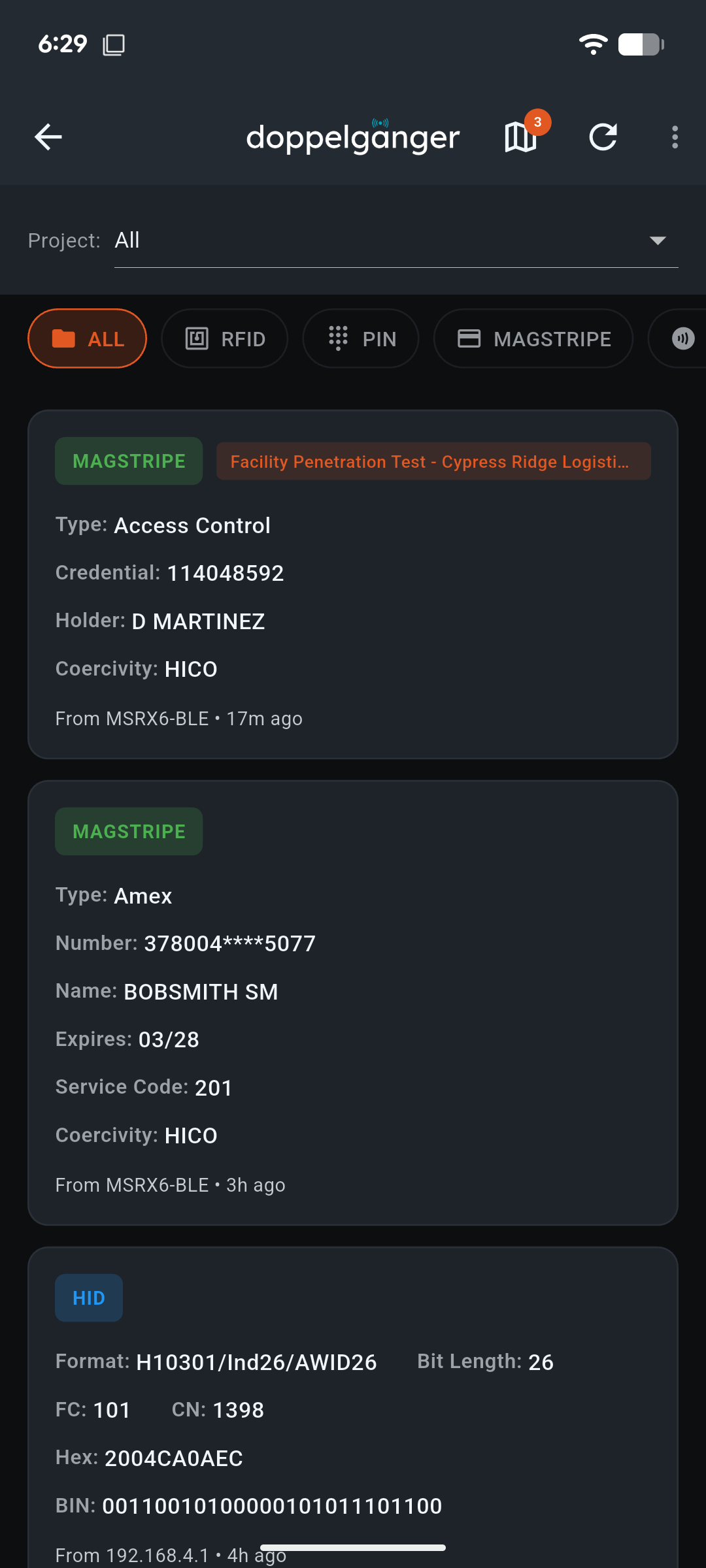
- Sits above the fields, so the import is the first thing offered rather than typing.
- Stays live with empty fields and refuses the write rather than arming on nothing.
- Narrows the list to one engagement before you go looking.
- The classification the record was saved with, so you know what you are about to write.
- Check this before you pick a blank. The write panel does not repeat it.
- Filled from the record, sentinels and all.
- An empty track comes back as its two sentinels. Leave it, it is not written.
- Identical to a typed write from here. The import changed where the data came from, nothing else.
- Still one swipe per filled track once this is confirmed.
- Tap WRITE. The three track fields come up empty, with Import from Database above them.
- Tap Import from Database. The card database opens on every record, not just magstripe ones.
- Narrow it. The MAGSTRIPE chip drops everything that is not a swipe record, and the Project picker at the top drops everything outside the engagement you are working.
- Tap the record. The database closes, the tracks land in the fields, and the panel is back in write mode.
- Tap WRITE TO CARD, confirm, and swipe once per filled track.
The record carries what it was classified as when it was saved, so an access control badge comes back reading Type: Access Control, Credential and Holder, with no expiry and no service code to mislead you about what you are writing.