
File Manager
A key recovery writes three files. A sniff writes a trace. A capture writes half a gigabyte. None of it is visible from the surface that produced it, and all of it has to come off the phone at the end of the engagement, some of it into the report and some of it into a client’s hands.
The File Manager is the one place that sees all of it. It is also the fastest sanity check you have on a run that went wrong, because the size tells you what happened before you open anything. A 1.0 KB dump off a card you believed was 4K is a misidentification you want to know about on site rather than at the write-up.
Settings, then File Manager. Everything ATLAS has written, newest first, regardless of which surface produced it.
One list, nine filters
Section titled “One list, nine filters”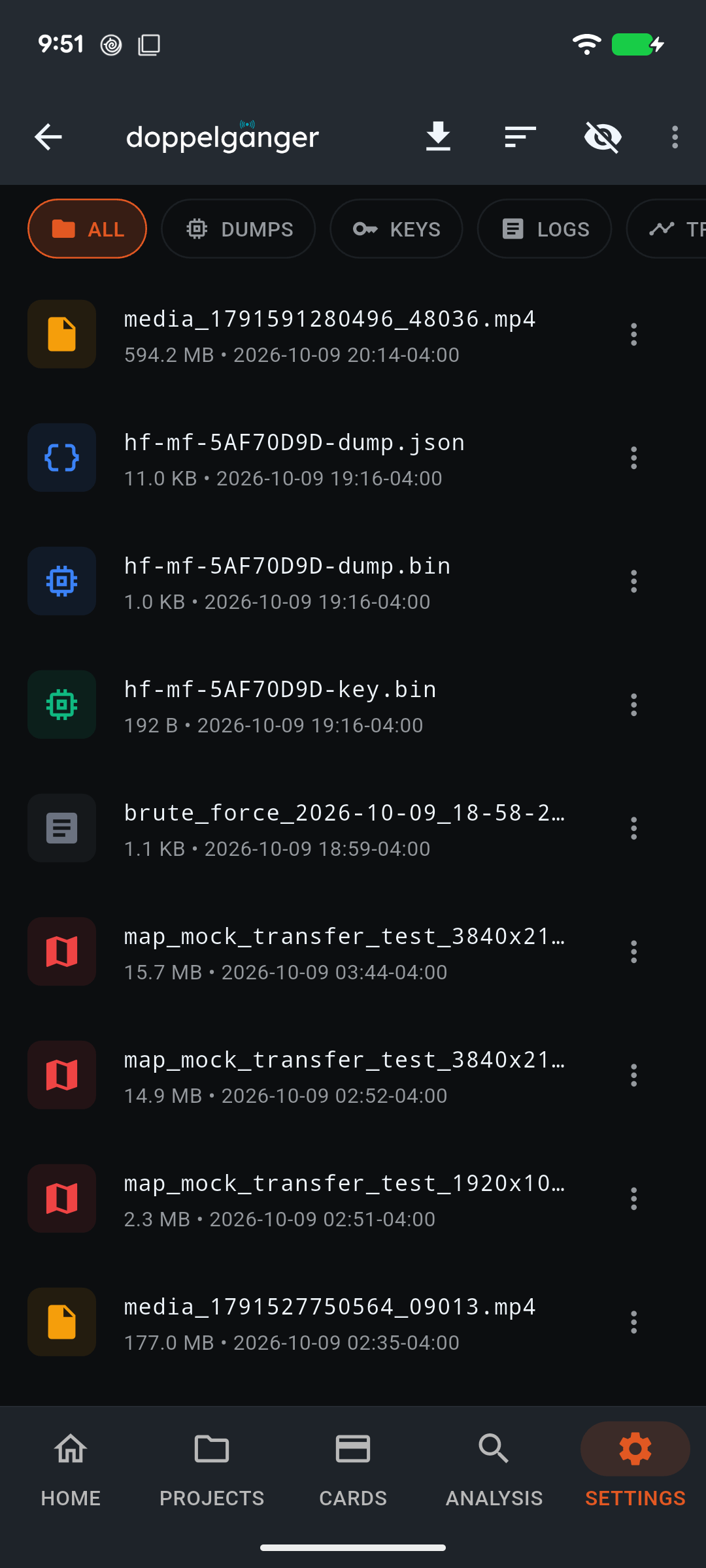
- Import, sort and a hide control, then the overflow.
- ALL, DUMPS, KEYS, LOGS and TRACES. The chips are kinds, not folders.
- A video capture, and the single largest thing the app will ever write.
- A card dump as both .json and .bin, written by the same recovery run.
- The key file, 192 bytes, which is what makes the dump readable.
- A brute force session log. Encrypted on disk.
| Chip | What it shows |
|---|---|
| ALL | everything, newest first |
| Dumps | card dumps, .bin, .eml and .mfd |
| Keys | key files, .dic and anything named for a key or a decryption key |
| Logs | log files, .log and anything prefixed log_ |
| Traces | .trace, .pm3 and sniff files |
| TAK | TAK server logs, tak_*.log, written by the TAK integration |
| Exports | KML, GeoJSON, CSV and project .atlas or .json exports |
| Maps | map screenshots, the PNGs prefixed map_ |
| Media | photos and videos from projects |
| Other | everything the eight above do not claim |
The chips are kinds, not folders. A file is sorted into one by its name and extension, so a dump written by one surface and a dump imported from another land under the same chip wherever they physically sit.
Each row carries size and timestamp, which is the whole reason to come here. A dump that is 1.0 KB is a 1K card. A key file at 192 bytes is 16 sectors times two keys times six bytes. A capture at 594 MB is a minute of 4K.
What a recovery run leaves behind
Section titled “What a recovery run leaves behind”One key recovery on a Classic 1K produced three files, all stamped the same minute:
| File | Size | What it is |
|---|---|---|
hf-mf-<uid>-dump.json | 11.0 KB | the card contents with structure, readable without a hex editor |
hf-mf-<uid>-dump.bin | 1.0 KB | the raw 1024 bytes |
hf-mf-<uid>-key.bin | 192 B | the keys the attack recovered |
The .json is the one to attach to a report. The .bin is the one to feed back into a clone.
Video dwarfs everything else
Section titled “Video dwarfs everything else”In the listing above, one capture is 594.2 MB and every card artifact together is under 15 KB. That ratio is not unusual, it is the normal state of a phone after a job.
Logs are not all readable
Section titled “Logs are not all readable”The header controls
Section titled “The header controls”The header has two states and they are mutually exclusive. Normally it carries three controls and an overflow menu. Once the list is in selection mode it carries a close X on the left and four selection controls instead, and the import, sort, session-log and overflow controls are gone until you leave.
Normally
| Control | What it does |
|---|---|
| Import | opens the IMPORT FILES sheet, whose one action is Import Any File, which copies a file in from the phone |
| Sort | by Date, Name, Size or Type, and tapping the current key again reverses it |
| Show Session Logs / Hide Session Logs | toggles the UART session logs into and out of the list. The tooltip says which way the next tap will go |
| overflow | four entries, listed below |
In selection mode
| Control | What it does |
|---|---|
| X, at the left | leaves selection mode and clears the selection |
| Select All | takes every file currently shown. Tap it again with everything already taken and it clears the selection instead |
| Tag to Project | files the selection against a project. Disabled until something is selected |
| Share Selected | hands the selection to another app. Disabled until something is selected |
| Delete Selected | removes the selection. Disabled until something is selected |
The overflow menu
Section titled “The overflow menu”| Entry | What it does |
|---|---|
| Select Files | enters selection mode |
| Refresh | re-reads the directories and rebuilds the list |
| Clear Session Logs | deletes every UART session log |
| Delete All | deletes every file in the list |
The last two sit below a divider because both destroy data. Each raises its own confirmation first.
| Entry | Dialog | Body | Confirm button |
|---|---|---|---|
| Clear Session Logs | CLEAR SESSION LOGS | Delete N session log(s)? then Card dumps and keys will NOT be deleted. | CLEAR |
| Delete All | DELETE ALL FILES | Delete all N file(s)? This cannot be undone. then Note: System files (keys, scripts) will not be deleted. | DELETE ALL |
With no session logs present, Clear Session Logs does nothing and reports No session logs found. After a clear it reports Cleared N session log(s). With nothing in the list at all, Delete All does nothing and says nothing.
Session logs are hidden when the screen opens, and the toggle does not persist. Every Proxmark session writes one, and left visible they bury everything else in a list sorted by date, which is why they start out of the way.
What you can do with one file
Section titled “What you can do with one file”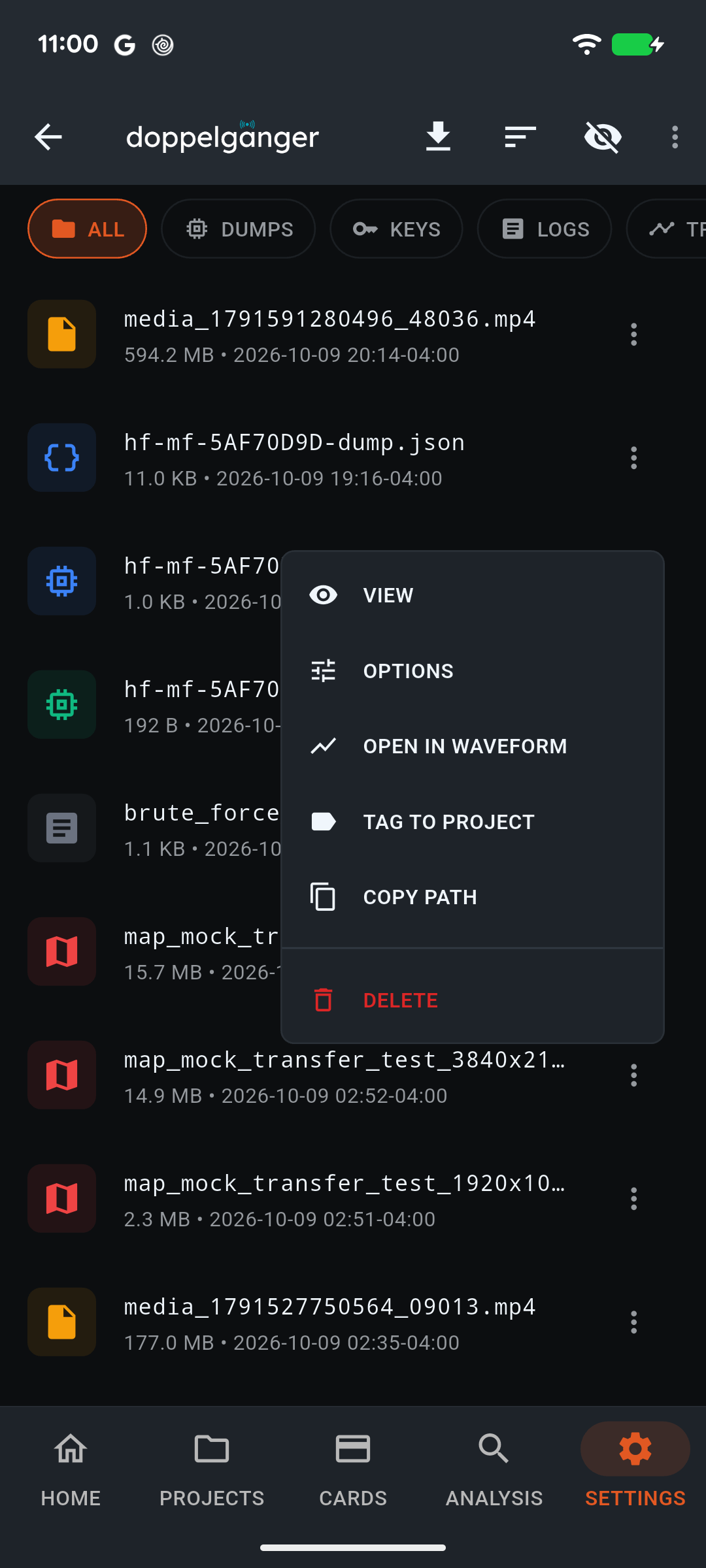
- VIEW, which opens the file in the app rather than handing it to another one.
- OPTIONS, which opens the file actions sheet.
- OPEN IN WAVEFORM, offered on a trace or a dump.
- DELETE, red, and it is permanent.
Every row carries a kebab at its right. It opens six entries.
| Entry | What it does |
|---|---|
| VIEW | opens the file inside ATLAS |
| OPTIONS | opens the file actions sheet, below |
| OPEN IN WAVEFORM | hands the file to the waveform analysis surface |
| TAG TO PROJECT | files it against a project |
| COPY PATH | copies the path to the clipboard |
| DELETE | removes it permanently |
OPTIONS opens a sheet headed with the file name and six actions.
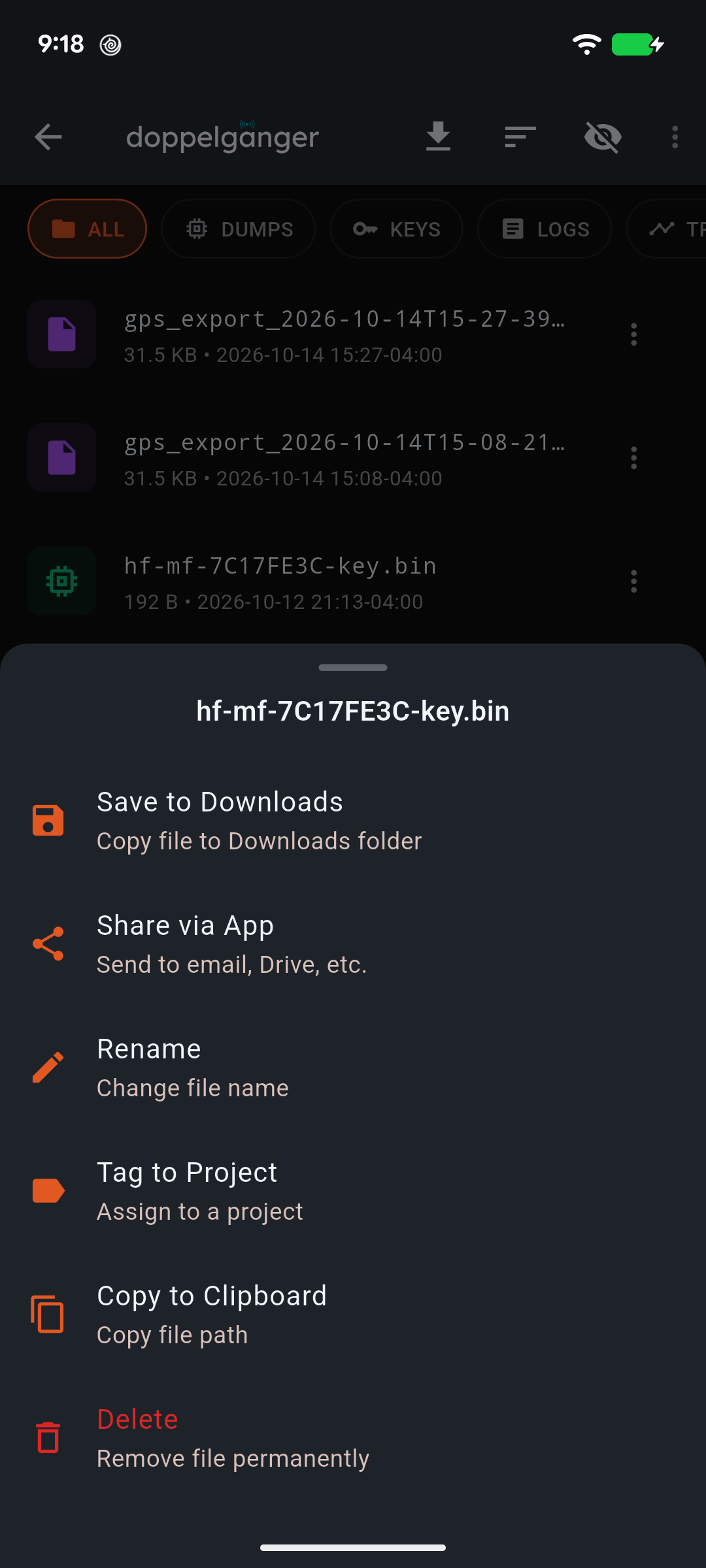
- The sheet is headed with the file name, so there is no doubt which row you opened.
- Save to Downloads, the one that puts a copy outside the app.
- Share via App hands it straight to another app instead.
- Rename, which is the only way to change a name the app generated.
- Tag to Project, and it reads Currently tagged once it has one.
- Delete, red, and the subtitle says permanently.
| Action | Subtitle |
|---|---|
| Save to Downloads | Copy file to Downloads folder |
| Share via App | Send to email, Drive, etc. |
| Rename | Change file name |
| Tag to Project | Assign to a project, or Currently tagged when it already has one |
| Copy to Clipboard | Copy file path |
| Delete | Remove file permanently |
Selection mode offers Save to Downloads and Share via App across several files at once.