
Barriers and perimeters
A barrier is the only record in ATLAS that is a line rather than a point. It is drawn on the map as a polyline, it can be closed into a perimeter, and its length is calculated from the vertices you place.
Home, then Add Artifact, then Fence / Wall.
Drawing one
Section titled “Drawing one”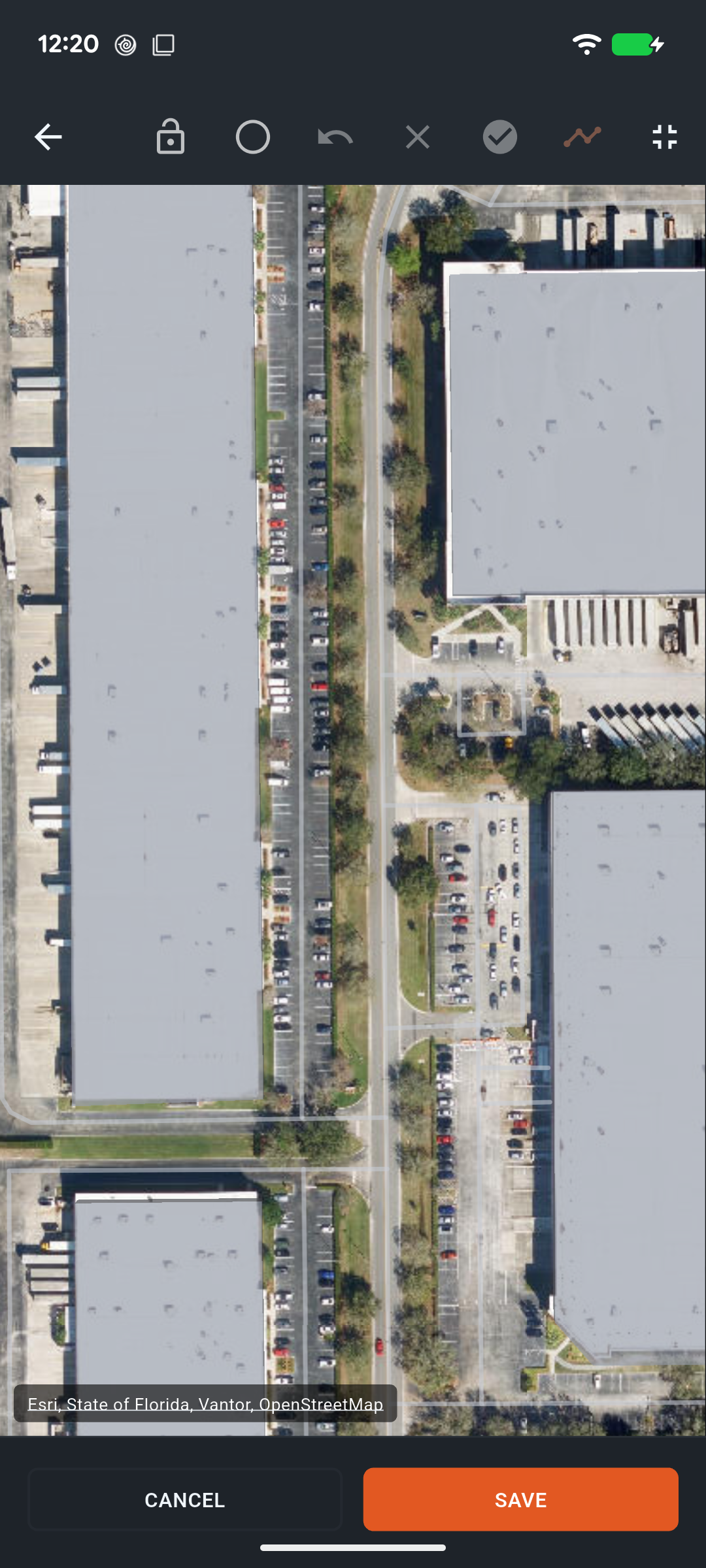
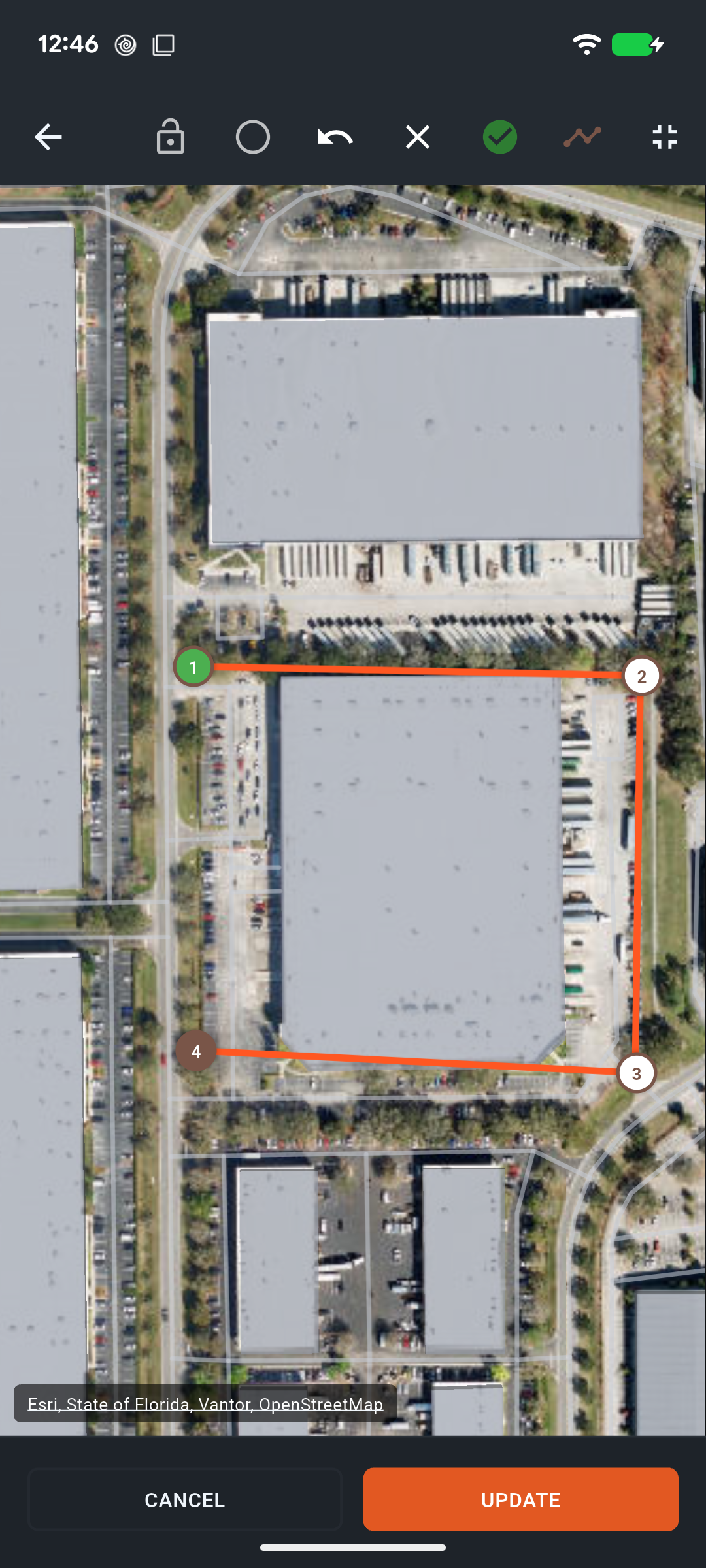
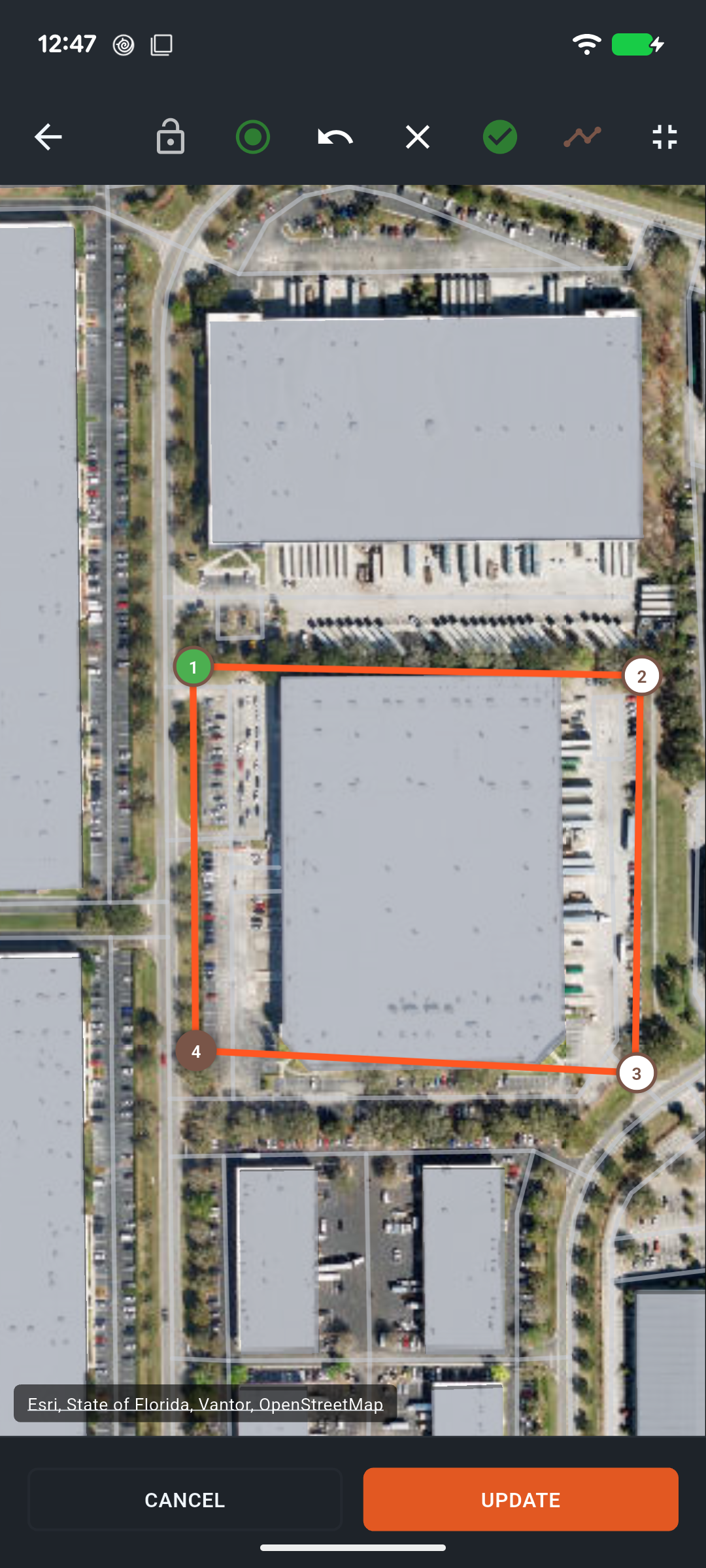
- Seven controls while placing, and the draw tool is lit.
- The map opens at zoom 17, close enough to place a post rather than a building.
- Set fence, green from two vertices on.
- Vertex 1 is green, the rest brown, so the start of the run is never ambiguous.
- The run goes around the site, not through the building.
- Close fence is filled once the loop is closed.
- The closing segment is drawn, and it counts toward the perimeter length.
- Closed, and everything the client leases is inside it.
- Tap Draw fence line. Tap Expand map first if you want the whole screen.
- Tap the map once per vertex. Each one is numbered as it lands, and vertex 1 is green so the start of the run stays obvious. A long press within about 30 m of a vertex deletes that vertex.
- Tap Close fence (connect ends) if the barrier returns to its start, which needs three vertices. A closed run adds the final segment back to vertex 1.
- Tap Set fence to lock the vertices, which needs two. The handles disappear and LINE THICKNESS, LINE STYLE and LINE COLOR appear in the form under HEIGHT. Nothing is written to the record yet.
- Collapse map and fill in the record below it.
- SAVE. Nothing before this step writes the barrier to the project.
The eight controls, and which state each belongs to
Section titled “The eight controls, and which state each belongs to”The toolbar is state-gated, so you never see all eight at once. Three are always there. The four drawing controls and the single fence-set control are mutually exclusive.
| Control | Shown when | What it does |
|---|---|---|
| Lock the page / Unlock the page | always | holds the page still while vertices are dragged, so a drag moves a point rather than the map |
| Draw fence line / Exit drawing mode | always | enters drawing mode, and leaves it. Leaving discards every vertex |
| Expand map / Collapse map | always | full screen and back |
| Close fence (connect ends) / Open fence | drawing, fence not set | joins the last vertex back to the first, and releases it again |
| Undo last point | drawing, fence not set | removes the most recent vertex |
| Clear all points | drawing, fence not set | removes every vertex |
| Set fence | drawing, fence not set | locks the vertices and hides their handles. It does not write anything to the record |
| Edit fence points | drawing, fence set | unlocks the vertices again and brings the handles back |
So the count on screen is three out of drawing mode, seven while placing vertices, and four once the fence is set.
| Control | Threshold, and what it says when it refuses |
|---|---|
| Set fence | needs 2 vertices. Below that it refuses with Need at least 2 points to set fence |
| Close fence (connect ends) | needs 3 vertices. Below that it refuses with Need at least 3 points to close fence |
| Undo last point | on an empty run, No points to undo |
| Clear all points | on an empty run, No points to clear |
The record
Section titled “The record”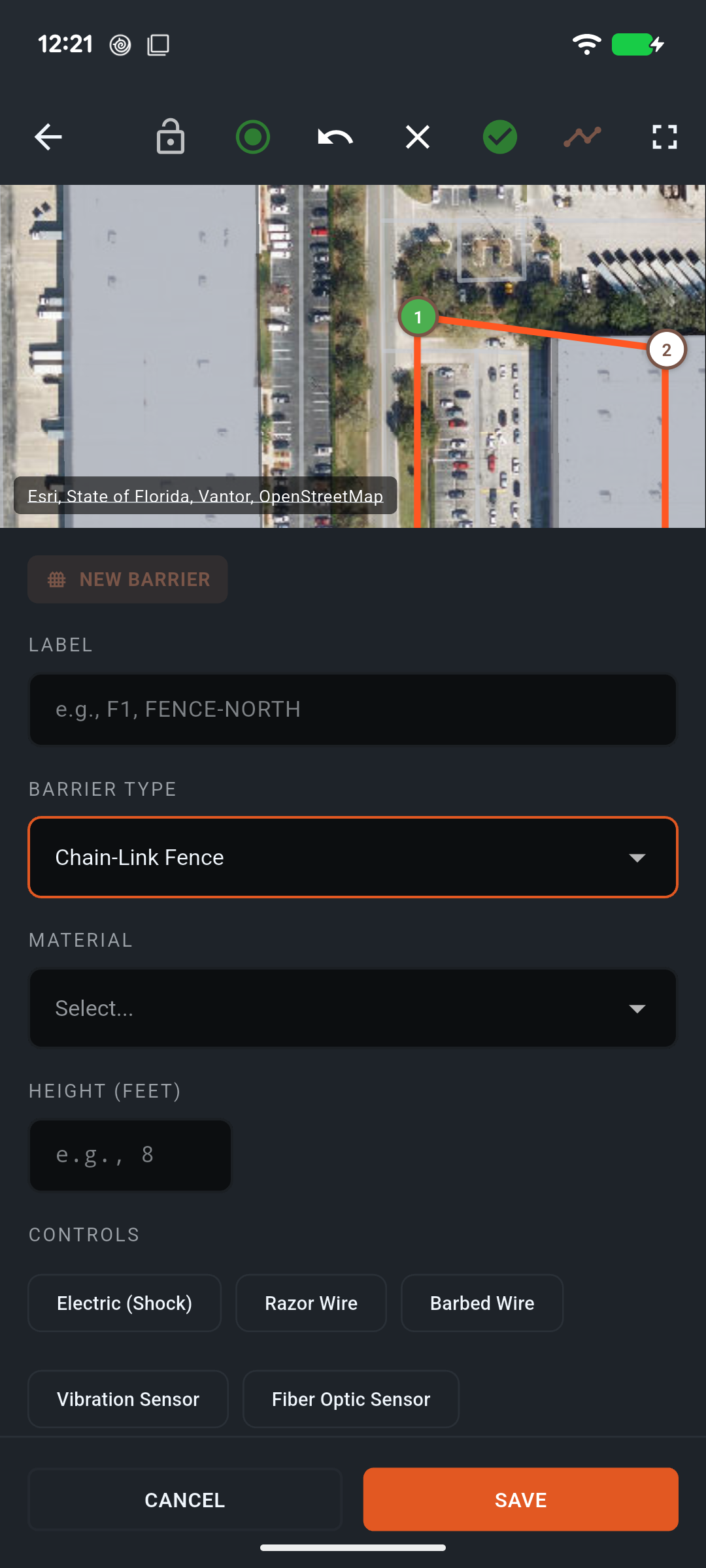
- The drawn run stays on screen while the record is filled in.
- LABEL, and the hint is the naming convention: F1, FENCE-NORTH.
- BARRIER TYPE, which is 26 options and includes zones as well as fences.
- HEIGHT, in feet or meters depending on your unit setting.
| Field | Notes |
|---|---|
| Label | the hint is the convention, F1, FENCE-NORTH |
| Barrier Type | 26 options |
| Material | 10 options, plus a Custom… row that opens the CUSTOM MATERIAL dialog |
| Height | shown in feet or meters following your unit setting |
| Line Thickness | slider, 1 px to 10 px in 1 px steps, default 4 px, with the current value shown as 4px to the right of the slider. Appears only once Set fence has been tapped |
| Line Style | Solid, Dashed, Dotted. Appears only once Set fence has been tapped |
| Line Color | twelve swatches. Appears only once Set fence has been tapped |
| Controls | 12 options, any number, plus Custom |
| Potential Bypasses | 7 options, any number, plus Custom |
| Notes | free text |
| Attached Media | photos, clips, gallery |
The three line fields are gated on the fence being set, not on a second vertex existing. Place two vertices and nothing appears. Tap Set fence and all three do.
Barrier Type, all 26
Section titled “Barrier Type, all 26”The list is wider than fences. The same record type is how a zone gets drawn, which is why a patrol area and a lease line sit beside chain-link.
Fences and walls, 12
| Chain-Link Fence | Welded Wire Mesh Fence | Palisade Fence |
| Wood Privacy Fence | Masonry Wall (Brick/Block) | Concrete Wall |
| Metal Panel Fence | Wrought Iron Fence | Bollards |
| Jersey Barrier | Crash-Rated Barrier | Hedge/Natural Barrier |
Zones and areas, 14
| Security AOR | Patrol Zone | Restricted Area |
| Sensitive Compartmented Area | Public Access Zone | Employee Only Zone |
| Loading Zone | Parking Zone | Property Boundary |
| Lease Line | Observation Point | Rally Point |
| Evacuation Route | Other Zone/Area |
Material, all 10
Section titled “Material, all 10”N/A, Galvanized Steel, Stainless Steel, Aluminum, Wood, Vinyl/PVC, Concrete, Brick, Stone, Composite
The dropdown shows eleven rows, because the tenth is followed by an italic Custom…. That row is not a material. It opens the CUSTOM MATERIAL dialog, which is a single text field hinting e.g., Welded wire mesh, with CANCEL and SAVE. Save a value and the field reads what you typed. Cancel and the field goes back to what it was, rather than sitting on Custom….
MATERIAL opens on Select... in gray on a new barrier. That placeholder is not one of the ten and it is not a stored value, so a barrier saved without touching the dropdown has no material at all.
Controls, all 12
Section titled “Controls, all 12”What the barrier has on it, in addition to being a barrier. Any number can be selected.
| Electric (Shock) | Razor Wire | Barbed Wire |
| Vibration Sensor | Fiber Optic Sensor | Microwave Sensor |
| Infrared Beam | Video Analytics | Anti-Climb Spikes |
| Anti-Climb Paint | Roller Barrier | None |
Plus Custom, which opens an Add Custom Control dialog.
Potential Bypasses, all 7
Section titled “Potential Bypasses, all 7”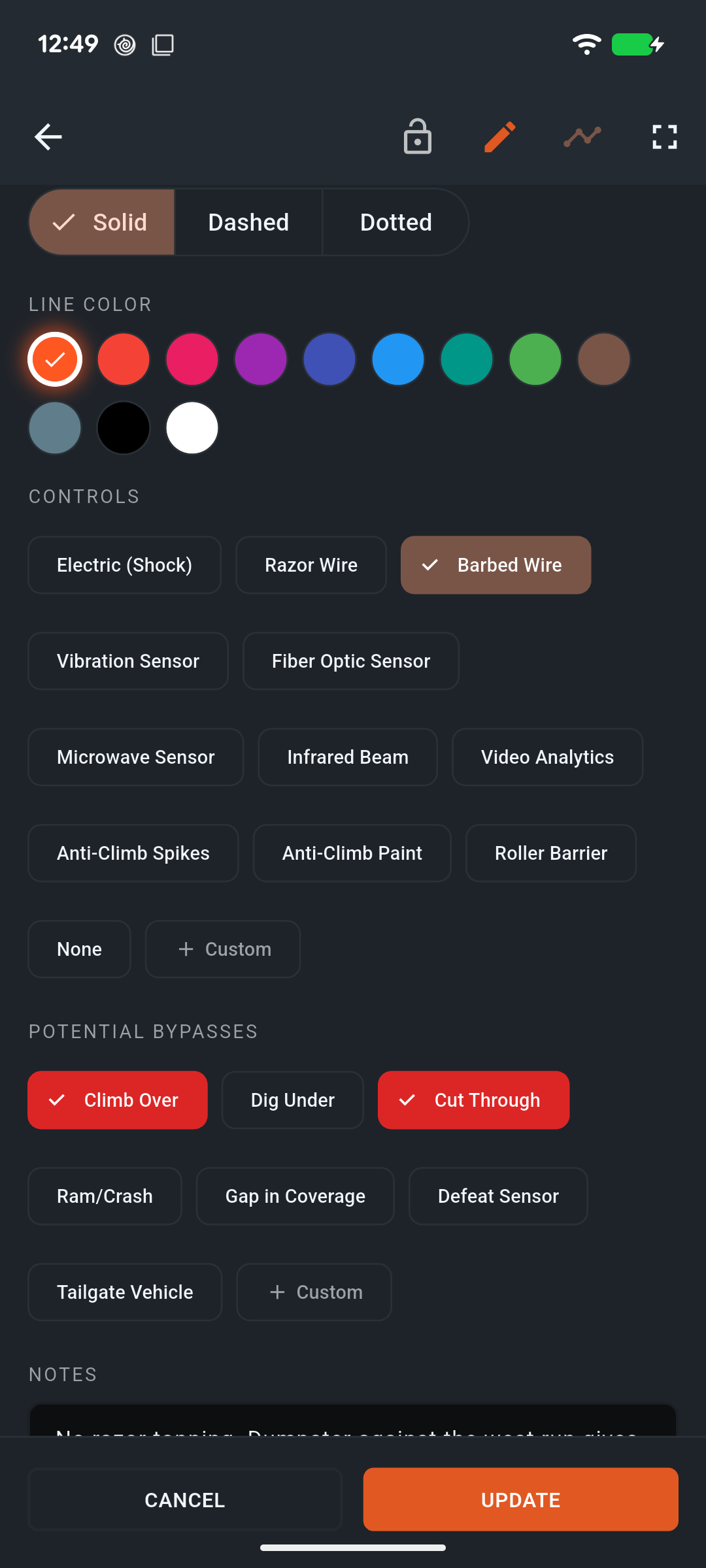
- LINE COLOR, twelve swatches rather than a typed hex value.
- Controls, selected in orange. Barbed Wire is on this run.
- Bypasses selected go red. They are findings, and they are colored like findings.
- The note carries the reasoning behind the bypass, which is what survives into a report.
Climb Over, Dig Under, Cut Through, Ram/Crash, Gap in Coverage, Defeat Sensor, Tailgate Vehicle
Plus Custom, which opens an Add Custom Bypass dialog.
A selected bypass turns red. Controls do not. That is the editor telling you which half of the record is a finding.
Perimeter length
Section titled “Perimeter length”A barrier with two or more vertices reports its length, calculated with the Haversine formula over the vertices you placed. A closed run includes the segment back to vertex 1, which is only added when there are at least three vertices.
On the operational map
Section titled “On the operational map”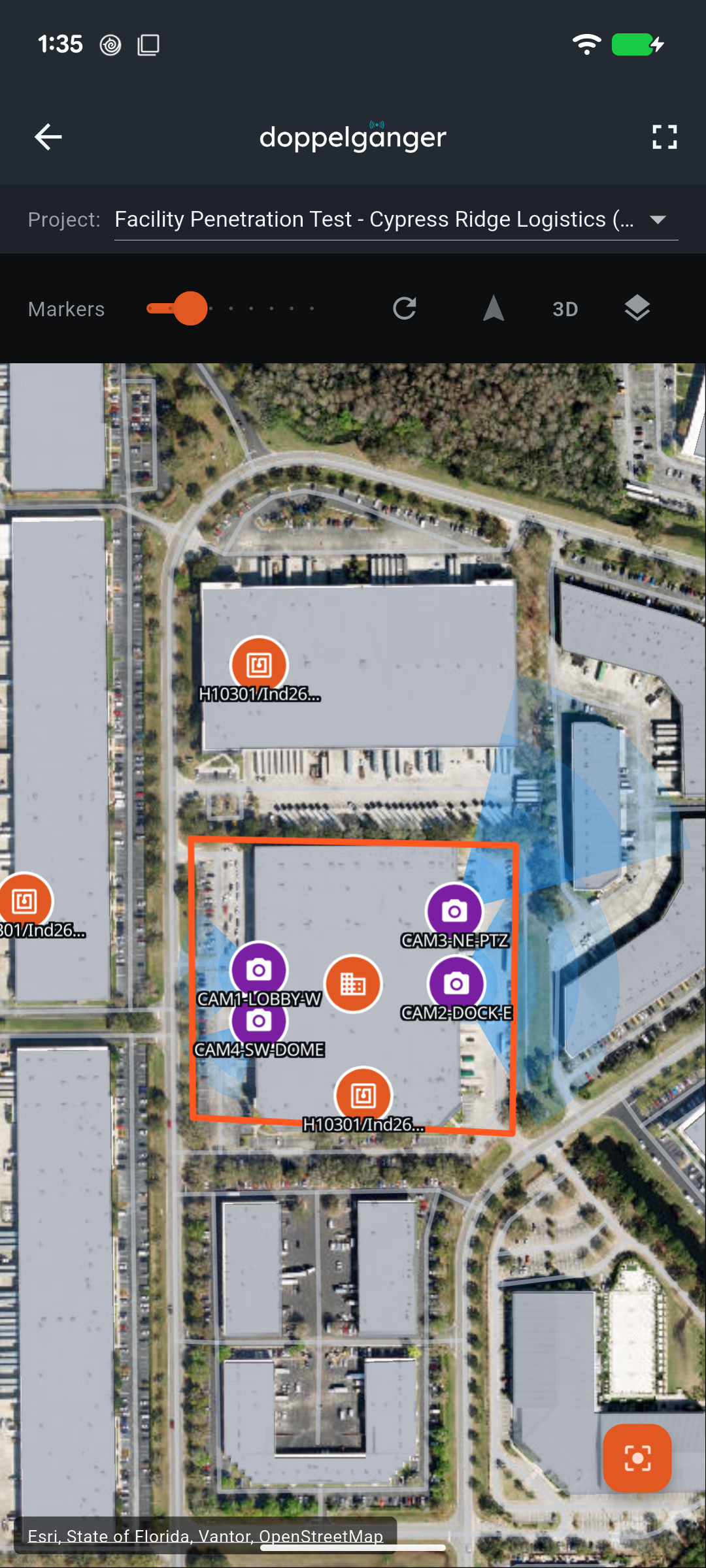
- Markers sit over the barrier, because a tap near a line almost always means the marker.
- The closed perimeter, drawn in the color and style set on the record.
- The target facility inside it, which is what makes the perimeter mean something.
Barriers draw above the camera viewing cones and below the markers. That order is deliberate. A fence runs under markers for most of its length, and a tap near one is far more likely to mean the marker.
| Behavior | Why |
|---|---|
| Each line style is its own map layer | line-dasharray is not data driven, so asking one layer to read the style off the feature silently drew every barrier solid |
| A tap resolves markers first, lines only if no marker was hit | a line runs under markers, and opening a stack of lines would mean dragging a wall off its run |
| Barrier width follows the Markers slider at half rate | a wall at twice the weight of the markers reads as a road, and one that shrinks as fast as a marker disappears first |
| An unrecognized style draws solid | a barrier from an import is drawn rather than dropped |