
Quick actions
On a site the thing that stops people documenting is the phone itself. Opening an app, finding a screen, typing into a form and saving it is forty seconds of standing still looking down, which is the posture that gets you noticed and the delay that means the observation never gets recorded at all.
The ACTIVE PROJECT grid exists to remove that. Four tiles, and two of them capture without opening a screen: one drops a point where you are standing, the other records you speaking. Both are done before anybody has finished walking past.
| Tile | Subtitle | What it does |
|---|---|---|
| View Project | Open project details | the full project, every record |
| Add Artifact | Add awareness item | a door, camera, fence, person or other site element |
| Add POI | Tag location | drops a point at where you are standing |
| Quick Note | Hold to record memo | records a spoken note in place on the tile |
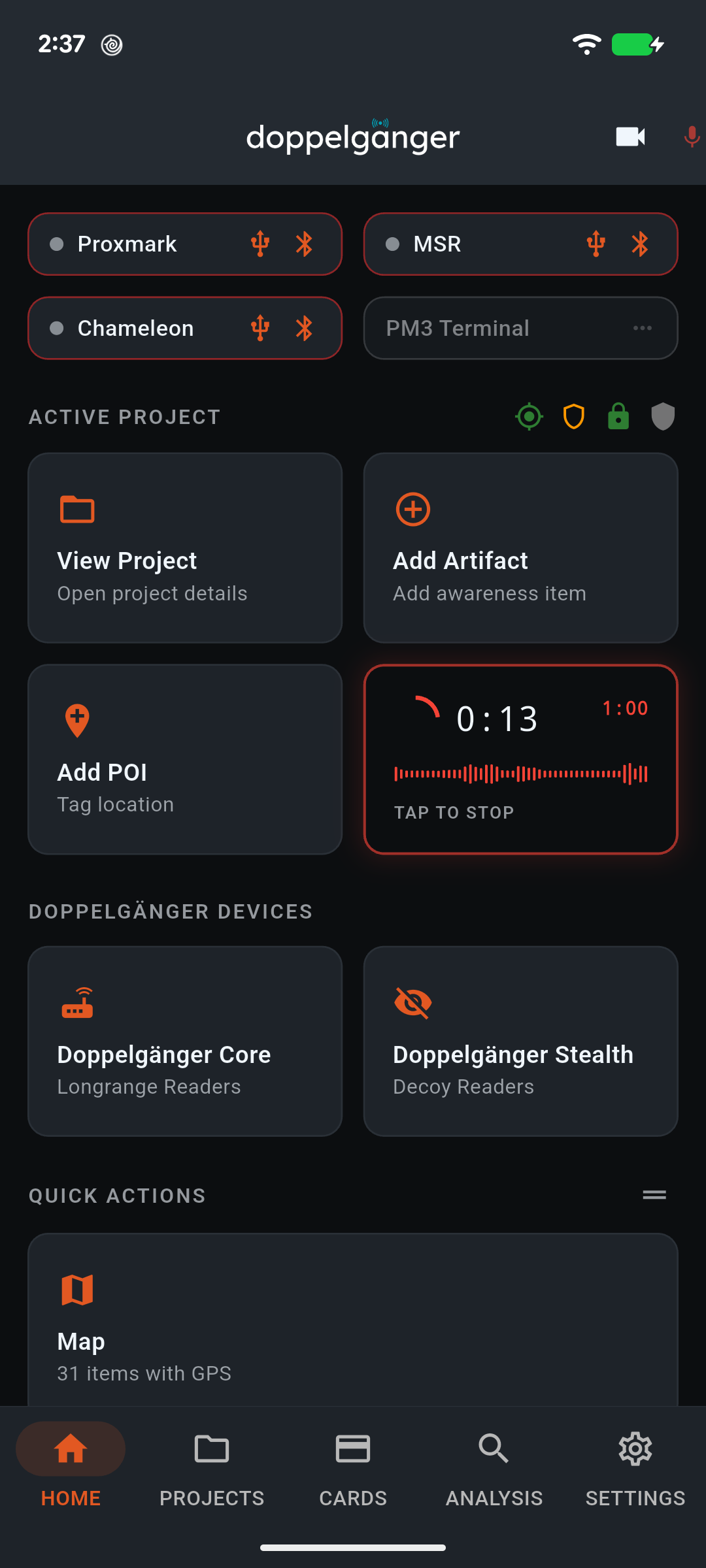
- View Project and Add Artifact, unchanged while a memo runs.
- Quick Note, recording in place rather than opening a page.
- The level meter, moving with what the microphone hears.
The two that do not open a screen
Section titled “The two that do not open a screen”Add POI takes the current position and files it. Quick Note records audio on the tile itself. Neither opens a page, so both stay usable in a few seconds without standing still reading a phone.
The strip above them
Section titled “The strip above them”The row of glyphs at the right of ACTIVE PROJECT reports state rather than offering actions. It is four indicators, and all four open a screen on a tap. The GPS crosshair opens Settings, the integrity shield and the padlock both open Security Status, and the TAK shield opens TAK Server Settings, which is the screen OpenTAK integration walks through.
Every glyph, drawn in the shapes and colors the app uses, is on Status glyphs. The one to read before you start capturing is the first, because a struck-through amber crosshair means nothing you record will carry a coordinate.
The integrity shield and the padlock only appear once the checks behind them have run, so on a cold start the row can briefly show two glyphs rather than four.
The header
Section titled “The header”Two controls sit in the app bar on Home.
| Control | Tap | Long press |
|---|---|---|
| Camera | opens the viewfinder to frame and arm a recording | arms a recording immediately at the stored framing |
What stays available with nothing connected
Section titled “What stays available with nothing connected”All four project tiles work with no hardware at all. So do Map, Card Database and File Manager under Quick Actions. The surfaces that need a device are drawn gray with the device named, which is covered in the Home overview.
The fourth tile at the top is also worth re-pointing before a hardware-free day. It ships pointing at PM3 Terminal, which needs a Proxmark, and a long press moves it to Current Project, Map, Projects, Card Database or Files, all of which work with nothing attached.
That matters for planning. You can set a project up, place doors and cameras from a walk-around, and record memos and photos, before any reader comes out of the bag.
The seven actions
Section titled “The seven actions”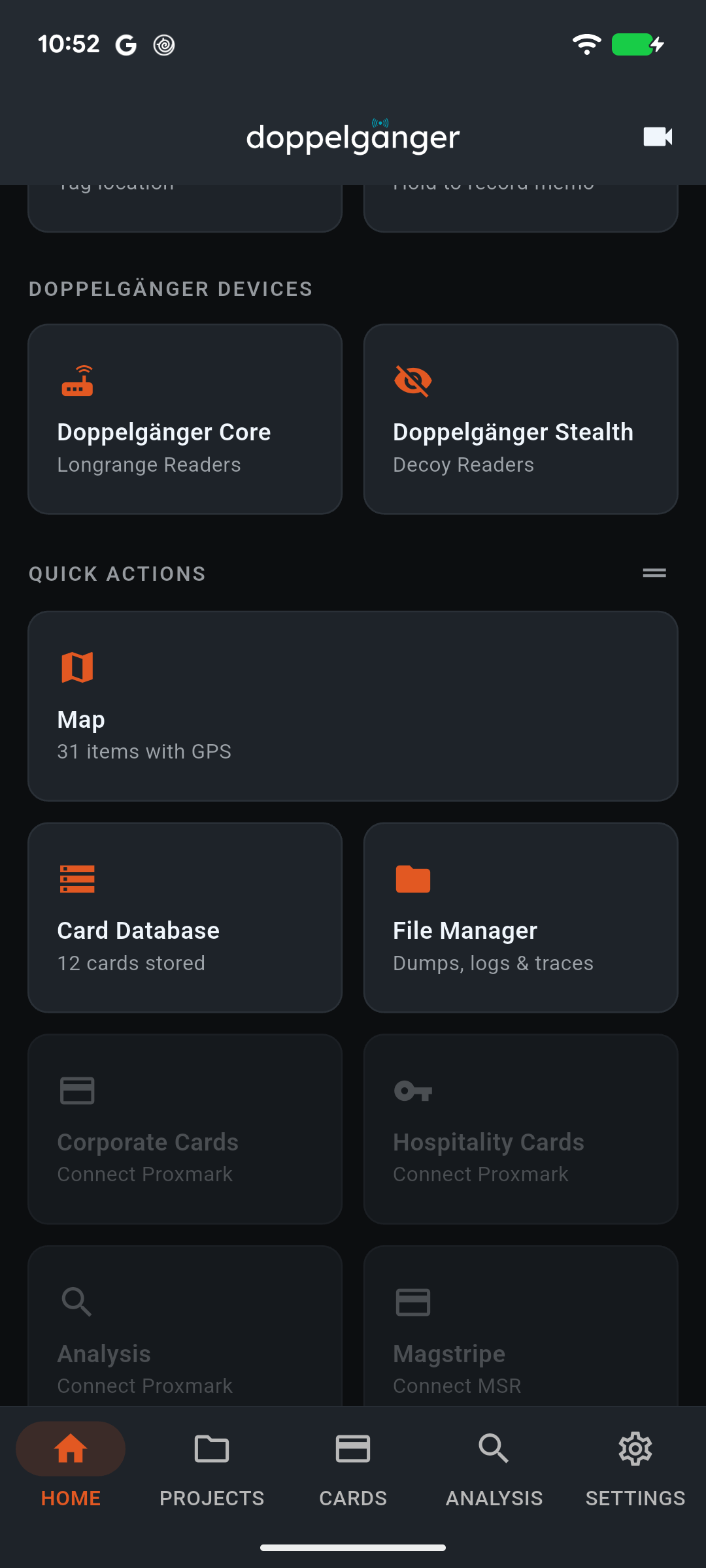
- DOPPELGANGER DEVICES. Both stay live with no hardware on the phone's own links.
- QUICK ACTIONS, with the reorder handle at the right of the heading.
- Map is the wide card and takes a row to itself.
- Grayed out, with the missing device named instead of a description.
Seven actions. The subtitle does double duty: on a live tile it is a count, on a disabled one it is the reason.
| Action | Live subtitle | Disabled subtitle | Width |
|---|---|---|---|
| Map | 31 items with GPS | wide | |
| Card Database | 12 cards stored | half | |
| File Manager | Dumps, logs & traces | half | |
| Corporate Cards | Connect Proxmark | half | |
| Hospitality Cards | Connect Proxmark | half | |
| Analysis | Connect Proxmark | half | |
| Magstripe | Connect MSR | half |
Map leads because it is the one always reachable, and it is the only wide card. The rest pair up two to a row, and an odd one at the end sits alone in a half width cell rather than stretching.
Map counts records that carry coordinates, not all records. A project with 40 cards and 31 items with GPS has records that will not appear on the map, which is worth knowing before you open it and wonder what is missing.
Reordering them
Section titled “Reordering them”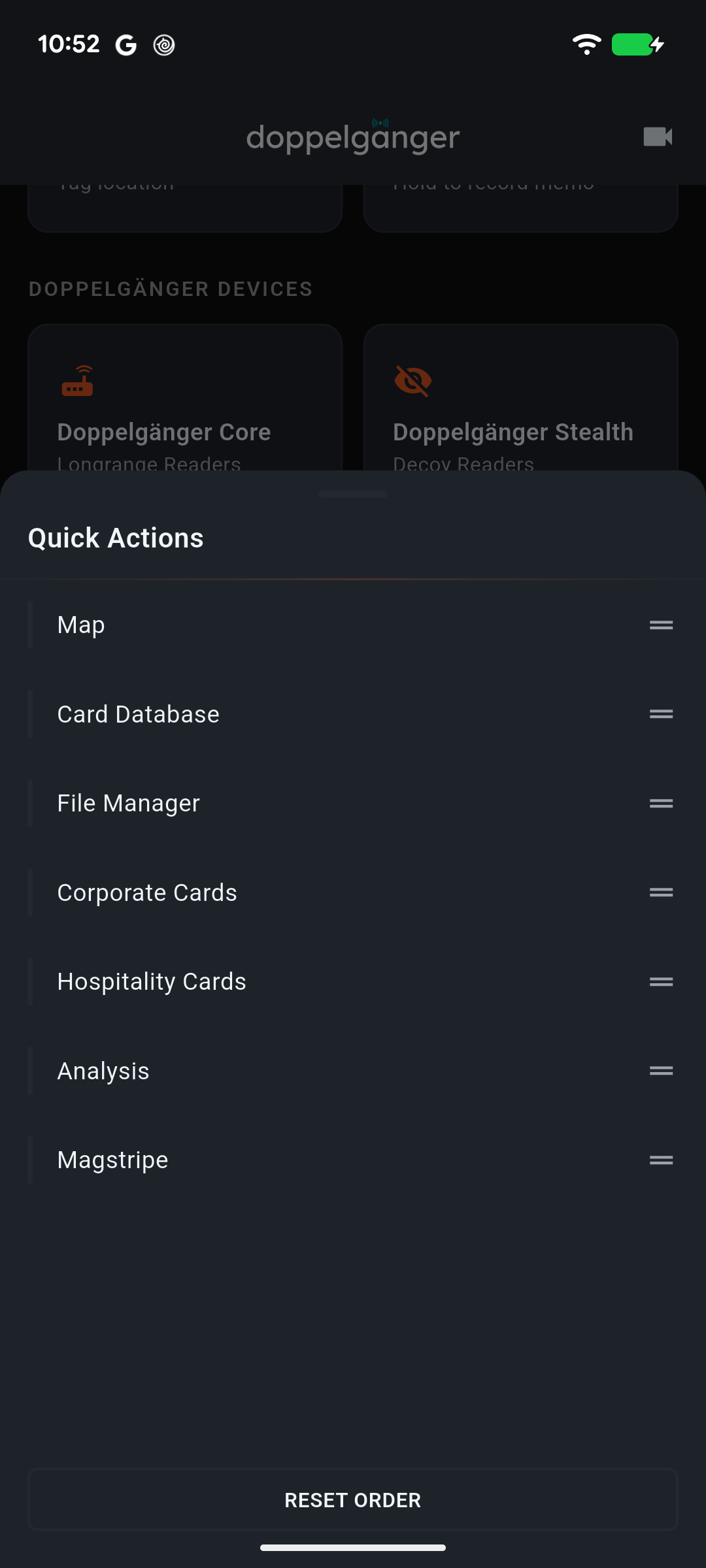
- The sheet title, and the rows below it in the current order.
- Map, first because it ships first, and draggable like the rest.
- Analysis and Magstripe, which most operators want higher on a card job.
- RESET ORDER, which puts the shipped order back.
The drag handle at the right of the QUICK ACTIONS heading opens the list. Drag a row to move it. Each move is saved immediately and the grid behind the sheet is rebuilt from the stored order.
RESET ORDER puts the shipped order back and confirms with Back to the shipped order.