
Status glyphs
Four small marks sit at the right of the ACTIVE PROJECT heading, and they are the only place on Home that reports the state of the phone rather than the state of your hardware. They exist there because all four decide whether the work you are about to do is usable afterward, and none of them announce themselves when they go wrong.
A capture with no coordinate cannot be mapped. A record written to unencrypted storage cannot be defended. A TAK link that is down means nobody else is seeing what you are seeing. Each of those is silent at the moment it costs you something, so the state is put where you look anyway.
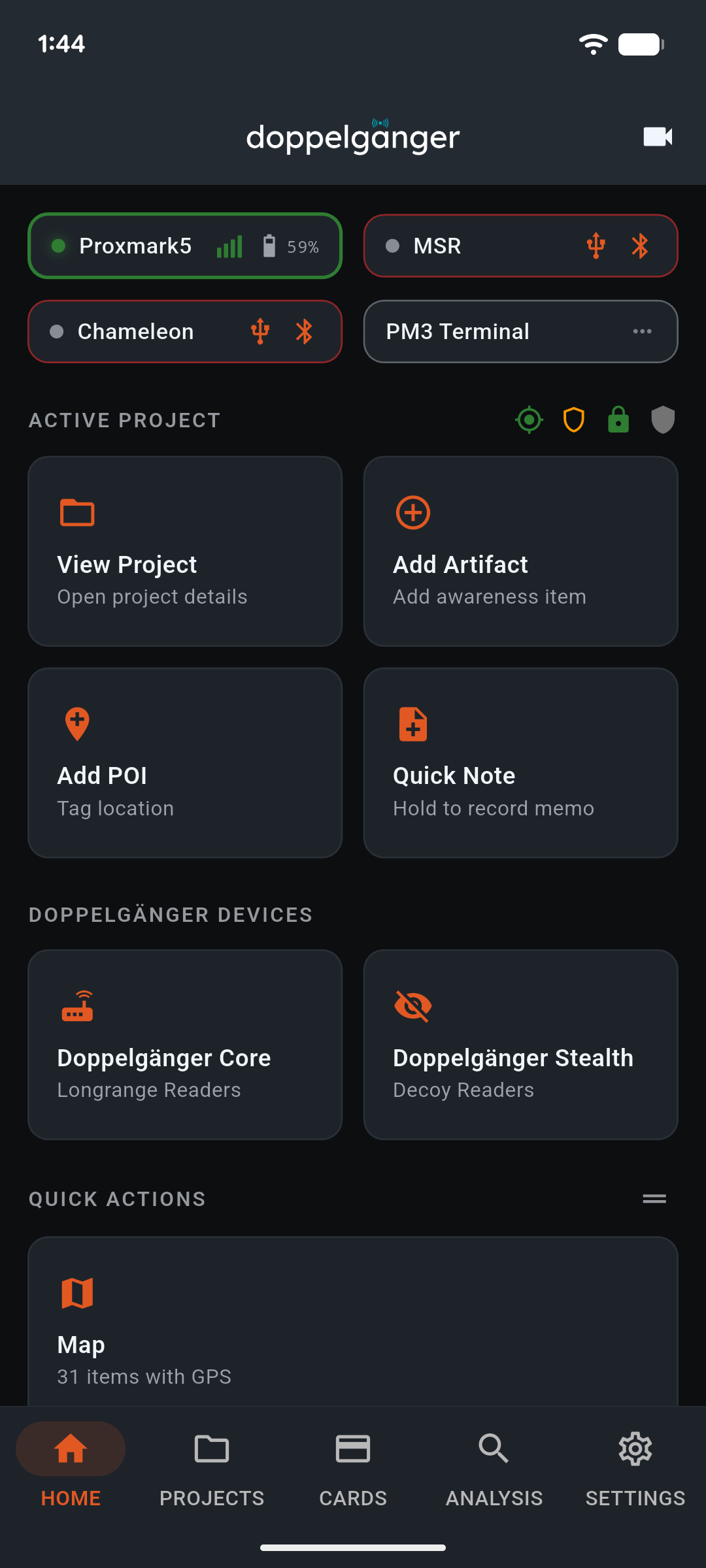
- Proxmark connected, and the two tiles beside it are not.
- The four status glyphs. Two of them are shields, which is why they are drawn below rather than named.
- The project actions sit under the row, not inside it.
The four, left to right
Section titled “The four, left to right”Two of these are shields. A table that calls one of them “the shield” and the other “the TAK shield” is no help in front of the handset, so here they are drawn as the app draws them, in the colors the app uses, in the order they appear.
Position 1, location
- Crosshair with a filled center A position is being read right now. Anything you capture carries a coordinate. Tapping it opens Settings
- Crosshair struck through, amber No position. Captures are saved with no coordinate and cannot be placed on the map later. Tapping it opens Settings
Position 2, app integrity
- Shield, solid green Every integrity check passed. Tapping it opens Security Status
- Shield, amber outline only At least one notice. The app works, and something about this handset or this build is worth knowing. Tapping it opens Security Status
- Triangle, red A critical finding. The shape changes, not just the color, so it cannot be missed on a sunlit screen. Tapping it opens Security Status
Position 3, records at rest
- Padlock, closed and solid green Stored records are encrypted. Tapping it opens Security Status
- Padlock, open and amber They are not. Worth resolving before the engagement rather than after. Tapping it opens Security Status
Position 4, TAK
- Shield, solid green Connected to a TAK server. Tapping it opens TAK Server Settings
- Shield, solid amber Connecting. Tapping it opens TAK Server Settings
- Shield, solid red The connection errored. Tapping it opens TAK Server Settings
- Shield, solid gray Disconnected, which is also what it looks like when no server is configured. Tapping it opens TAK Server Settings
A gray shield most often means no server is configured yet, which is Connect a handset. A red one is a live failure, and the usual causes are listed under Troubleshooting.
The two shields are told apart by position and by fill. The integrity shield is the second mark and is the only one that ever draws as an outline or changes shape. The TAK shield is always last and is always solid, with the color carrying the whole message.
Are they accurate
Section titled “Are they accurate”Yes, and the way to satisfy yourself of that is to tap one. The two middle glyphs are a summary of a screen that shows its working.
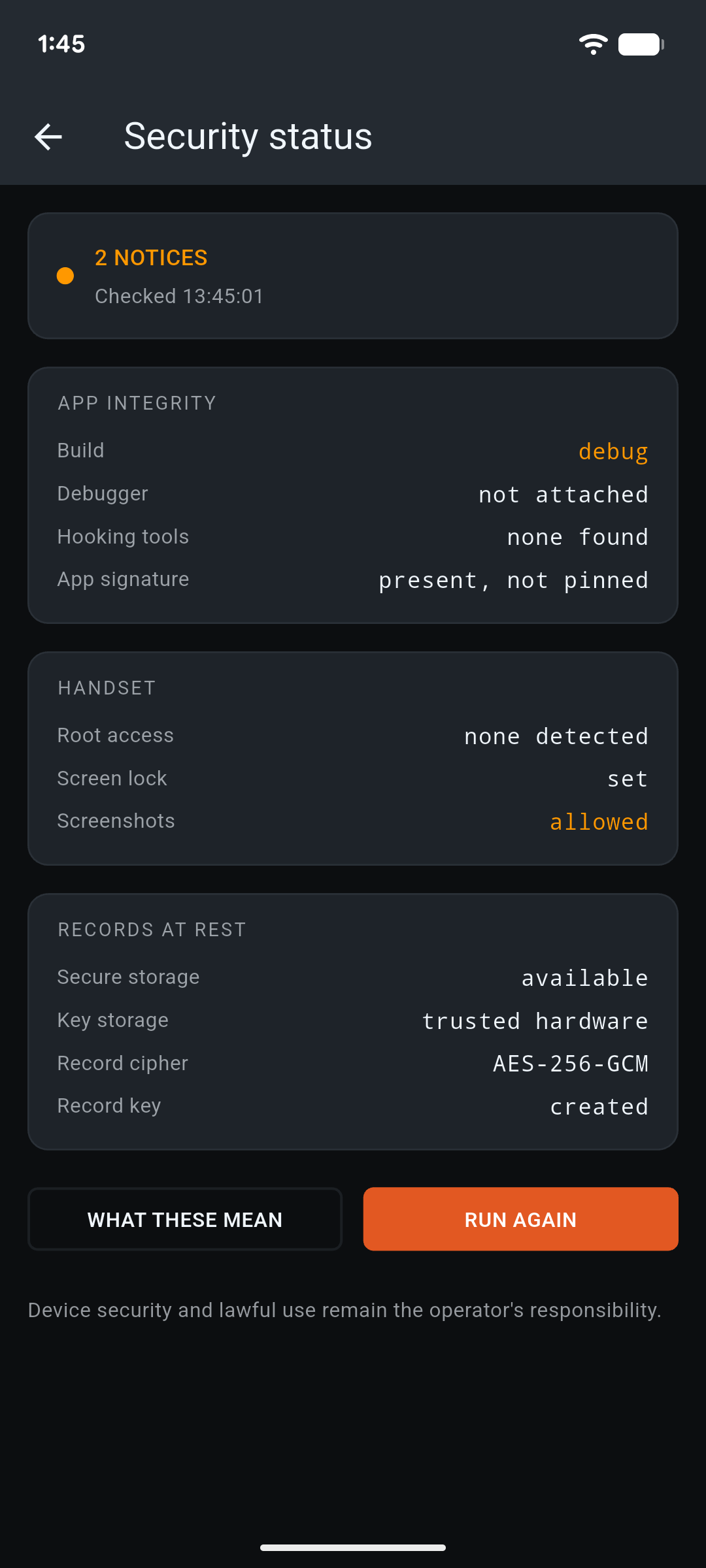
- The count, and the time it was checked. This is what the shield's color came from.
- APP INTEGRITY. The amber values are the notices, the rest passed.
- HANDSET. Root, screen lock and whether screenshots are permitted.
- RECORDS AT REST. This block is what the padlock reports.
The top line is the glyph in words, with the time it was last computed. Below it, every check that fed into it, with the ones that did not pass drawn in amber so the notices can be found without reading the whole screen.
| Block | What it covers |
|---|---|
| APP INTEGRITY | the build type, whether a debugger is attached, whether hooking tools were found, and the state of the app signature |
| HANDSET | root access, whether a screen lock is set, and whether screenshots are permitted |
| RECORDS AT REST | secure storage, where the key lives, the record cipher and whether a record key exists. This block is the padlock |
WHAT THESE MEAN explains each row in the app itself. RUN AGAIN recomputes on the spot, which is the thing to press after changing a setting rather than guessing whether the glyph has caught up.
The line at the bottom of the screen says the rest of it: device security and lawful use remain the operator’s responsibility. ATLAS reports what it can see about the handset. It does not and cannot vouch for it.