
Layout
The client prints for an eighty column terminal. A handset in portrait is narrower, so output with columns wraps mid row.
The controls on this screen change how much of that output is readable. None of them change what the client does.
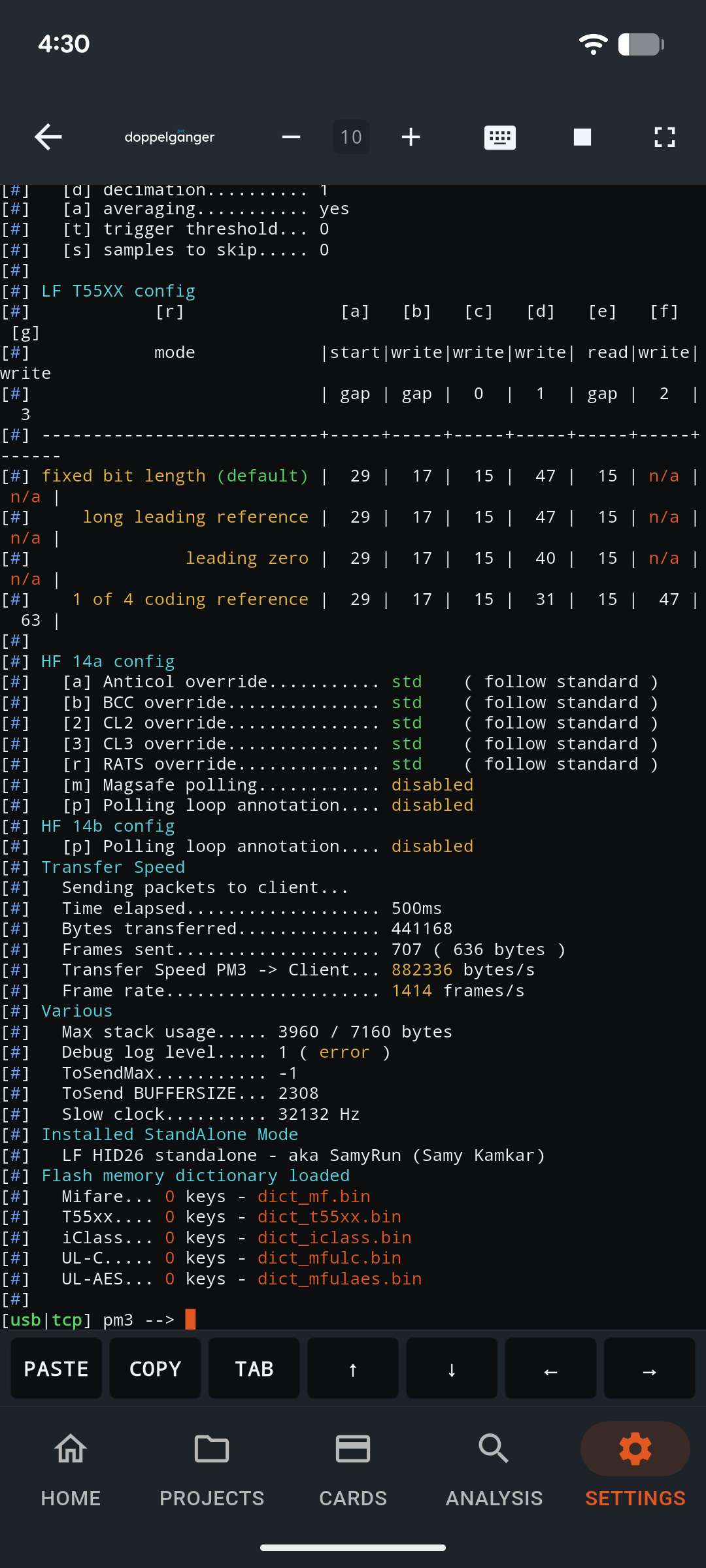
- A config table, wrapping because the rows are too wide.
- What the link is actually doing.
- The dictionaries the device has loaded.
What the app bar gives you
Section titled “What the app bar gives you”| Control | Effect | Remembered |
|---|---|---|
| Minus | font down 1pt, floor 8 | yes |
| Size chip | resets the font to 10 | yes |
| Plus | font up 1pt, ceiling 24 | yes |
| Keyboard glyph | shows and hides the input toolbar | yes |
| Square | stops the session | n/a |
| Fullscreen | hides the footer, and the app bar in landscape | no |
Both font buttons gray out at their limit.
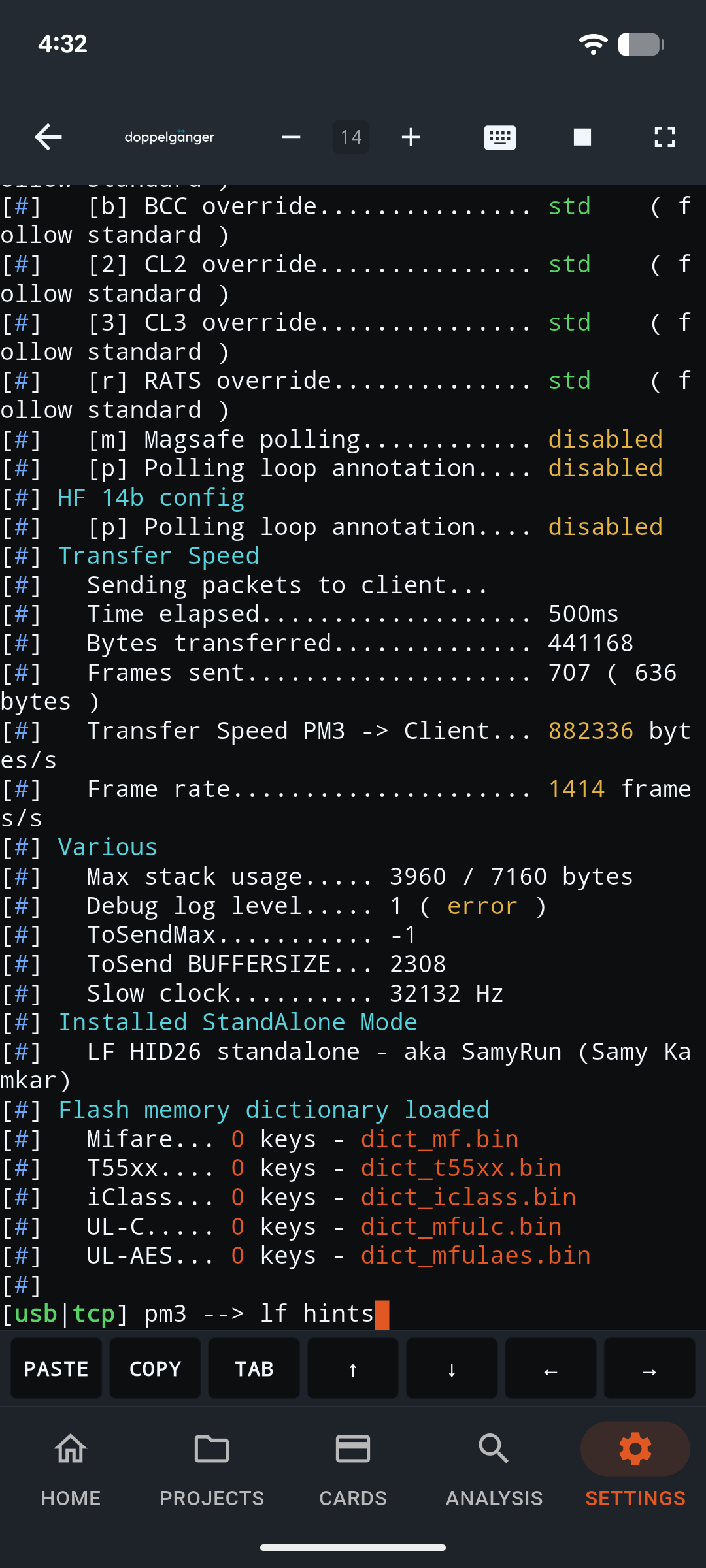
- Minus, current size, plus.
- Same output at 14pt.
- Fewer columns, so wrapping starts sooner.
Every point added takes characters off the line. Step up to read a single value, step back down before running anything with columns.
Putting the seven keys away
Section titled “Putting the seven keys away”The row along the bottom is the input toolbar, covered in Input. The keyboard glyph hides it, which buys back seven rows of output.
Hide it to read a result. Show it to use TAB or the arrows.
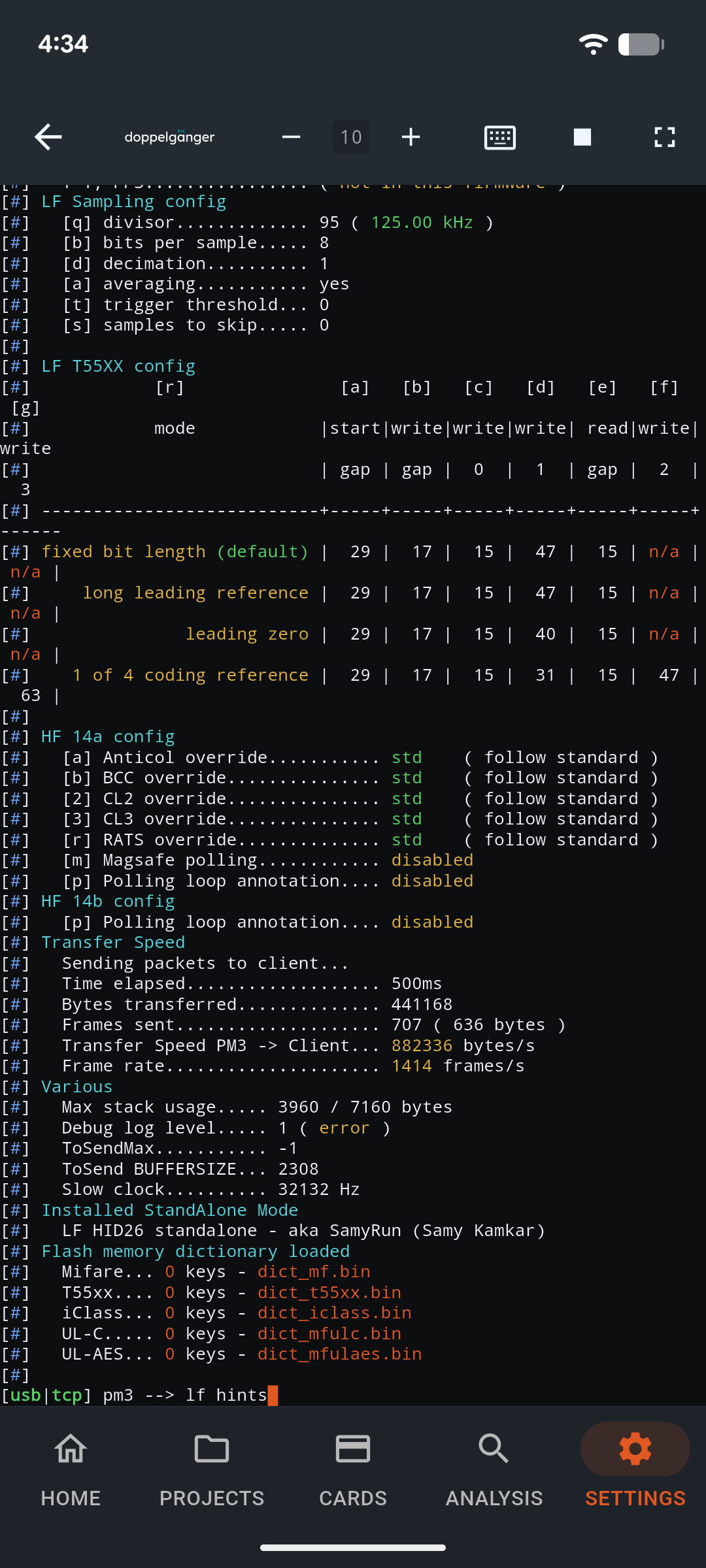
- Control now reads Show input toolbar.
- Rows the toolbar was covering.
- Footer navigation unaffected.
Turning the phone
Section titled “Turning the phone”The terminal follows device rotation. Turning the handset widens the line at once, and the session, the scrollback and a half typed command all carry over.
Rotation alone leaves height on the table. The app bar and the footer still take their share, and in landscape height is the scarce dimension. Fullscreen reclaims it, and what it reclaims depends on which way the phone is held.
| Orientation | Fullscreen hides | Controls live in |
|---|---|---|
| Portrait | footer navigation | the app bar, unchanged |
| Landscape | footer navigation and the app bar | a floating strip, top right |
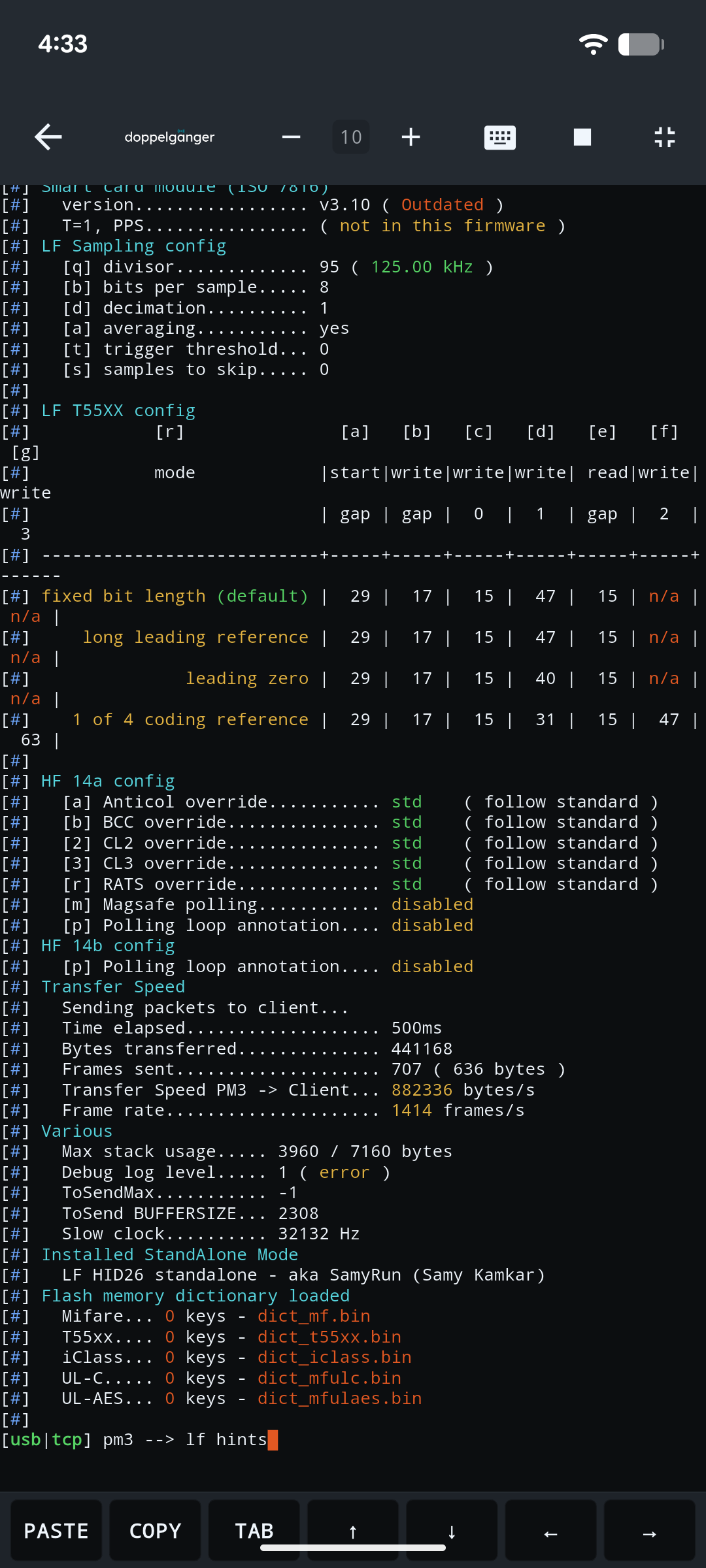
- App bar kept in portrait.
- Rows gained from the footer.
- Terminal runs to the bottom edge.
In landscape the app bar goes as well. Its six controls are not lost, they move into a floating strip over the top right corner in the same order: minus, the size, plus, the keyboard toggle, stop, exit fullscreen. The input toolbar stays across the bottom either way.
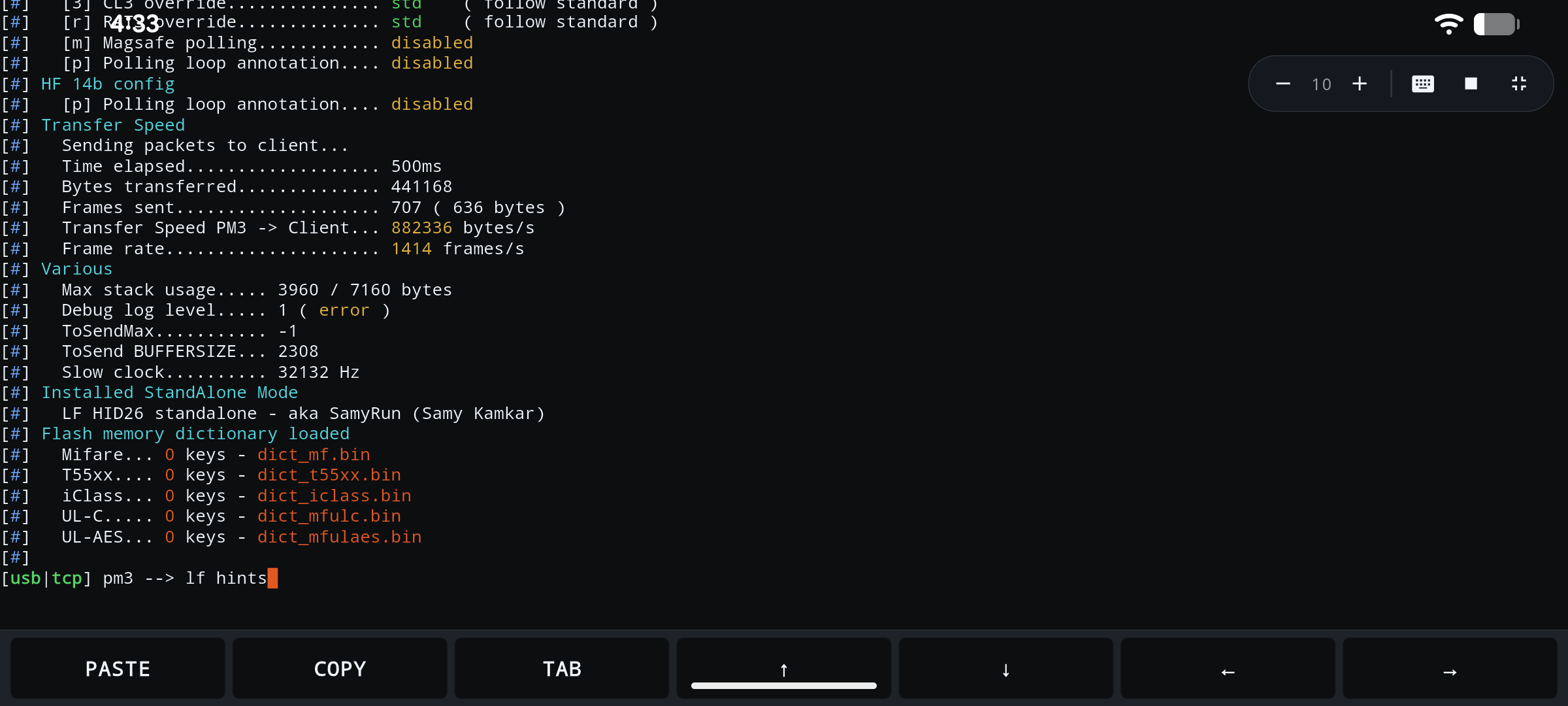
- The app bar's six controls, now floating.
- The line that wrapped in portrait, unwrapped.
- Input toolbar stays in fullscreen.
Compare the transfer speed block here against the first figure on this page. Same command, same session, same size 10. In portrait those rows broke and the tail of each landed under the next label. Here they fit on one line apiece, which is the shape the client prints for.
When a result will not fit
Section titled “When a result will not fit”| Order | Action |
|---|---|
| 1 | Run the command in portrait at size 10 |
| 2 | If it wrapped, turn the phone and tap Fullscreen |
| 3 | If it still wraps, step the font down toward 8 |
| 4 | Tap the size chip to return to 10 |