
Clandestine camera
The evidence is close, and in front of people
Section titled “The evidence is close, and in front of people”On a physical penetration test the evidence is close. The reader by the dock door, the keypad beside the turnstile, the badge on a lanyard at the coffee machine, the guard desk you are standing at while you explain who you are. None of it photographs from across a car park, and all of it is in front of people.
A phone held up at arm’s length framing a shot is the single most memorable thing anybody in that lobby will see you do. It is the detail the receptionist gives the investigator afterwards, and on a shared handset it is also the thing that gets a client’s staff to challenge you before you have finished the job.
This is the surface for the work where you have to be up close, with your hands busy, and not look like you are recording anything.
| The situation | What this buys you |
|---|---|
| Tailgating a door behind somebody | the approach, the badge presentation and the door behavior, recorded while both hands are free and your eyes are on the person |
| Standing at a reader or a keypad | the credential technology and the keypad entry from a foot away, with the phone at your side |
| Walking a floor or a perimeter | a continuous record of the route, so the report can show the way in rather than describe it |
| Sitting in a lobby waiting | guard rotation, visitor handling and badge checks over twenty minutes, with the phone face down on the table |
| Riding an elevator or a stairwell | floor access control, which is where a lot of assessments find the real gap |
| Being challenged | what was actually said, which matters when a finding is disputed in the debrief |
The mechanism matters here. The camera is bound to an Android foreground service rather than to the page you started it from. A camera bound to the page unbinds the moment the phone locks and the recording ends with it, which is why every ordinary camera app stops when you pocket it. This one does not.
Starting one
Section titled “Starting one”Everything begins at the camera glyph in the Home header, top right. It is the only way in, and it does two different things depending on how you touch it.
| Gesture | What happens |
|---|---|
| Tap | opens the viewfinder, so you can frame, zoom and set exposure before anything records |
| Hold | starts recording immediately, at the stored framing, with no viewfinder and no preview on screen |
| Tap while recording | stops it |
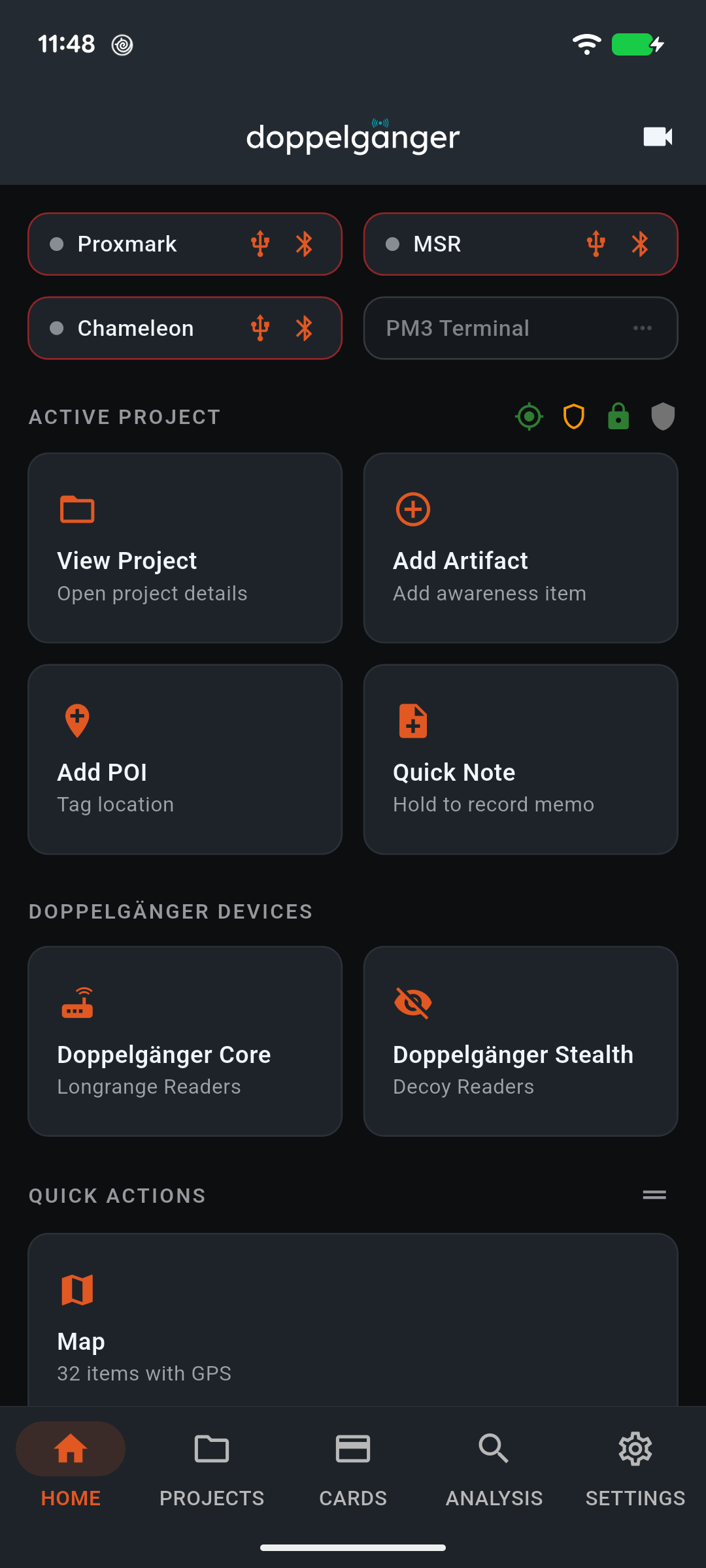
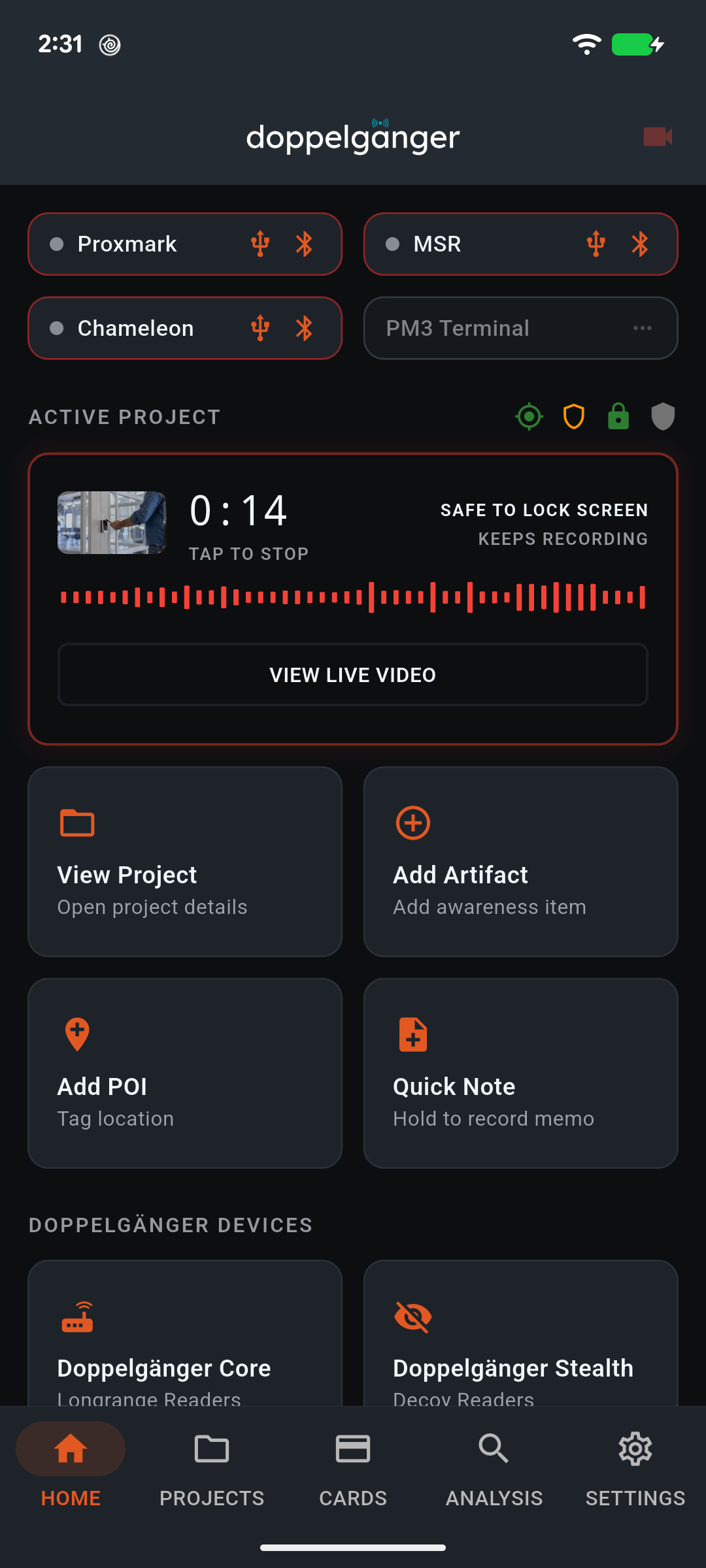
- The camera glyph. Tap opens the viewfinder, hold arms a capture on the spot.
- The device tiles. None of this is needed to record.
- ACTIVE PROJECT, which is where the capture will be filed.
- The glyph has turned red and pulses while a capture runs.
- The live feed and the elapsed time, with TAP TO STOP under them.
- The audio level meter, moving with what the microphone hears.
- VIEW LIVE VIDEO opens the viewfinder on the capture already running.
Hold is the one to learn. It records from the position the phone is already in, with nothing on screen that looks like a camera, which is the entire point of the surface. The viewfinder is for when you have time to compose.
The meter tells you whether it is hearing anything
Section titled “The meter tells you whether it is hearing anything”The bar graph under the clock is the microphone’s level, read off the recorder itself. It is there because a video that turns out to be silent is discovered hours later, and on a pocketed handset the microphone is the part most easily covered by a coat.
| What the meter shows | What it means |
|---|---|
| A flat line across the card | nothing is reaching the microphone, or the capture has just started and has no history yet |
| Bars moving with the room | audio is being picked up at the level shown |
| AUDIO OFF with a struck microphone | Record Audio is switched off in settings, so there is no meter to draw |
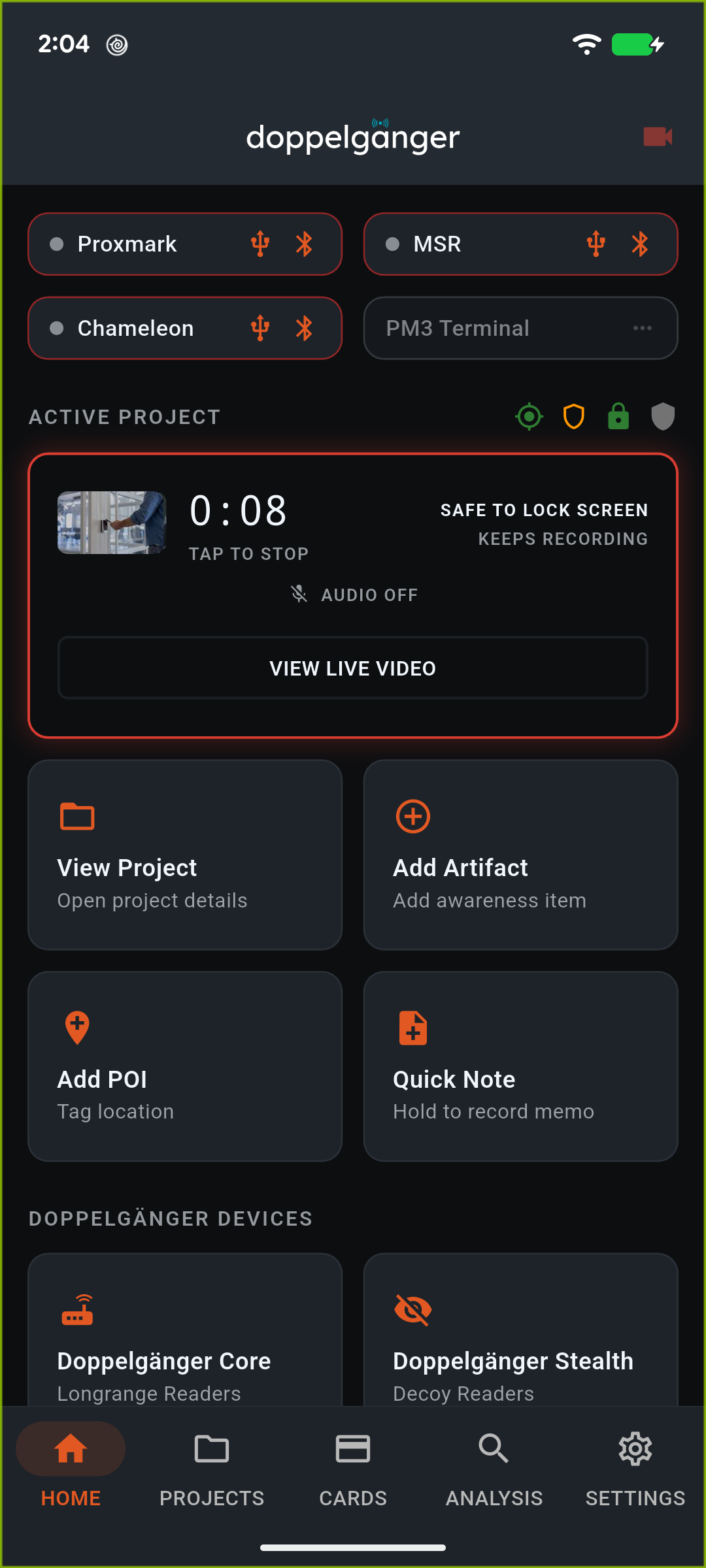
- The capture is running normally. Only the sound is off.
- AUDIO OFF, where the meter would be. Silence and not listening are different findings.
- VIEW LIVE VIDEO, unchanged.
That distinction is deliberate. A flat meter and a disabled microphone look identical if both draw a flat line, and only one of them means the room was quiet.
Framing one
Section titled “Framing one”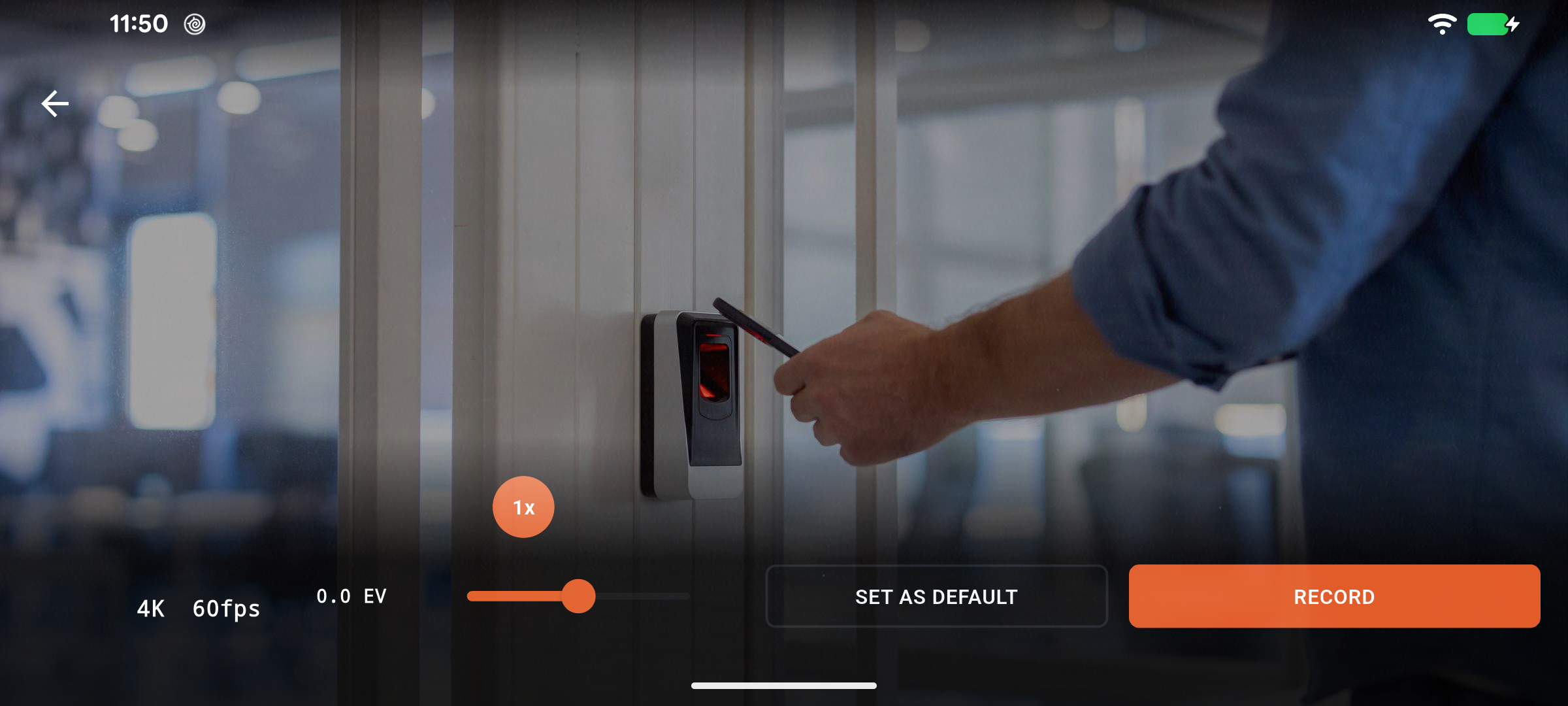
- The back arrow, and nothing else over the top of the shot.
- The zoom stop sits above the exposure row.
- The readout, the exposure, then SET AS DEFAULT and RECORD on the right.
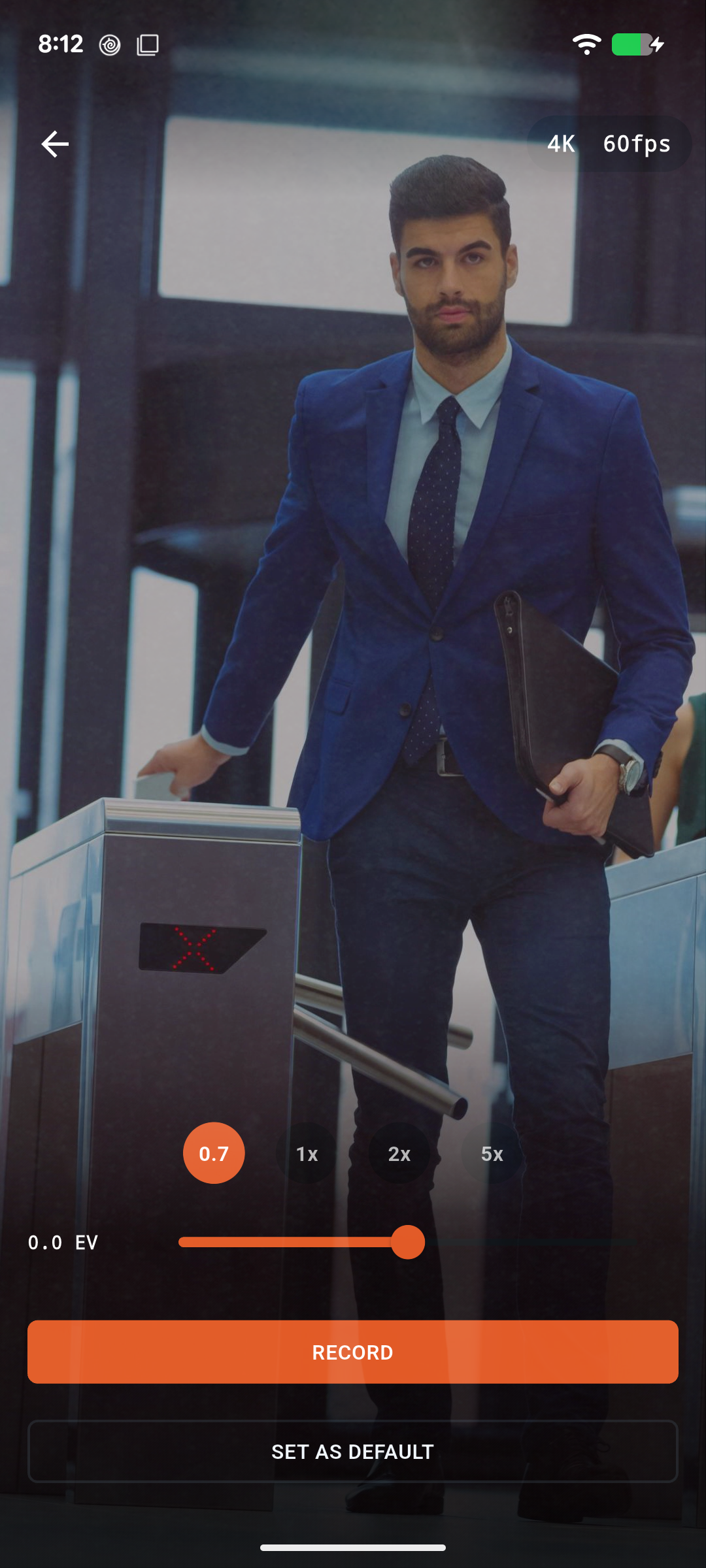
- The resolution and frame rate this capture will use.
- Zoom stops. 0.7x takes in a whole doorway from arm's length.
- Exposure, for a lobby brighter or darker than the camera assumes.
- RECORD, with SET AS DEFAULT under it.
- Tap the camera glyph on Home.
- Set zoom and EV. Both disappear once recording starts.
- SET AS DEFAULT keeps them, which is what makes the hold gesture useful later.
- Press RECORD.
- Pocket the phone, or lock it, or switch to another app.
- Come back and press STOP. The page reattaches to the running capture rather than starting a new one.
Pocketing it
Section titled “Pocketing it”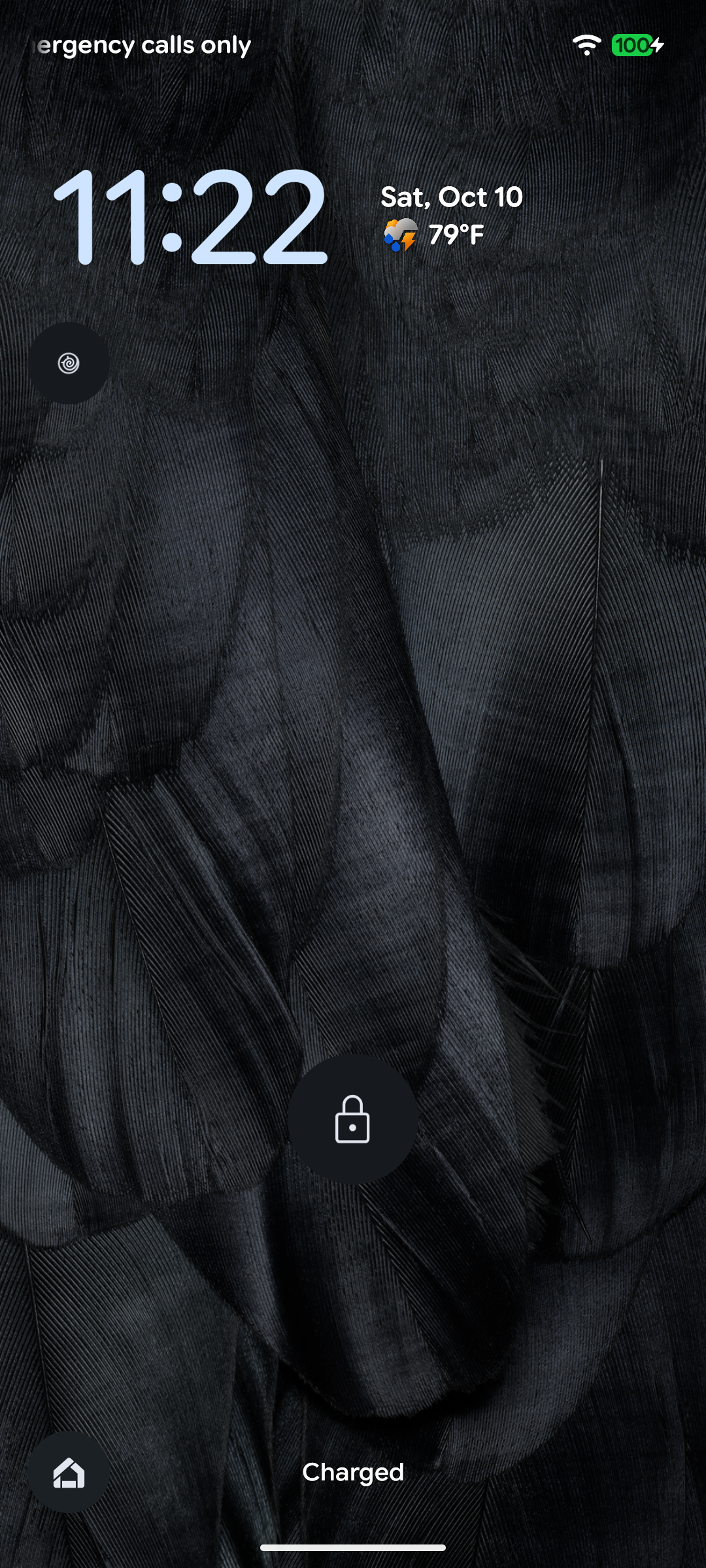
- Locked, and the capture is running behind this.
- The ATLAS notification, collapsed to its icon. The only sign on this screen.
- Nothing here says 4K is being written at 11.5 MB a second.
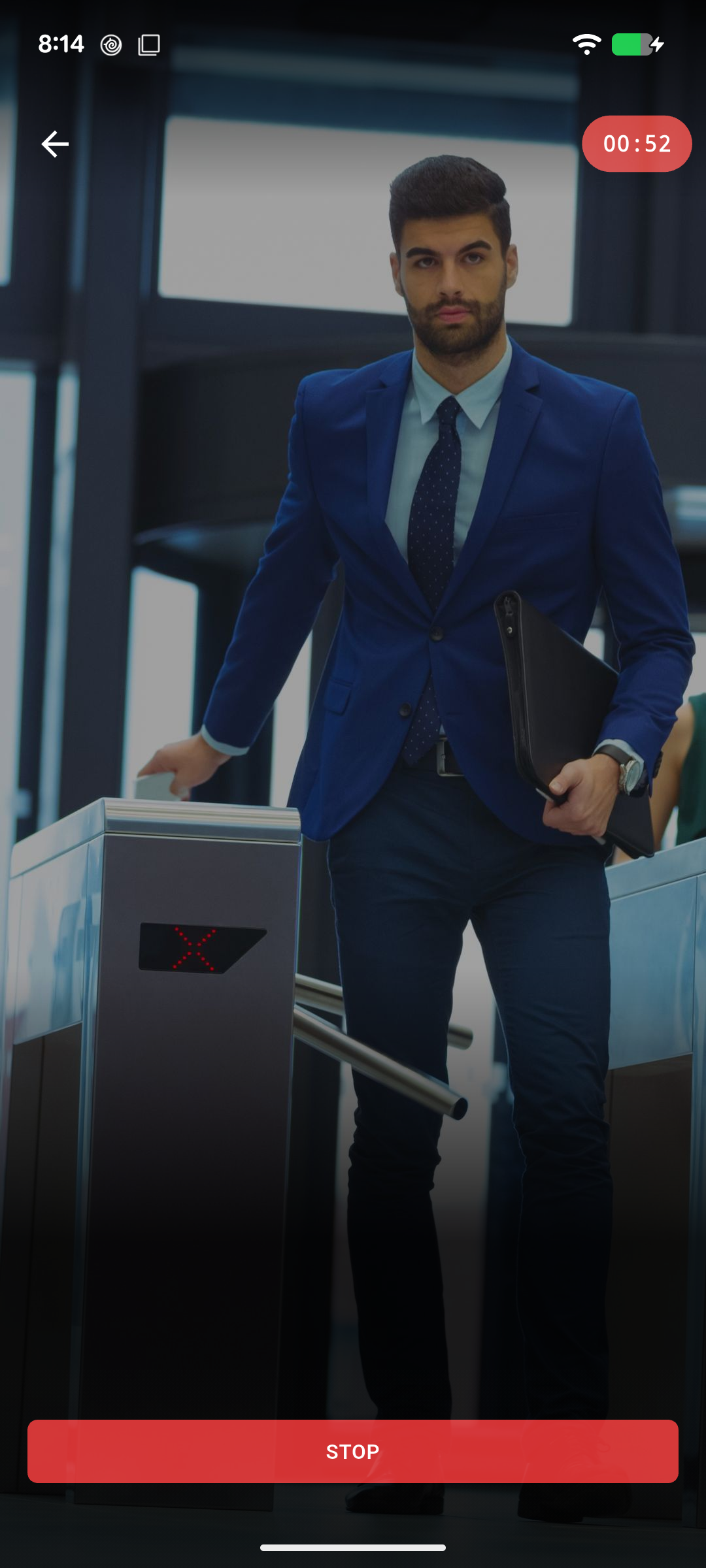
- 00:52, still counting. The phone was locked for most of that.
- STOP. Reopening attached to the running capture rather than starting a new one.
Armed, locked and pocketed, the timer on return read 00:37, still counting.
What it is actually holding
Section titled “What it is actually holding”A gate line is wide and a portrait frame throws away the half of it where somebody is actually badging through. Held sideways at waist height the whole bank is in shot, which is the difference between a clip that shows a turnstile and a clip that shows a person using one.
On a Pixel 7
Section titled “On a Pixel 7”This is a real run, not an estimate.
| Settings | 4K, 60 fps, 0.67x, audio on, stabilization on |
| Length | 52 seconds |
| File | 594 MB, as the File Manager reports it |
| Rate | about 11.5 MB per second, roughly 96 Mbps |
| Where it landed | the app’s media/ directory, moved out of staging on stop |
The settings that decide the cost
Section titled “The settings that decide the cost”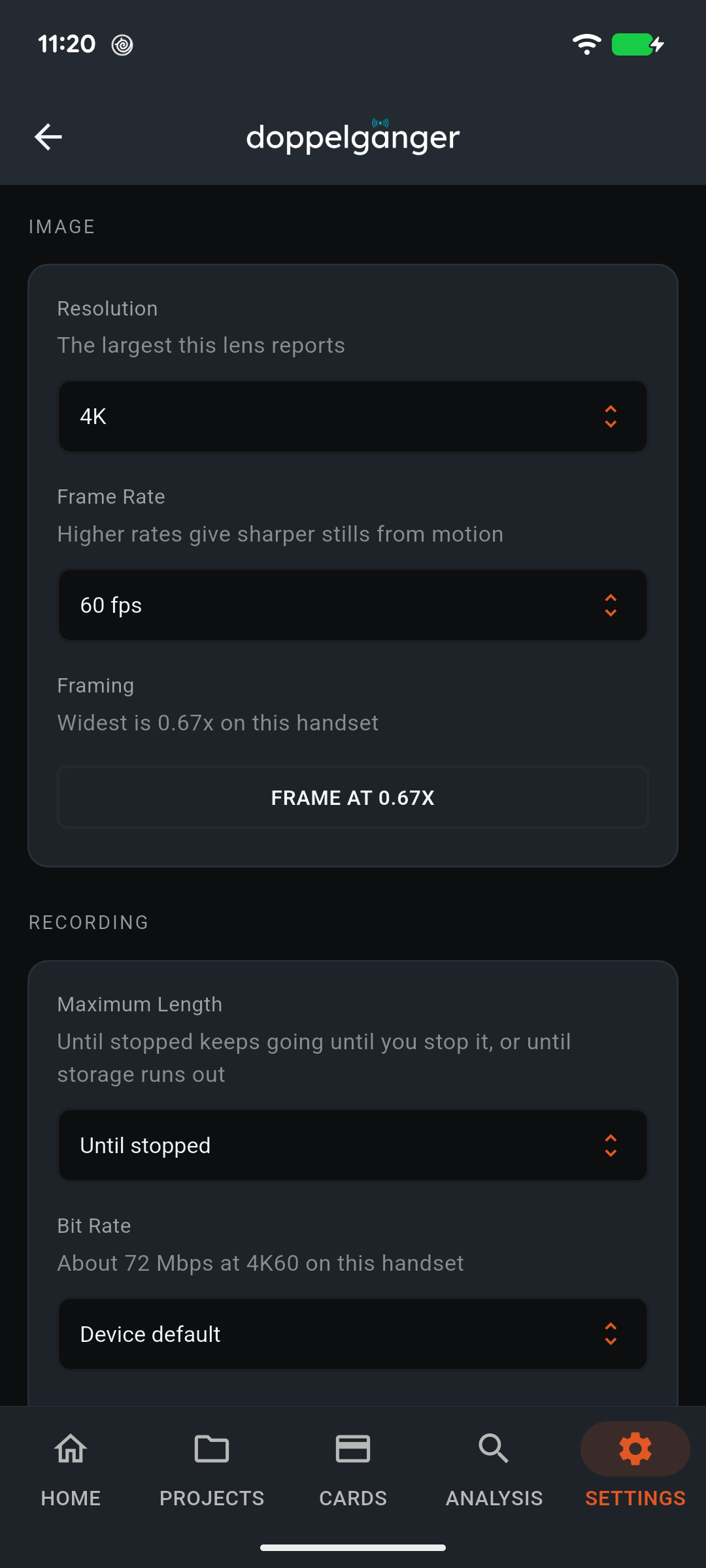
- Resolution, with the largest this lens reports rather than a fixed list.
- Frame Rate. Higher rates give sharper stills pulled out of motion.
- Framing. The widest this handset offers is 0.67x.
Settings, then Video Capture. The subtitle on that row is the current setting, so it reads 4K at 60 fps, 0.67x without opening it.
| Control | What it decides | When to change it |
|---|---|---|
| Resolution | the largest this lens reports | drop it for a long sit, or when the take will be reviewed on a phone |
| Frame Rate | sharper stills from motion | 60 when you expect to pull a frame of a moving plate or badge, 30 otherwise |
| Framing | the lens, widest is 0.67x here | wide for a room, 1x or longer for a doorway at distance |
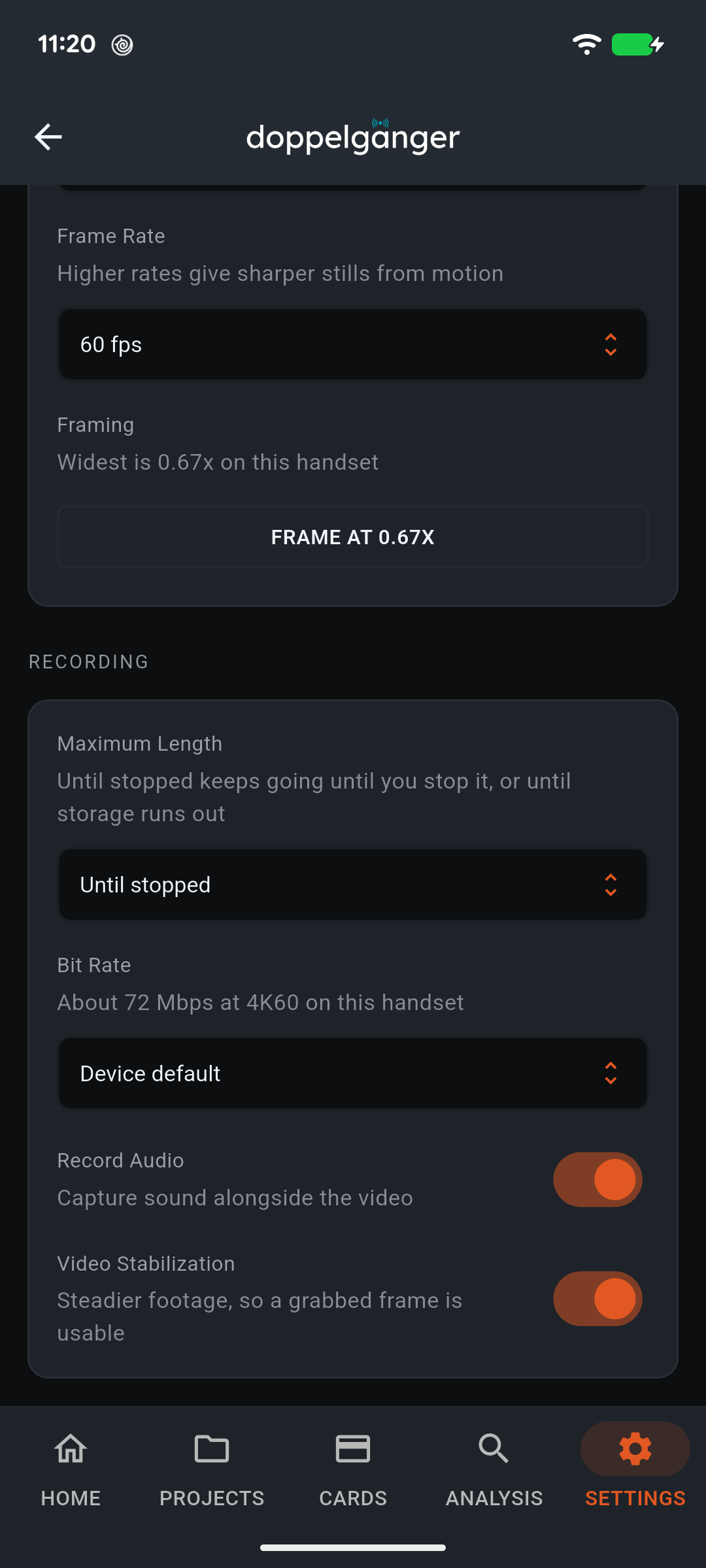
- Maximum Length. Until stopped runs until you stop it or storage runs out.
- Bit Rate. The app states what the device default actually is, about 72 Mbps at 4K60.
- Record Audio, which is a legal question before it is a technical one.
- Video Stabilization, so a grabbed frame is usable.
Every option in the two sections
Section titled “Every option in the two sections”IMAGE, 3
| Control | What it offers |
|---|---|
| Resolution | read off the lens at open, and the app says so while it is reading. The subtitle is The largest this lens reports |
| Frame Rate | the rates this camera reports, labeled <n> fps, described as Higher rates give sharper stills from motion |
| Framing | the zoom factors this lens can reach, for example FRAME AT 0.67X |
RECORDING, 4
| Control | Options |
|---|---|
| Maximum Length | Until stopped, 1 minute, 5 minutes, 15 minutes, 30 minutes, 1 hour |
| Bit Rate | Device default, 16 Mbps, 24 Mbps, 35 Mbps, 50 Mbps |
| Record Audio | on or off |
| Video Stabilization | on or off |
Video Stabilization matters more than it sounds. A capture made from a moving body is often reviewed one frame at a time, and an unstabilized 4K frame of a badge or a plate is frequently unusable where a stabilized one is not.
What happens to the file
Section titled “What happens to the file”A running capture writes to a staging directory, capture_tmp, which is deliberately outside the directories the app sweeps for orphans. STOP does the rest, and it does more than save a file.
| On STOP | What happens |
|---|---|
| The video | moves out of staging into media/ and becomes a media attachment |
| A note | is created on the active project, titled Video 11:50 |
| Its body | reads Video, 1:30, 786 MB, so the length and the cost are on the record |
| Its position | the device coordinate at the moment it was saved |
| The confirmation | Video saved, 1:30, or Video saved, 1:30, no location fix |
So the capture is filed the moment you stop it. It is not a loose file waiting for you to do something with it.
Where it turns up
Section titled “Where it turns up”| Surface | How it appears |
|---|---|
| Projects, then NOTES | a note with a video glyph, its length, its size and its coordinate |
| Operational map | a marker under PROJECT, Notes, drawn with a video glyph rather than the plain note one |
| KML and GeoJSON export | a placemark at the same coordinate |
.atlas bundle | the note and the video file together |
Reading something out of it afterward
Section titled “Reading something out of it afterward”A clandestine capture is made without aiming, so the thing you wanted is usually in it for a fraction of a second and nowhere near the middle of the frame. ANALYZE FRAMES, on the video’s own detail bar in the player, steps the recording frame by frame, lifts the exposure on a dark one, and saves a still at the resolution it was recorded at rather than the one the screen can show.
That is where 4K and 60 fps pay for themselves, and it is covered on Analyze Frames.