
Capturing and importing
The reader is on the hotspot and ATLAS can see it. The whole job from here is three moves: read the card, import what it holds, read the result.
Setting one up for the first time is Setup and connection.
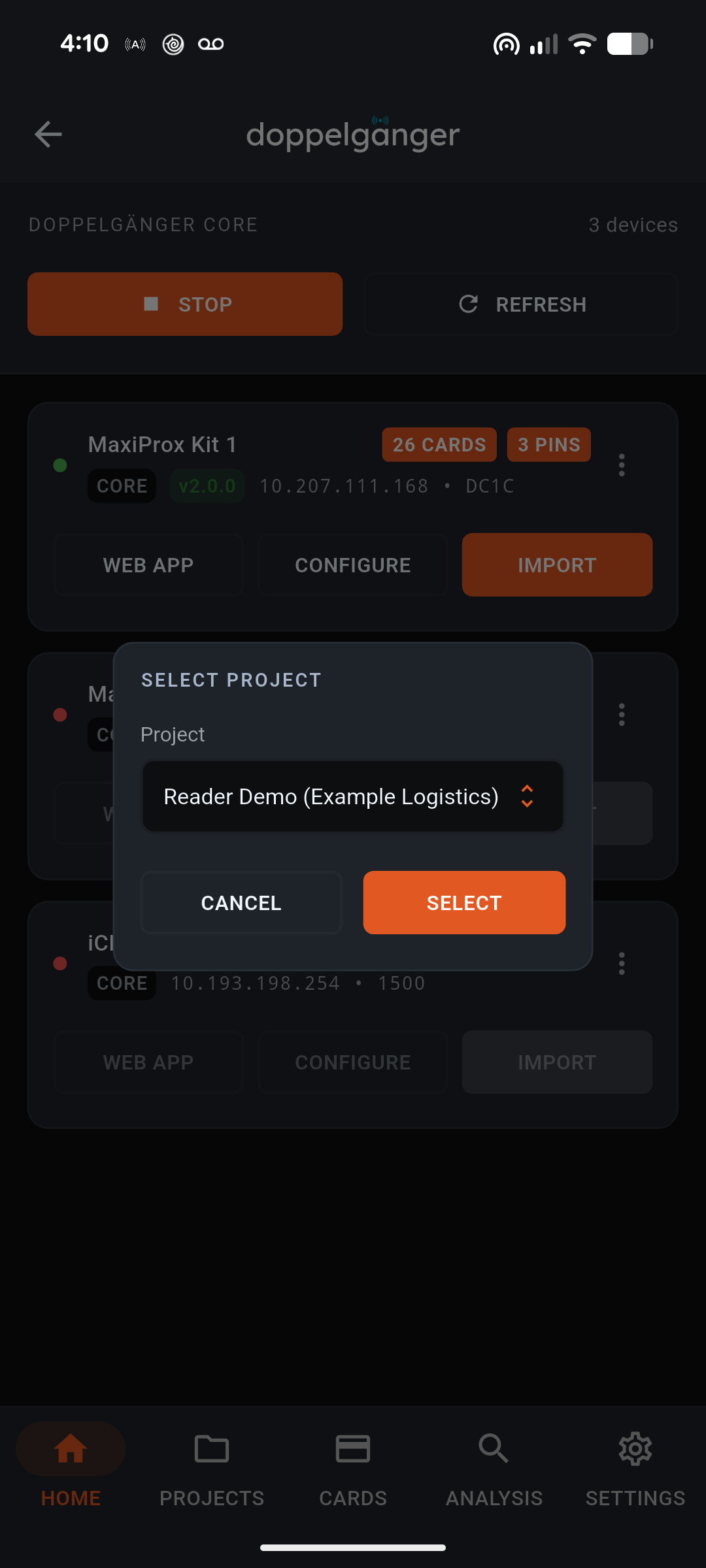
- MaxiProx Kit 1, holding 26 CARDS and 3 PINS.
- SELECT PROJECT.
- The Project dropdown, on the active project. No project is also an option.
- SELECT starts the import. CANCEL leaves the cards on the reader.
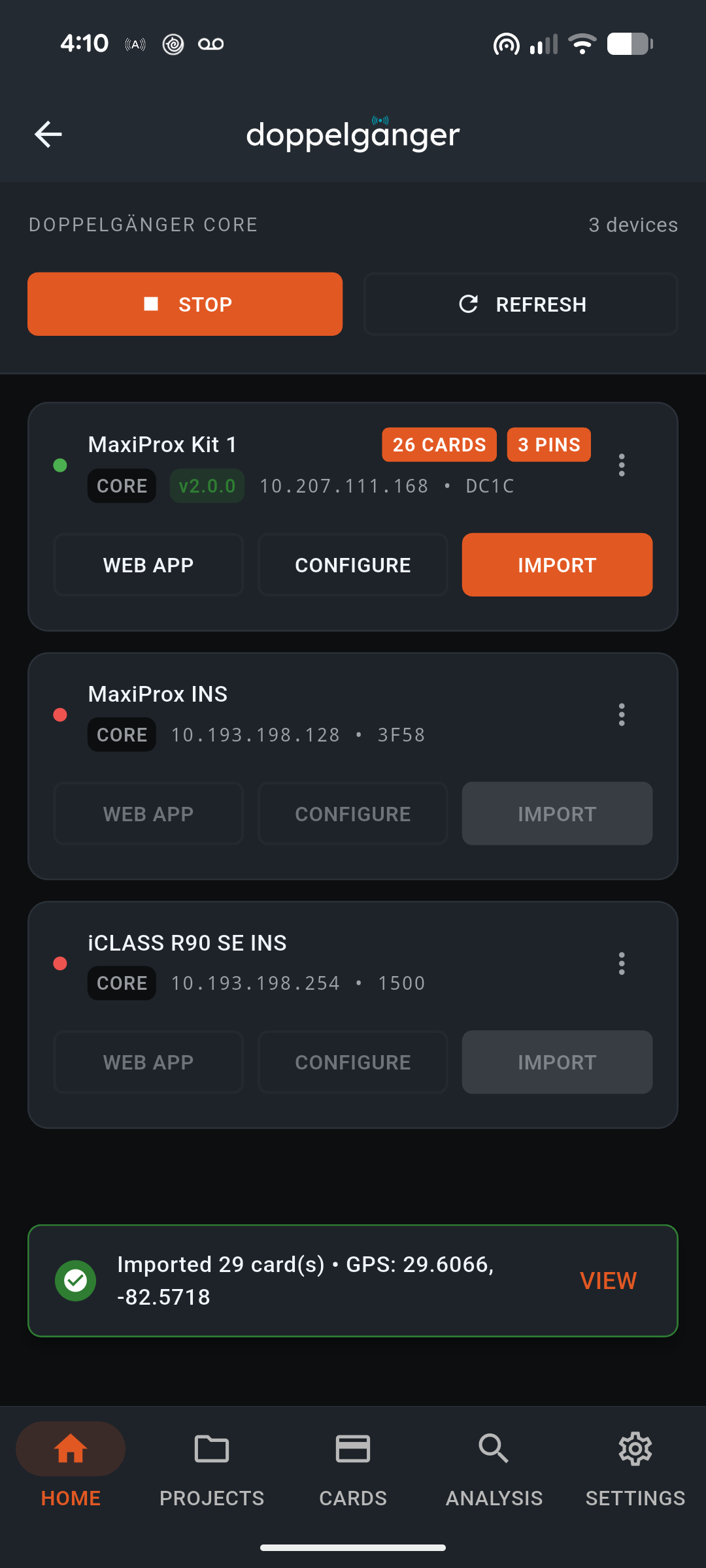
- The reader still holds its cards. An import copies, it does not move.
- IMPORT stays live. Importing again reports duplicates.
- Imported 29 card(s), the coordinate they were tagged with, and VIEW.
The reader is on the hotspot and ATLAS can see it. This is what you do with it.
Setting one up for the first time is Setup and connection.
The reader in ATLAS
Section titled “The reader in ATLAS”Home, then Doppelgänger Core.
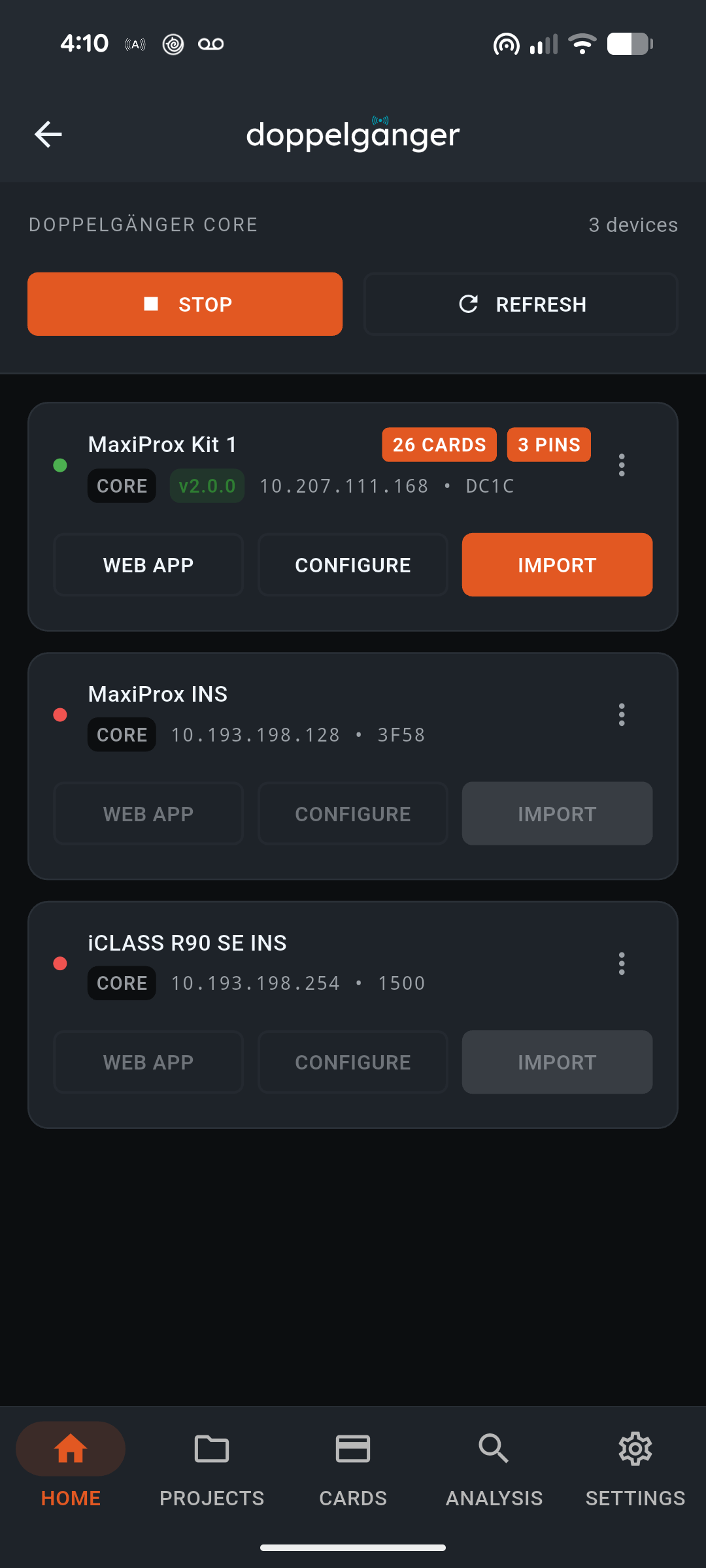
- DOPPELGÄNGER CORE, and how many readers ATLAS knows.
- DISCOVER becomes STOP while it runs. REFRESH re-checks what is already found.
- The green dot, the name you gave it, and how many cards and PINs it holds.
- WEB APP opens the reader's own page inside ATLAS. CONFIGURE is its settings. IMPORT pulls the stored reads.
- A reader that is not answering, with a red dot and its last address.
| Control | What it does |
|---|---|
| DISCOVER | a manual sweep. Discovery already runs on its own, so this is a refresh rather than how a reader is found, and it is the only control that turns discovery back on after STOP |
| STOP | what DISCOVER becomes while it is running. Switches off every automatic discovery loop for the rest of the session, not just the sweep in progress |
| REFRESH | re-checks the readers already in the list, without sweeping |
| WEB APP | opens the reader’s own web page inside ATLAS |
| CONFIGURE | the reader’s settings, inside ATLAS. Below |
| IMPORT | pulls the reads off the reader and into the card database |
| SAVE DEVICE | on the three dot menu. Keeps the reader in the list between sessions |
| EDIT NAME | on the three dot menu. Below |
| FORGET | on the three dot menu, in red. Removes it from ATLAS. The reader keeps its cards |
Name it after the reader on the front
Section titled “Name it after the reader on the front”Out of discovery it is called Core and the last four of its MAC, Core DC1C for example. That tells two readers apart and says nothing about what is on the front of either.
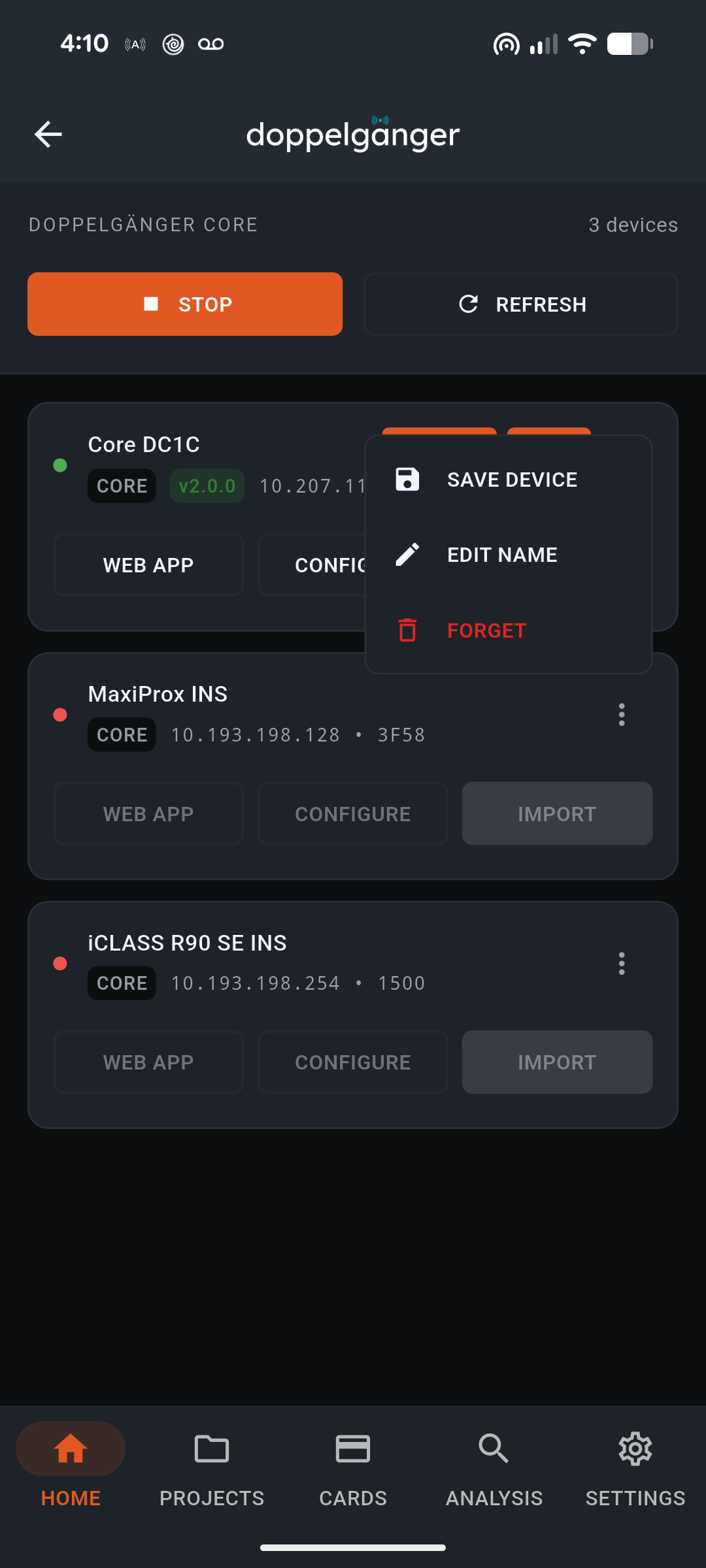
- The reader list. The three dots are at the right of each card.
- SAVE DEVICE keeps it between sessions.
- EDIT NAME.
- FORGET removes it from ATLAS, not from the reader.
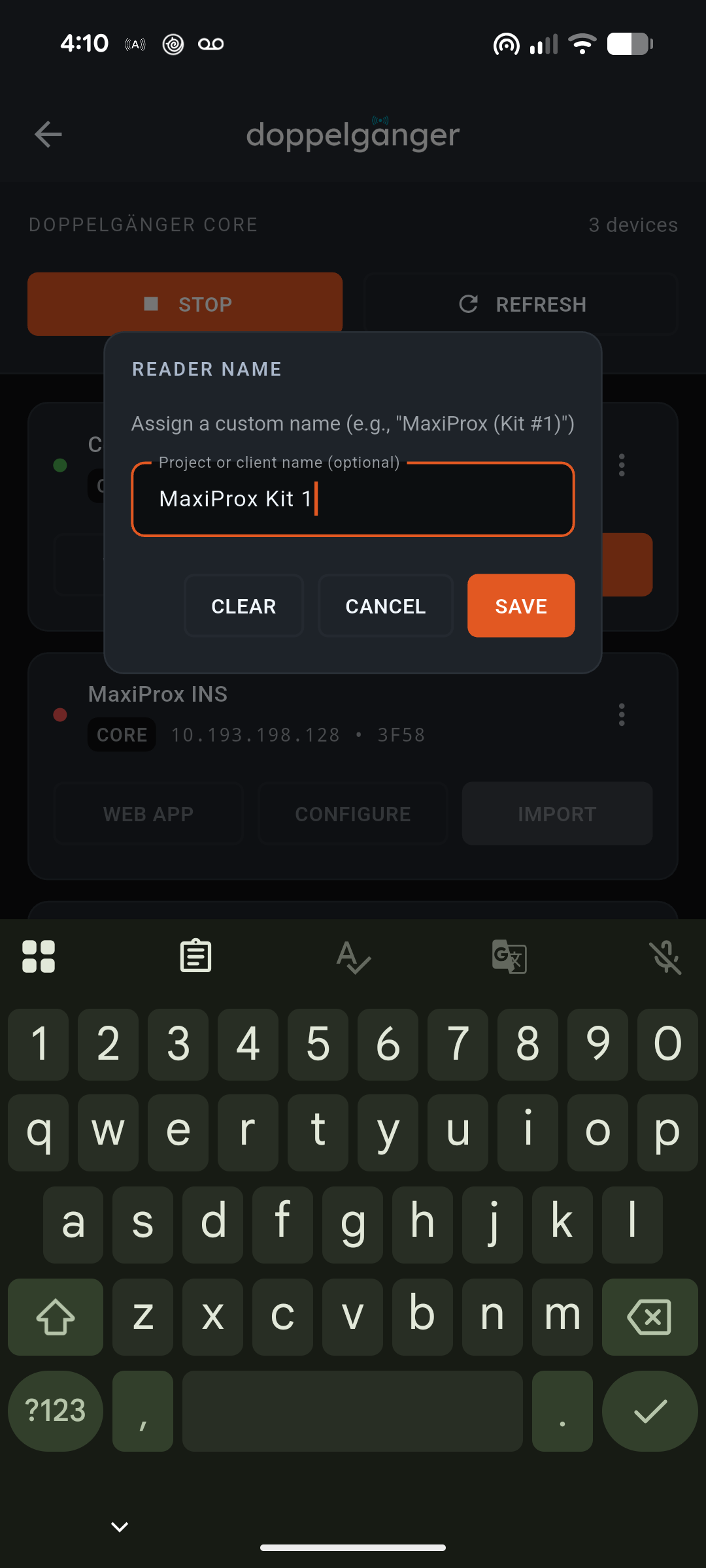
- READER NAME, with the app's own example under it.
- MaxiProx Kit 1. The reader on the front, not the board behind it.
- CLEAR forgets the reader with no confirmation. SAVE commits the name, unless the field is empty.
- The name replaces Core DC1C on the card.
- WEB APP, CONFIGURE and IMPORT are unchanged. The name is yours, this is the device.
The name travels with the cards. It is written onto every read at import, so a card in the database says which reader took it.
Pulling the cards off it
Section titled “Pulling the cards off it”IMPORT on the reader’s card. Everything the reader is holding comes across in one go.
- IMPORT on the reader’s card.
- Pick the project. The active one is already selected.
- SELECT.
- Read the confirmation. VIEW opens the card database.
| What the import attaches | Where it comes from |
|---|---|
| The project | the dialog above |
| The reader’s name | what you named it, so the card says which reader took it |
| A coordinate | the handset’s position at the moment of import, when location tracking is on |
| The reader’s address | recorded on each card |
Capturing over Bluetooth
Section titled “Capturing over Bluetooth”A Core on Bluetooth needs none of the import steps on this page. There is nothing to pull, because every read is sent to the phone as it happens.
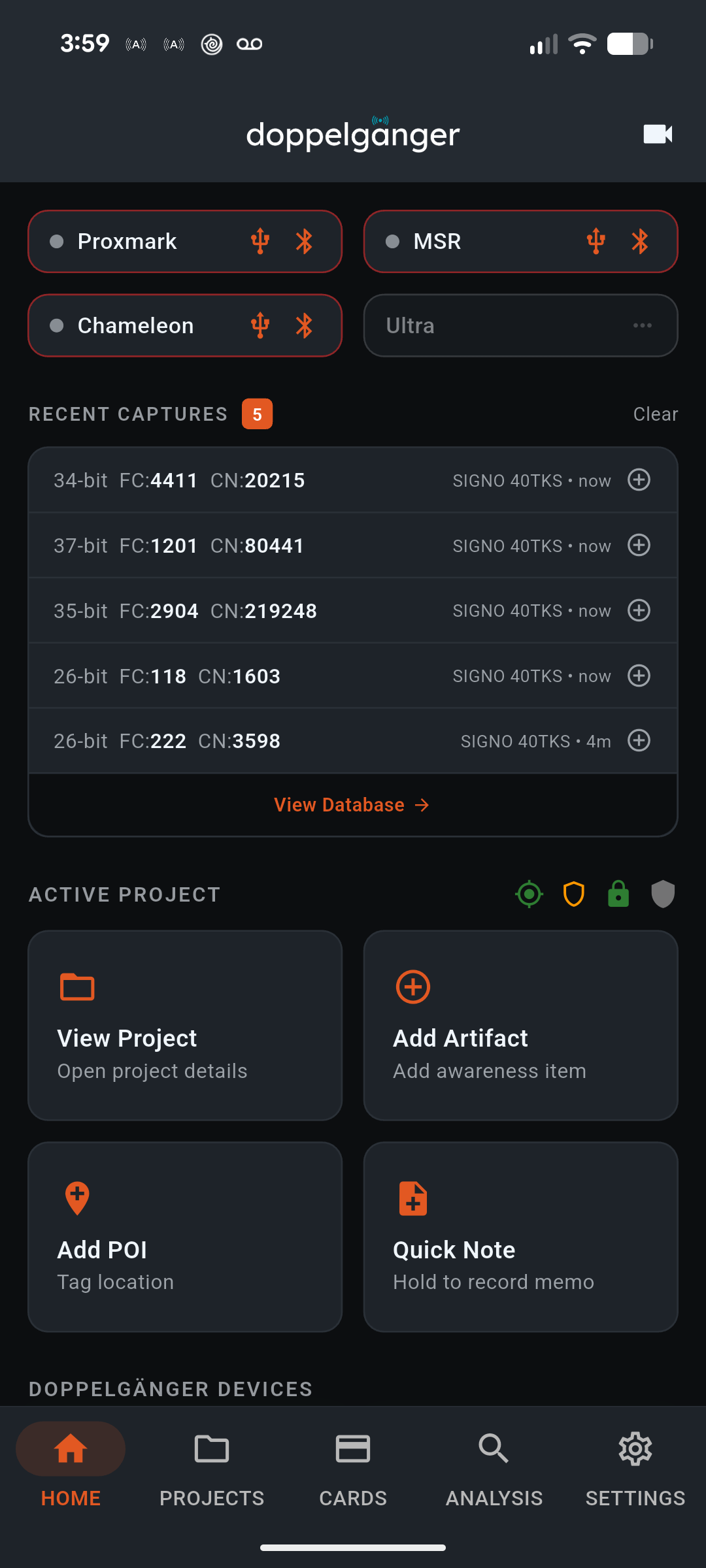
- RECENT CAPTURES, with the count.
- The newest read, with the reader that took it and its age.
- A 35 bit read, with a plus control at the end of its row.
- 26-bit FC 222 CN 3598, read out of a DESFire EV3 card by a Signo.
- View Database.
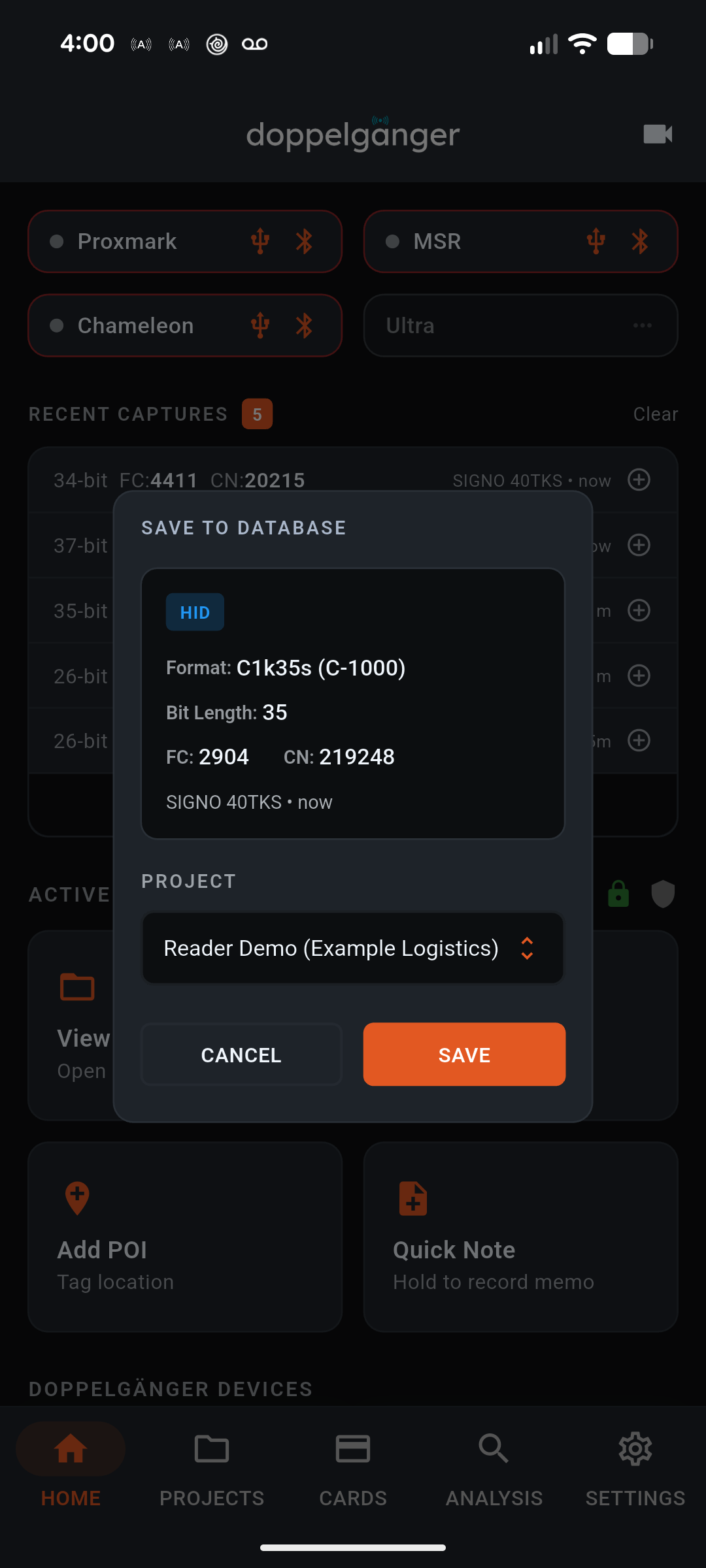
- SAVE TO DATABASE, from the plus control.
- The read as the reader decoded it.
- FC 2904 and CN 219248.
- PROJECT, on the active project.
- SAVE.
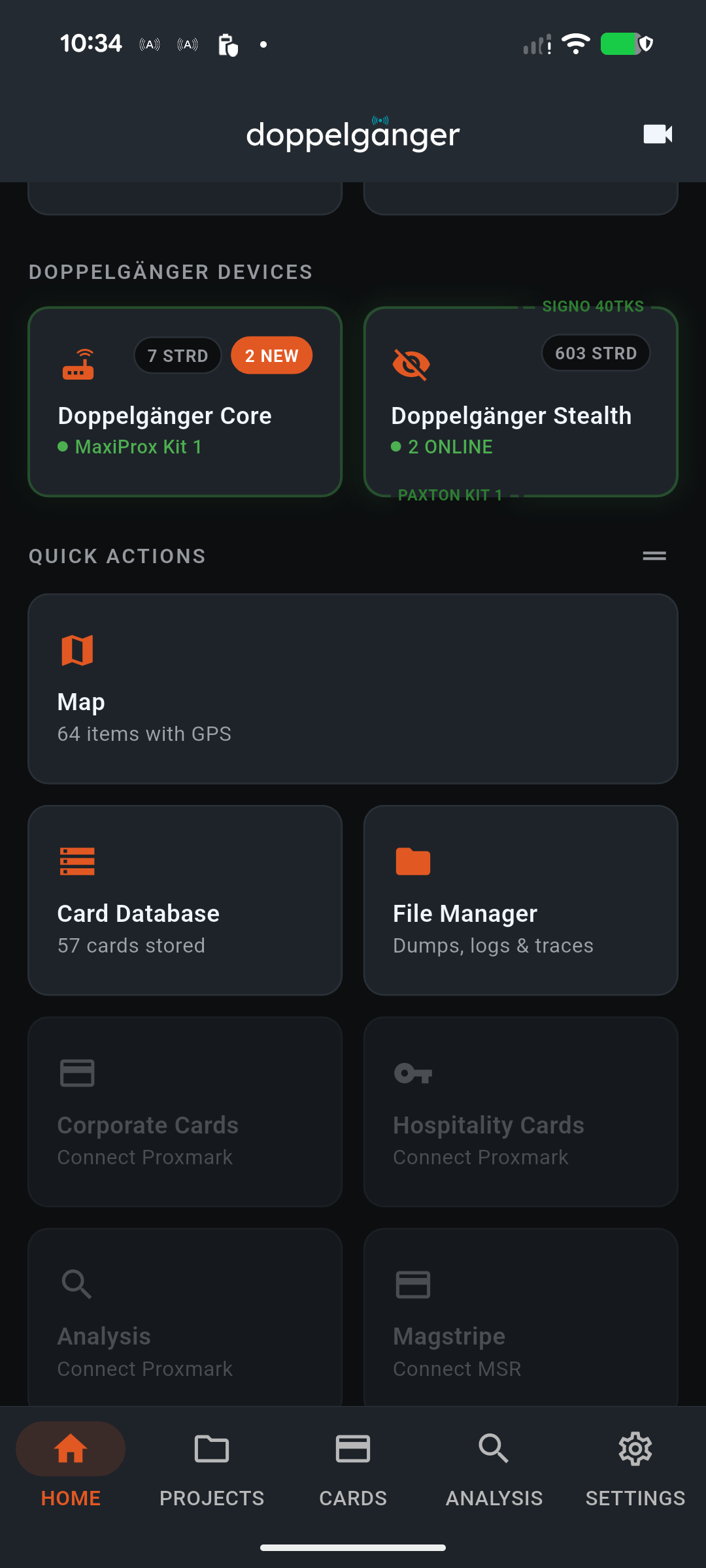
- DOPPELGÄNGER DEVICES.
- STRD and NEW on each card. STRD is what the readers hold, NEW is what arrived since they connected.
- One reader shows its name. Two show 2 ONLINE, and the edge splits in two with each reader named in its half.
| On WiFi | On Bluetooth |
|---|---|
| reads stay on the reader until you tap IMPORT | each read is sent to the phone as it is taken |
| the phone has to be on the reader’s network to see anything | the phone has to be in Bluetooth range |
| a read taken while the phone was away waits for the next IMPORT | a read taken while the phone was away is delivered when the phone links again, by itself |
| IMPORT tags every read with where the phone was at import | each read is tagged as it arrives |
A read lands in RECENT CAPTURES on Home and raises a Card Captured notification. The plus control at the end of its row opens SAVE TO DATABASE, which files it under a project. View Database opens the Card Database, where a card whose bits fit more than one format can be read another way.
The reader still keeps its own log. Bluetooth sends a copy and does not empty the reader, so the wipe at the end of a project is the same act it is on WiFi. On Bluetooth WIPE ALL CARDS is in the reader’s settings exactly where it is on WiFi.
Setting a reader up for Bluetooth is on Setup and connection, and the rest is on Bluetooth.
Getting told when a badge is read
Section titled “Getting told when a badge is read”ATLAS polls the reader and raises a notification on each capture, and keeps doing it with the app minimized and the screen locked. Settings, then Capture Alerts.
| Setting | What it does |
|---|---|
| Card Capture Alerts | Notify on card capture. The master switch |
| Alert Sound | Play sound on capture |
| Vibration Alerts | Vibrate on capture notification |
| Polling Interval | how often ATLAS asks the reader. 1 second by default |
| Background Monitoring | Keep running when minimized or screen locked |
The full page, including the interval sheet and what an alert looks like when it lands, is Capture alerts.