
Entry points
An entry point is a door, gate, turnstile, mantrap or barrier arm, and it is the richest record in ATLAS. Seventeen option lists sit behind it, and the one that matters most on a report is the last, because the weaknesses are the findings.
Home, then Add Artifact, then Entry Point. Or tap an existing one on the operational map.
The short version
Section titled “The short version”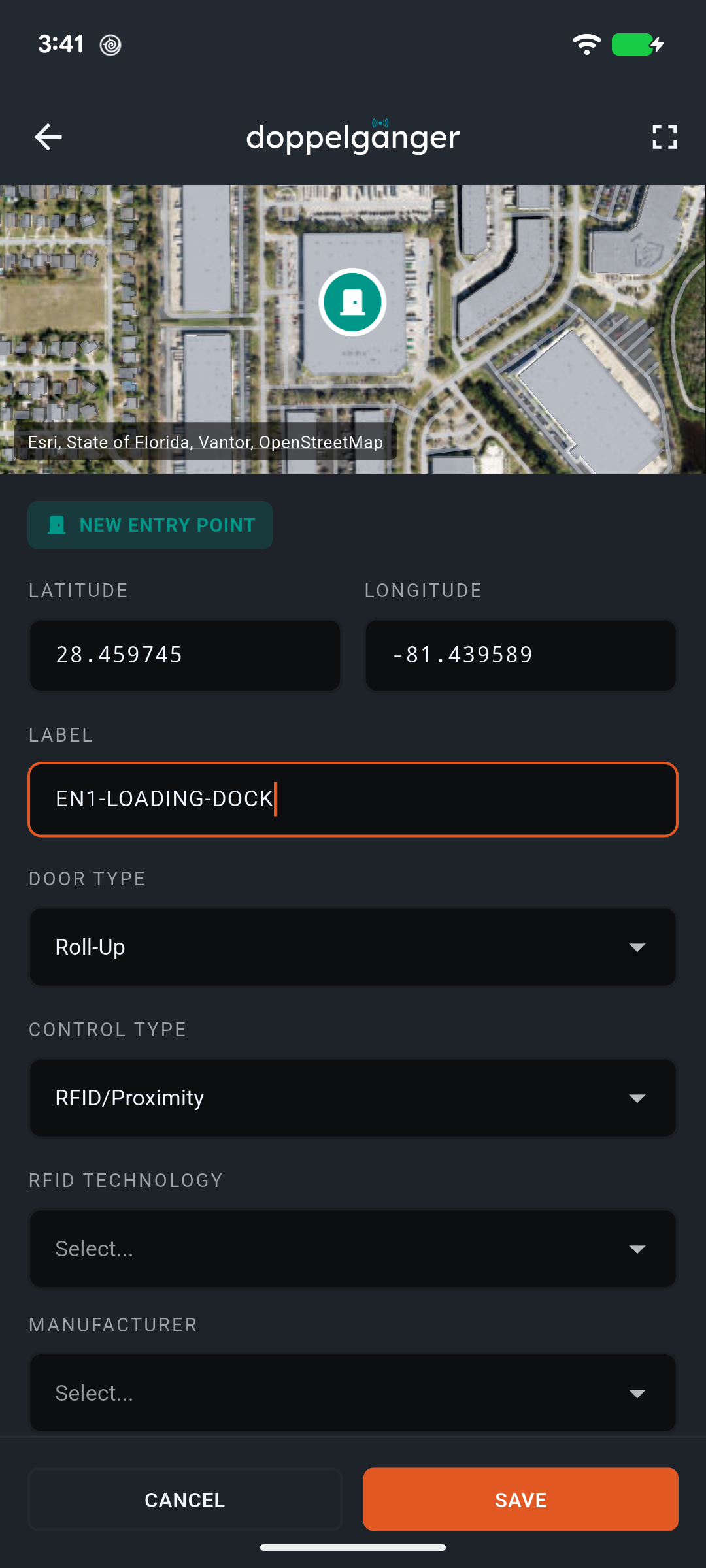
- LABEL, which is what the map marker and the report will carry.
- DOOR TYPE, one of twenty four.
- CONTROL TYPE. This field decides what the rest of the form asks.
- RFID TECHNOLOGY and MANUFACTURER appeared only because the control is RFID.
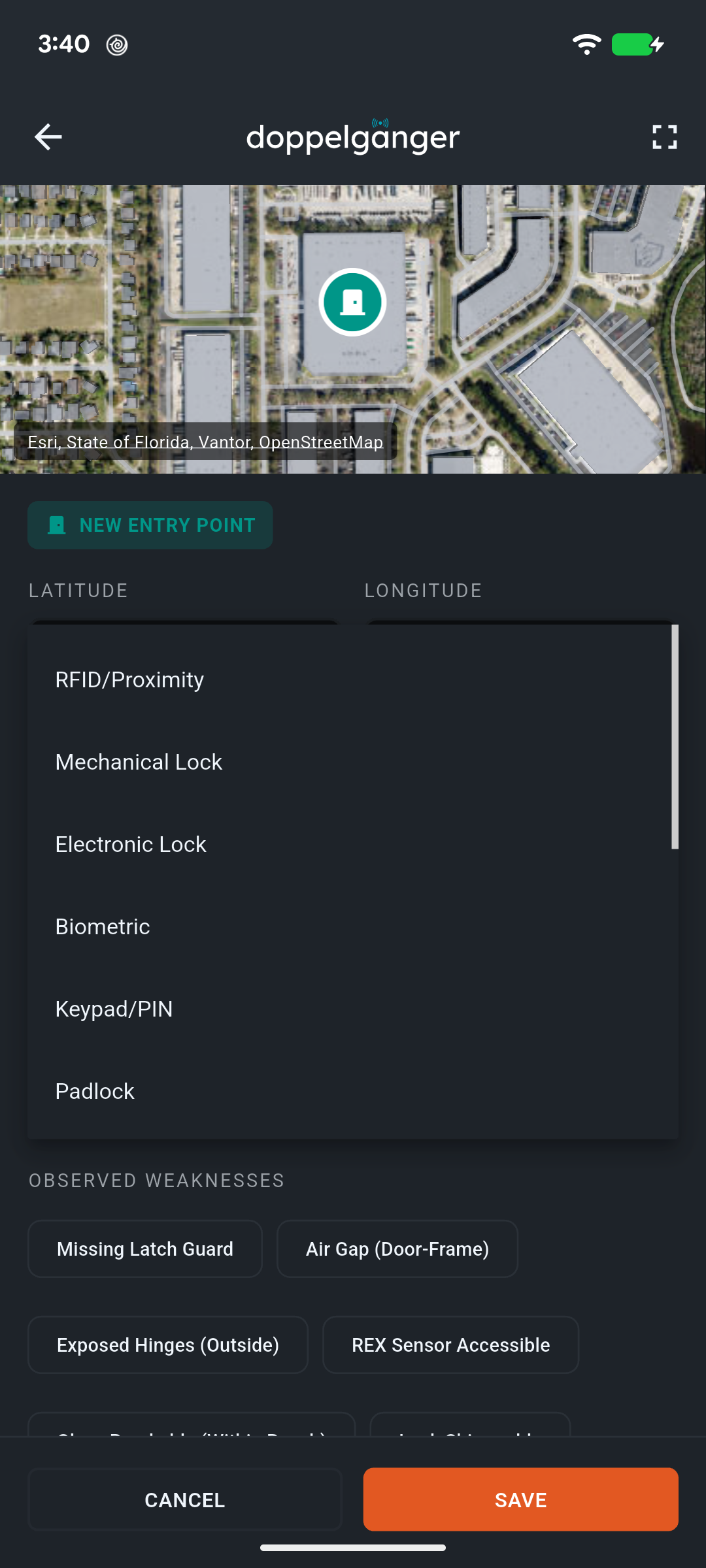
- RFID/Proximity, the one that opens the credential taxonomy.
- Mechanical, electronic, biometric and keypad each open their own fields.
- Padlock, which has its own eight weaknesses later on.
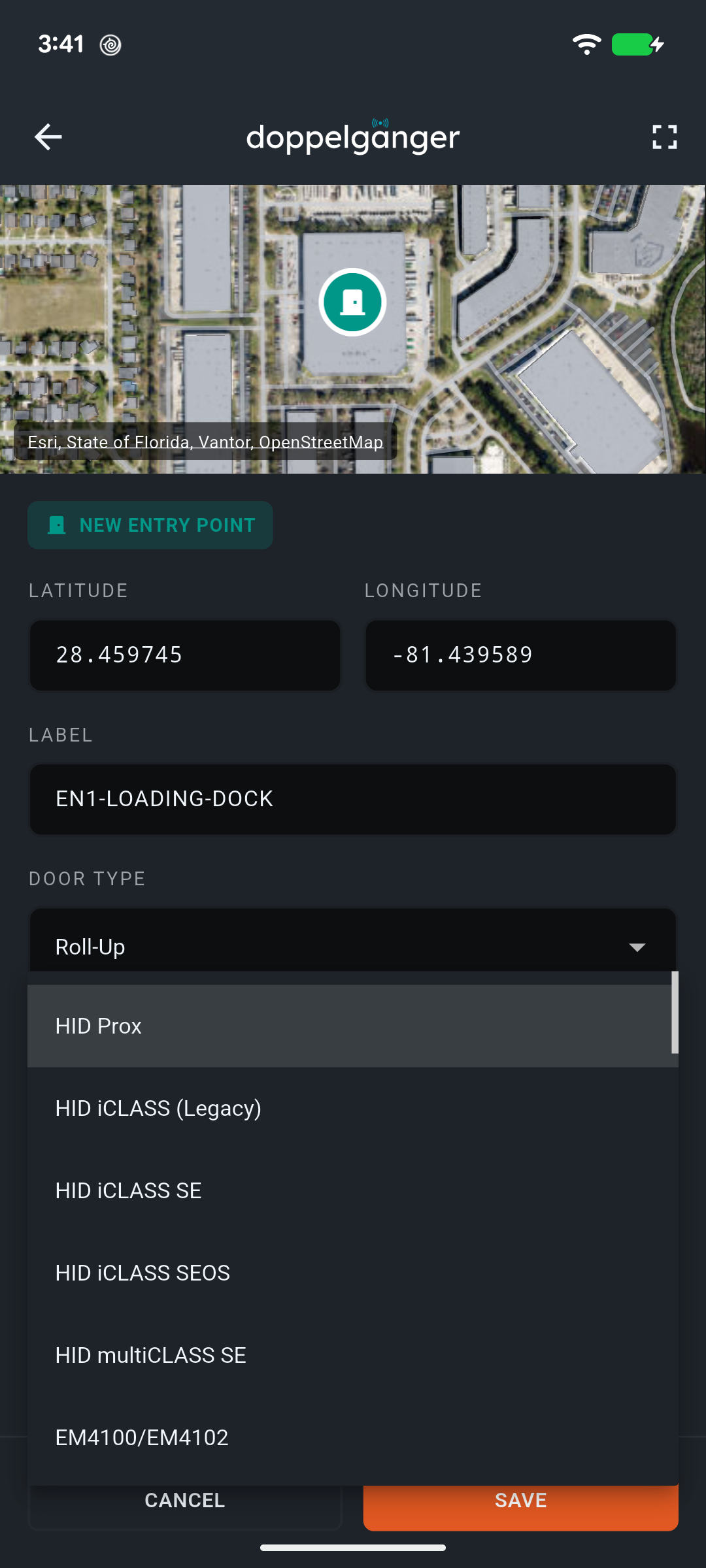
- Sixty five technologies, the HID families first.
- EM4100, where the low frequency formats begin.
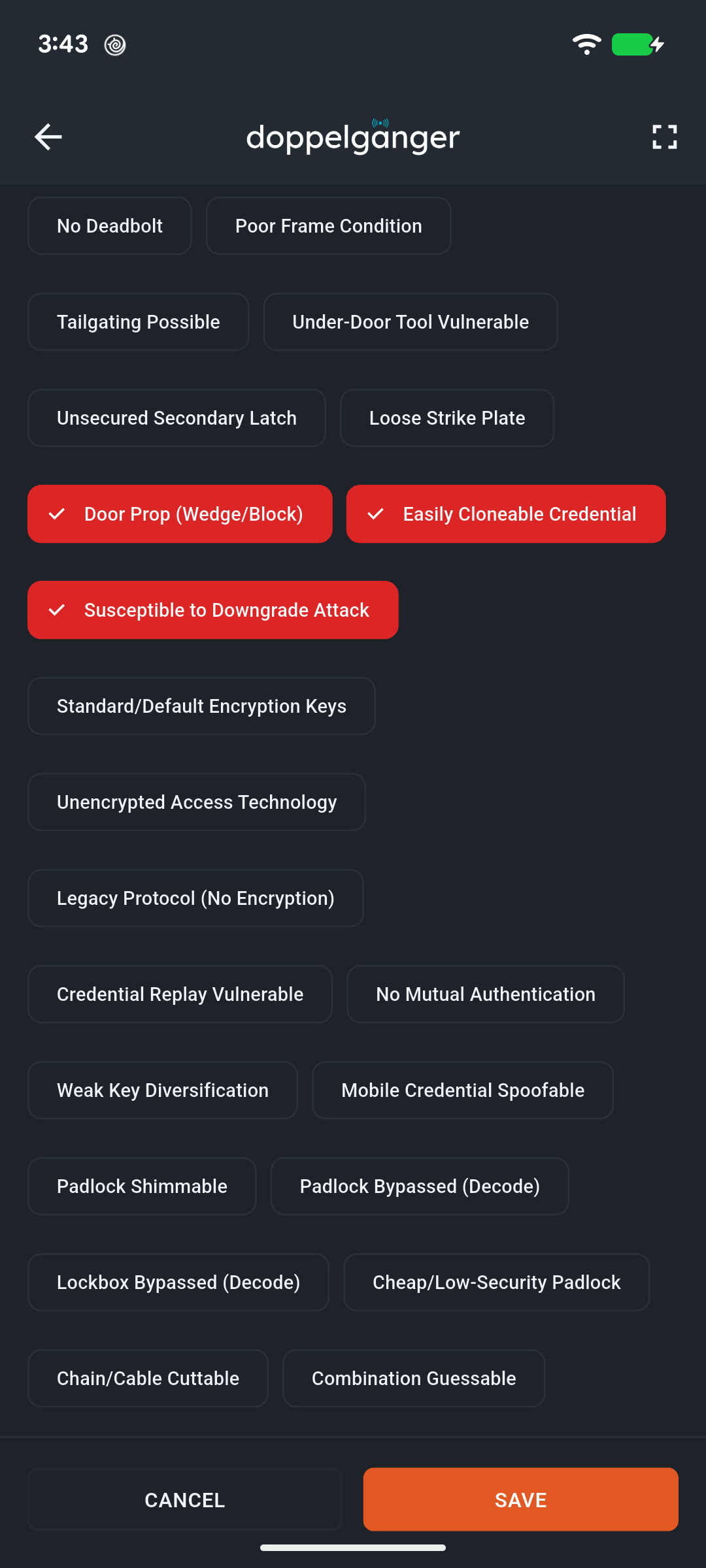
- The physical group, which is what a walk past the door gives you.
- Three selected, drawn red. Red is a finding, not a description.
- The RFID and credential group, which is where ATLAS makes its own evidence.
- Padlock and chain, treated separately from the door's own lock.
- On Home, tap Add Artifact, then Entry Point.
- Tap the map on the door. The marker jumps to the point you tapped, and LATITUDE and LONGITUDE fill in from it. Give it a LABEL.
- Set DOOR TYPE, then CONTROL TYPE.
- Fill whatever the control type revealed, which is listed per control type in CONTROL TYPE, all 13. Everything is optional.
- Select the OBSERVED WEAKNESSES you established, and SAVE.
The marker is not dragged and the map cannot be panned under it. A pan moves the map and the marker together. The only gesture that moves the marker is a tap on the map, and the only other way to set the position is to type into LATITUDE and LONGITUDE yourself, which the editor range checks and refuses outside a real latitude or longitude.
What the record holds
Section titled “What the record holds”Every field is named here the way the editor draws it on screen.
| Field | Type | Options |
|---|---|---|
| LATITUDE | number | |
| LONGITUDE | number | |
| LABEL | free text | |
| DOOR TYPE | one of | 24, plus Custom… |
| CONTROL TYPE | one of | 13, plus Custom… |
| RFID TECHNOLOGY | one of | 65, plus Custom… |
| MANUFACTURER | one of | 29, plus Custom… |
| FREQUENCY | one of | 5 |
| LOCK MANUFACTURER | one of | 35, plus Custom… |
| KEYWAY | one of | 19 |
| PIN COUNT | number | |
| LOCK TYPE | one of | 11, plus Custom… |
| ELECTRONIC LOCK TYPE | one of | 6 |
| BIOMETRIC TYPE | one of | 6 |
| KEYPAD TYPE | one of | 4 |
| SENSOR TYPE | one of | 8 |
| RESPONSE ACTION | one of | 6 |
| INTERLOCK TYPE | one of | 5 |
| FEATURES | any of | 8 |
| GUARD STATION TYPE | one of | 4 |
| OBSERVED WEAKNESSES | any of | 42, plus Custom |
| NOTES | free text | |
| ATTACHED MEDIA | photos, clips, gallery |
Six of those dropdowns carry a Custom… row at the end of the list, so they show one row more than the count above. They are DOOR TYPE, CONTROL TYPE, RFID TECHNOLOGY, MANUFACTURER, LOCK MANUFACTURER and LOCK TYPE. Taking Custom… opens a one-field dialog with CANCEL and SAVE, named after the field it came from, so CUSTOM DOOR TYPE, CUSTOM CONTROL TYPE, CUSTOM RFID TECHNOLOGY, CUSTOM RFID MANUFACTURER, CUSTOM LOCK MANUFACTURER and CUSTOM LOCK TYPE. What you type becomes the stored value and the dropdown then shows it as typed.
DOOR TYPE, all 24
Section titled “DOOR TYPE, all 24”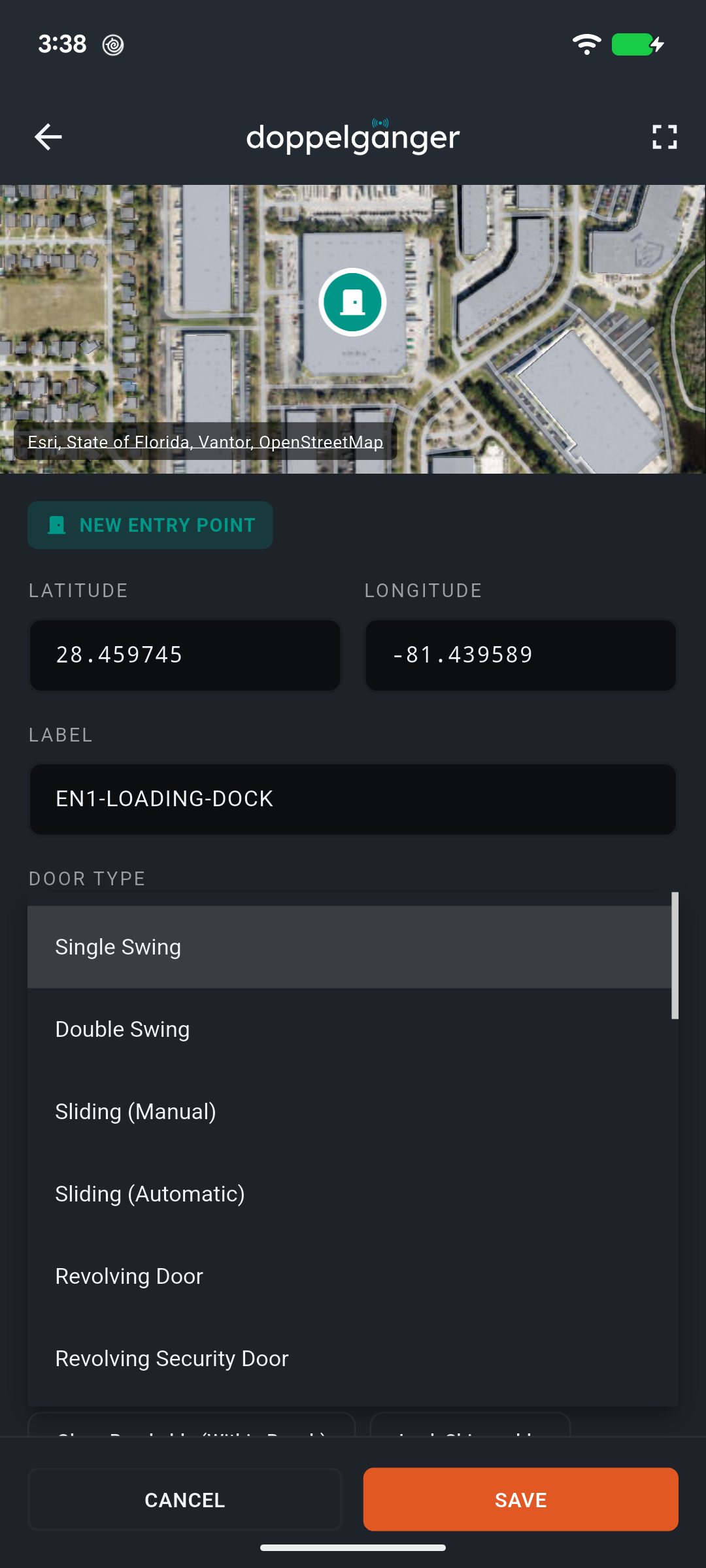
- Single Swing, the default, and the one most doors actually are.
- The revolving pair, which are a different tailgating problem entirely.
- The list runs to twenty four, through turnstiles, mantraps and barrier arms.
| Single Swing | Double Swing | Sliding (Manual) |
| Sliding (Automatic) | Revolving Door | Revolving Security Door |
| Roll-Up | Sectional Overhead | Garage Gate (Swing) |
| Garage Gate (Roll) | Fire Door | Dutch Door |
| Glass Storefront | Hollow Metal | Steel Security |
| Turnstile (Waist-High) | Turnstile (Full-Height) | Speed Gate/Optical Turnstile |
| Mantrap/Airlock | Security Portal/Booth | Sally Port |
| Pedestrian Gate | Vehicle Gate | Barrier Arm |
CONTROL TYPE, all 13
Section titled “CONTROL TYPE, all 13”CONTROL TYPE opens Uncontrolled, which reveals nothing, so a record saved without touching it carries a door type and no control information at all. Set it before anything else on the form.
Each setting reveals its own fields, and nothing else on the form changes.
| CONTROL TYPE | Fields it reveals |
|---|---|
| RFID/Proximity | RFID TECHNOLOGY, MANUFACTURER, FREQUENCY |
| Mechanical Lock | LOCK MANUFACTURER, KEYWAY, PIN COUNT, LOCK TYPE |
| Electronic Lock | ELECTRONIC LOCK TYPE |
| Biometric | BIOMETRIC TYPE |
| Keypad/PIN | KEYPAD TYPE |
| Padlock | LOCK MANUFACTURER, KEYWAY, PIN COUNT, LOCK TYPE |
| Combination Lock | LOCK MANUFACTURER, LOCK TYPE |
| Chain/Cable Lock | LOCK MANUFACTURER, KEYWAY, PIN COUNT, LOCK TYPE |
| Cable Lock | LOCK MANUFACTURER, KEYWAY, PIN COUNT, LOCK TYPE |
| Anti-Tailgating | SENSOR TYPE, RESPONSE ACTION |
| Interlock/Mantrap | INTERLOCK TYPE, FEATURES |
| Guard Station | GUARD STATION TYPE |
| Uncontrolled | nothing |
Three rows in that table need care.
- Mechanical Lock, Padlock, Chain/Cable Lock and Cable Lock all open the same four fields. They differ in the record and on the report, not in the form.
- Combination Lock drops KEYWAY and PIN COUNT on purpose, because a combination lock has neither a keyway nor a pin stack. Everything else that is a lock keeps both.
- Chain/Cable Lock and Cable Lock are two separate rows with near identical names and the same four fields. Nothing in the app distinguishes them, so whichever you pick, describe the hardware in NOTES. The two read almost the same in a findings table.
Uncontrolled is a real answer and the default. A door with no access control at all is a finding in its own right, and it records as Uncontrolled rather than as an unset field.
RFID TECHNOLOGY, all 65
Section titled “RFID TECHNOLOGY, all 65”This is the list that makes the record worth filling in. Naming the technology on the door is what decides whether the credential work in Cards is even possible.
Low frequency, 125 kHz
| HID Prox | EM4100/EM4102 | EM4x05/EM4x69 |
| AWID | Indala | FDX-B |
| GALLAGHER | GProx II | Hitag1 |
| Hitag2 | HitagS | IDTECK |
| IO ProxCard | Jablotron | Keri |
| Motorola | Nedap | Nedap AVI |
| Nedap Micropass | Nedap Transit | Nedap Combi |
| Nexwatch | Noralsy | PAC/Stanley |
| Paradox | Presco | Pyramid |
| Securakey | T55xx | Viking |
| Visa2000 |
High frequency, 13.56 MHz
| HID iCLASS (Legacy) | HID iCLASS SE | HID iCLASS SEOS |
| HID multiCLASS SE | MIFARE Classic 1K | MIFARE Classic 4K |
| MIFARE Classic Mini | MIFARE Plus | MIFARE Ultralight |
| MIFARE Ultralight C | MIFARE Ultralight EV1 | MIFARE DESFire EV1 |
| MIFARE DESFire EV2 | MIFARE DESFire EV3 | MIFARE DESFire Light |
| NTAG 213 | NTAG 215 | NTAG 216 |
| NTAG 424 DNA | ISO 14443-A | ISO 14443-B |
| ISO 15693 | iCODE SLIX | Legic Prime |
| Legic Advant | Felica | Felica Lite |
| Topaz |
Mobile and unresolved
Mobile Credential (BLE), HID MobilePass, Apple Wallet, Google Wallet, NFC (Generic), Unknown
MANUFACTURER, all 29
Section titled “MANUFACTURER, all 29”This is the RFID group’s manufacturer list, drawn directly under RFID TECHNOLOGY.
| HID Global | ASSA ABLOY | Paxton |
| dormakaba | Allegion | Honeywell |
| Bosch | Lenel | Gallagher |
| Johnson Controls | Avigilon | Genetec |
| Brivo | Keri Systems | AMAG Technology |
| Identiv | Farpointe Data | CDVI |
| RBH Access | Kantech | S2 Security |
| Ubiquiti (UniFi Access) | Feitian | NXP Semiconductors |
| STMicroelectronics | Infineon | EM Microelectronic |
| Texas Instruments | Unknown |
FREQUENCY, all 5
Section titled “FREQUENCY, all 5”LF (125 kHz), HF (13.56 MHz), UHF (860-960 MHz), Dual Frequency (LF + HF), Unknown
The mechanical taxonomy
Section titled “The mechanical taxonomy”LOCK MANUFACTURER, all 35
| Schlage | Medeco | BEST |
| Kwikset | Arrow | Yale |
| Sargent | Corbin Russwin | ASSA ABLOY |
| Kaba | Mul-T-Lock | Abloy |
| Baldwin | Emtek | Adams Rite |
| Von Duprin | Dorma | LCN |
| Stanley | Falcon | Hager |
| Marks USA | Alarm Lock | Kaba Ilco |
| Simplex | Trilogy | PDQ |
| Detex | Precision | Cal-Royal |
| Global | Tesa | dormakaba |
| Allegion | Unknown |
KEYWAY, all 19
| SC1 (Schlage 5-pin) | SC4 (Schlage 6-pin) | Everest S123 |
| Everest S145 | Primus | Primus XP |
| KW1 (Kwikset 5-pin) | KW10 (Kwikset 6-pin) | SmartKey |
| Medeco Original | Medeco Biaxial | Medeco3 |
| Medeco4 | A Keyway (SFIC) | WA Keyway |
| AR1 (Arrow) | Arrow 1C (SFIC) | Y1 (Yale 5-pin) |
| Unknown |
LOCK TYPE, all 11
Knob Lock, Lever Lock, Deadbolt (Single Cylinder), Deadbolt (Double Cylinder), Mortise Lock, Rim Lock, Jimmy Proof Deadbolt, Interchangeable Core (SFIC), Interchangeable Core (LFIC), Storefront Lock, Padlock
Pin Count is a number beside the keyway, because a 5-pin and a 6-pin in the same keyway are different jobs.
Electronic, biometric and keypad
Section titled “Electronic, biometric and keypad”ELECTRONIC LOCK TYPE, all 6
Magnetic Lock (Maglock), Electric Strike (Fail-Safe), Electric Strike (Fail-Secure), Electric Latch Retraction, Electric Bolt Lock, Gate Operator
BIOMETRIC TYPE, all 6
Fingerprint Scanner, Facial Recognition, Iris Scanner, Palm Vein Scanner, Hand Geometry, Multi-Factor (Bio + Card)
KEYPAD TYPE, all 4
Standalone PIN Keypad, Networked Keypad, Cipher Lock (Mechanical Push-Button), Combination + Key
Anti-tailgating
Section titled “Anti-tailgating”SENSOR TYPE, all 8
Optical Sensors (IR Beams), Pressure Mat/Floor Sensor, 3D Stereo Camera, Thermal Imaging, LiDAR/ToF Sensor, Weight Sensor, Integrated Turnstile Detection, AI Video Analytics
RESPONSE ACTION, all 6
Alarm Only, Door Lock-Out, Photo Capture, Guard Alert, Audible Warning, Visual Warning (Light/Display)
Interlocks
Section titled “Interlocks”INTERLOCK TYPE, all 5
Two-Door Mantrap (Sequential), Three-Door Mantrap, Security Portal (Single Person), Airlock (Environmental), Sally Port (Vehicle)
FEATURES, all 8, drawn as chips. Any number of them can be set at once
Anti-Passback Enabled, Occupancy Detection, Weight Verification, Credential Required Both Sides, Guard Override, Time Delay Between Doors, Metal Detector Integrated, X-Ray/Screening Integrated
GUARD STATION TYPE, all 4
Section titled “GUARD STATION TYPE, all 4”Manned Booth, Remote Monitoring (CCTV), Receptionist/Front Desk, Roving Patrol Checkpoint
OBSERVED WEAKNESSES, all 42
Section titled “OBSERVED WEAKNESSES, all 42”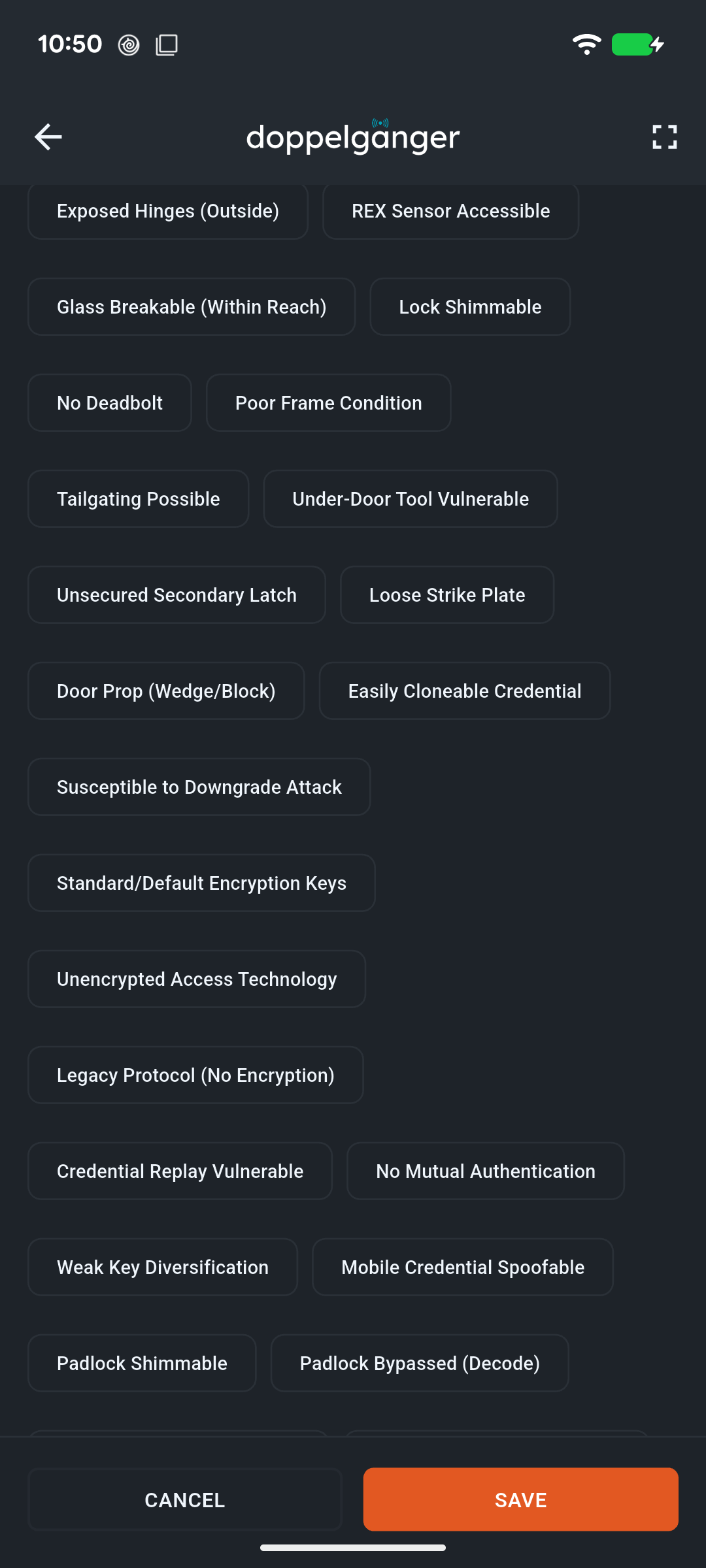
- Physical defeats, the ones visible from a walk past the door.
- Credential defeats, which depend on the RFID technology recorded above.
- Padlock and auxiliary hardware, treated separately from the door's own lock.
They group into six families. Every entry is listed.
Door and frame, 12
Missing Latch Guard, Air Gap (Door-Frame), Exposed Hinges (Outside), REX Sensor Accessible, Glass Breakable (Within Reach), Lock Shimmable, No Deadbolt, Poor Frame Condition, Tailgating Possible, Under-Door Tool Vulnerable, Unsecured Secondary Latch, Loose Strike Plate
Operational, 1
Door Prop (Wedge/Block)
Credential and protocol, 8
Easily Cloneable Credential, Susceptible to Downgrade Attack, Standard/Default Encryption Keys, Unencrypted Access Technology, Legacy Protocol (No Encryption), Credential Replay Vulnerable, No Mutual Authentication, Weak Key Diversification
Mobile, 1
Mobile Credential Spoofable
Padlock and auxiliary hardware, 10
Padlock Shimmable, Padlock Bypassed (Decode), Lockbox Bypassed (Decode), Cheap/Low-Security Padlock, Chain/Cable Cuttable, Combination Guessable, Lock Body Exposed, Hasp/Staple Vulnerable, Keypad Visible/Shoulder Surfing, Master Key System Compromised
Systemic and human, 10
Anti-Tailgating Sensor Blind Spot, Mantrap Bypass (Both Doors Open), Interlock Defeated (Held Open), Weight Sensor Calibration Off, Guard Station Unmanned, Camera Blind Spot at Entry, Emergency Override Accessible, Anti-Passback Not Enforced, Social Engineering Vulnerable, Visitor Badge Abuse Possible
Notes and media
Section titled “Notes and media”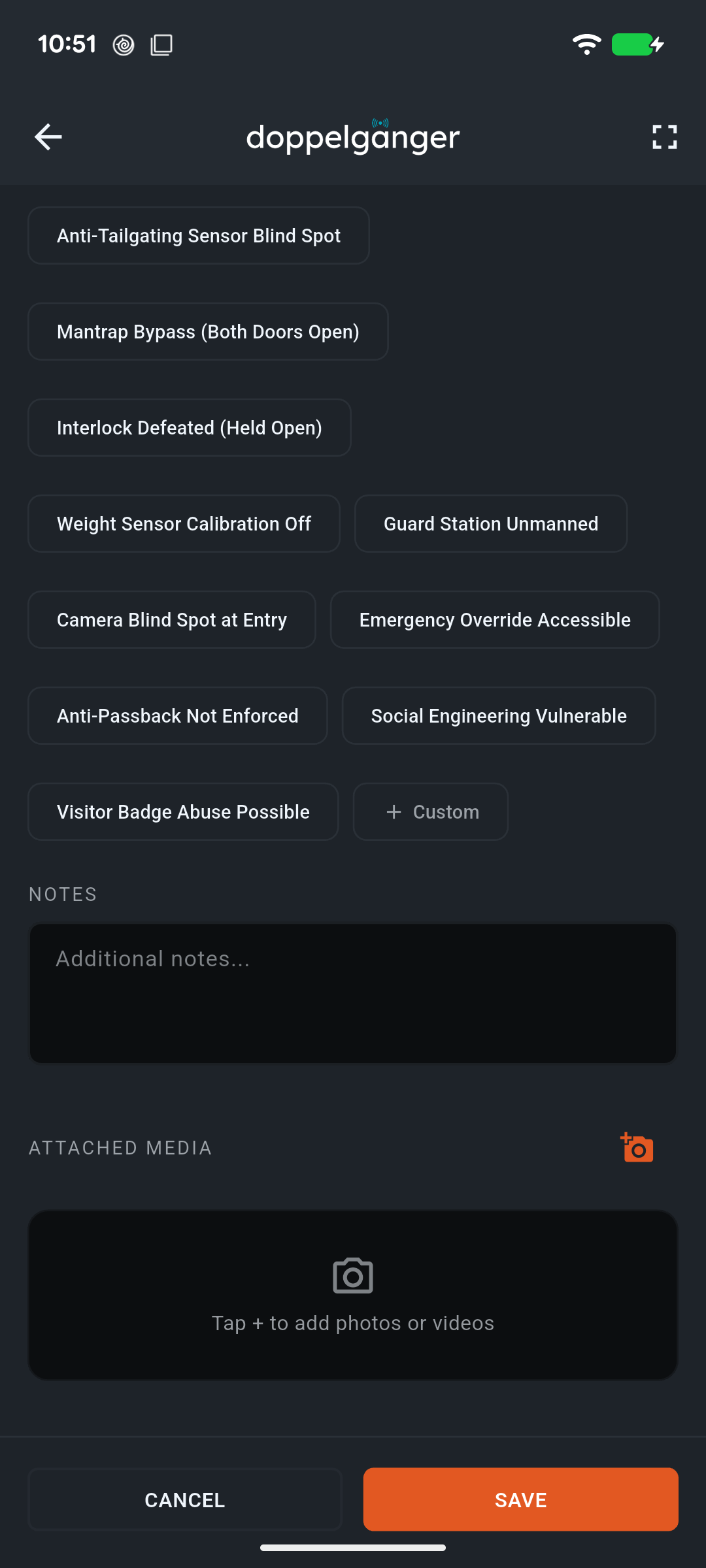
- Custom, for a weakness none of the 42 covers. Use it rather than forcing a near match.
- NOTES, which is where the override lock, the shift timing or the exact wording on the reader goes.
- ATTACHED MEDIA. A photograph of the gap or the reader is what makes the weakness defensible.
- CANCEL and SAVE. Nothing is written until SAVE.
Custom sits at the end of the weakness chips and is always there. Use it when none of the 42 fits rather than picking the nearest, because a near match is what makes a findings table wrong. It opens the ADD CUSTOM WEAKNESS dialog, hinted Enter weakness…, with CANCEL and ADD. What you add draws as a selected chip with a remove glyph on it, so it is clear which ones came off the list and which you typed.
NOTES opens with the hint Additional notes… and takes three lines of free text. ATTACHED MEDIA opens reading Tap + to add photos or videos and is covered in photos and attachments. A weakness with a photograph attached survives a challenge. One without it is an assertion.