
ATLAS Chameleon Ultra firmware
The Chameleon surfaces in ATLAS run against ATLAS CU firmware. It is proprietary, it is what slots, store, sniff, clone and relay call into, and it is not compatible with the official Chameleon Ultra firmware.
That is a deliberate split rather than a version gap. The two images are different firmware with different capabilities, and a device carries one or the other.
Both directions are one action, from one page, and your stored cards survive either way. A device can go to the official image for other work and come back.
The short version
Section titled “The short version”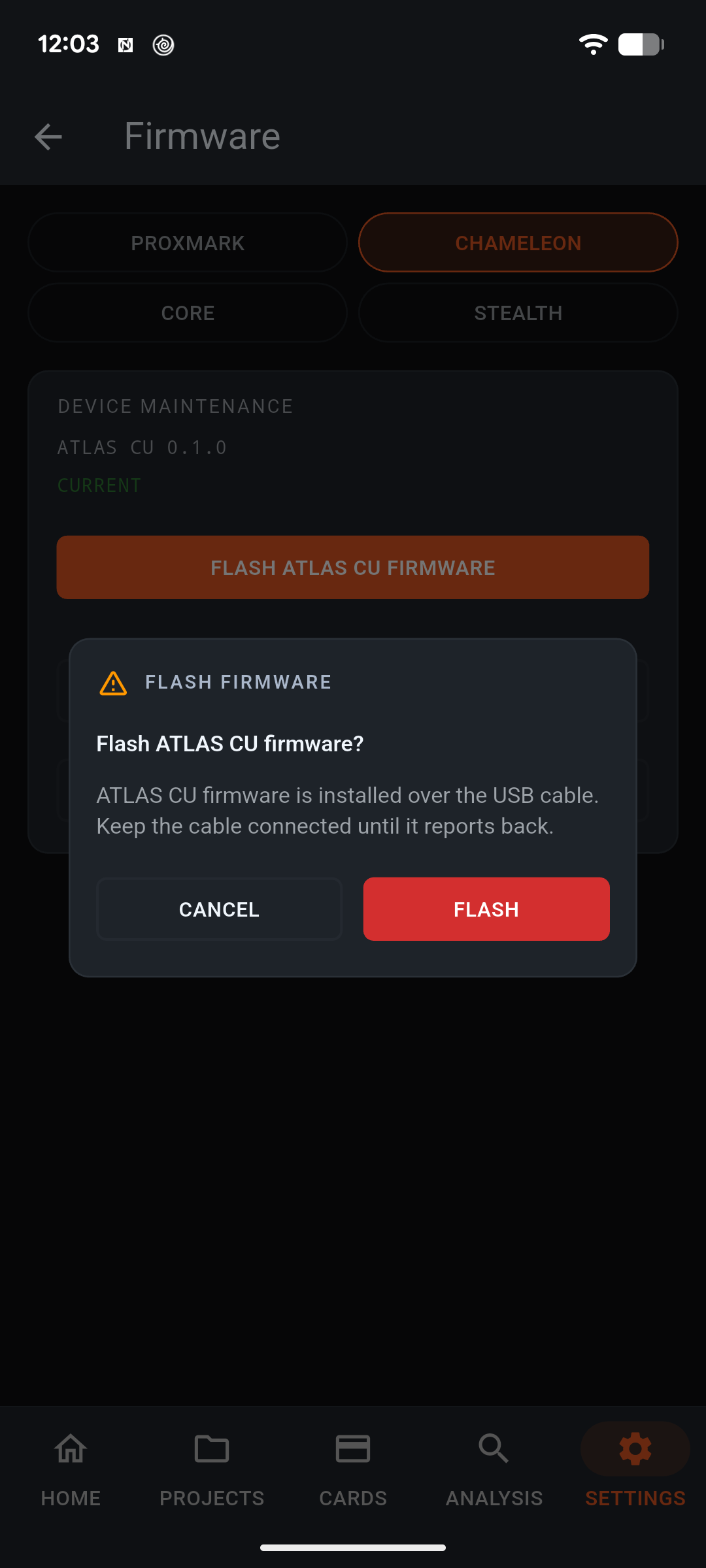
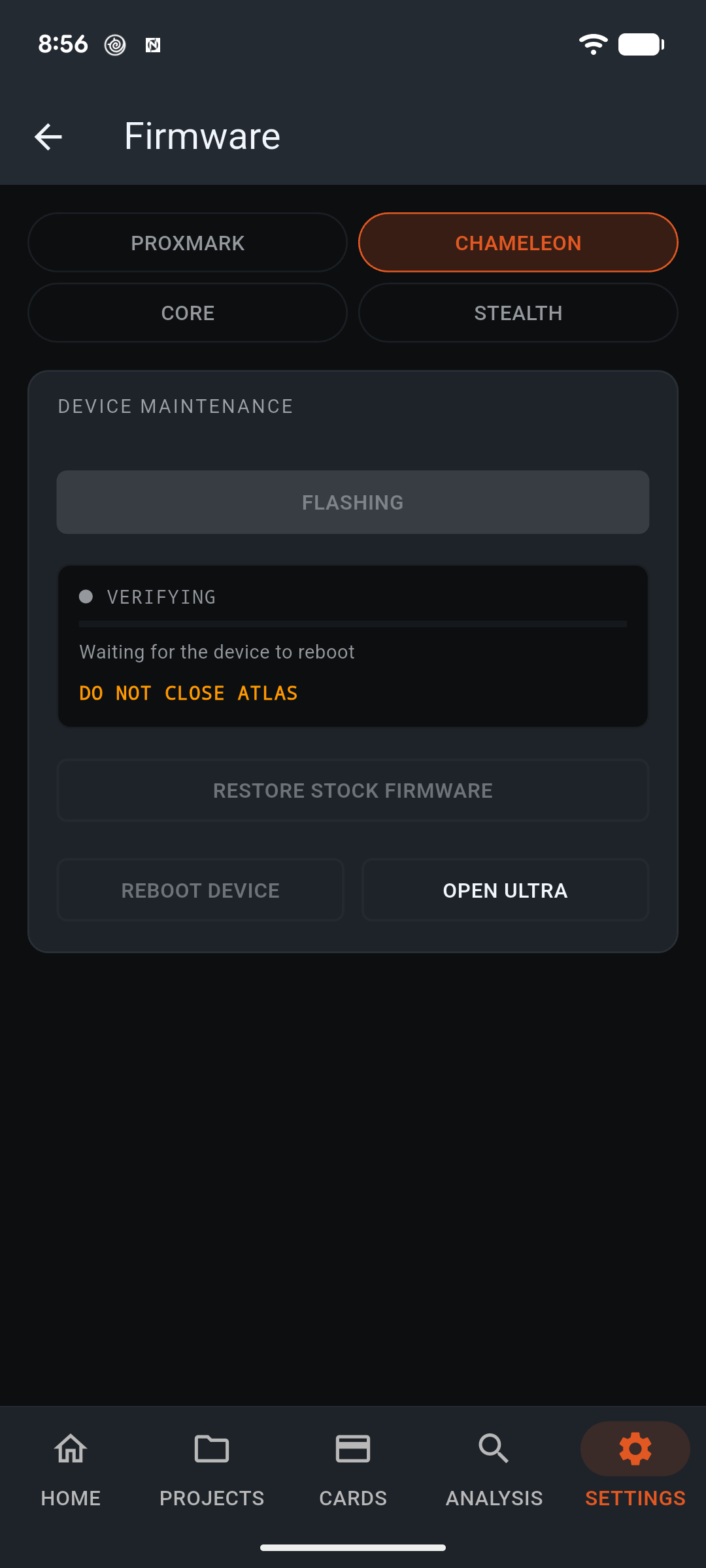
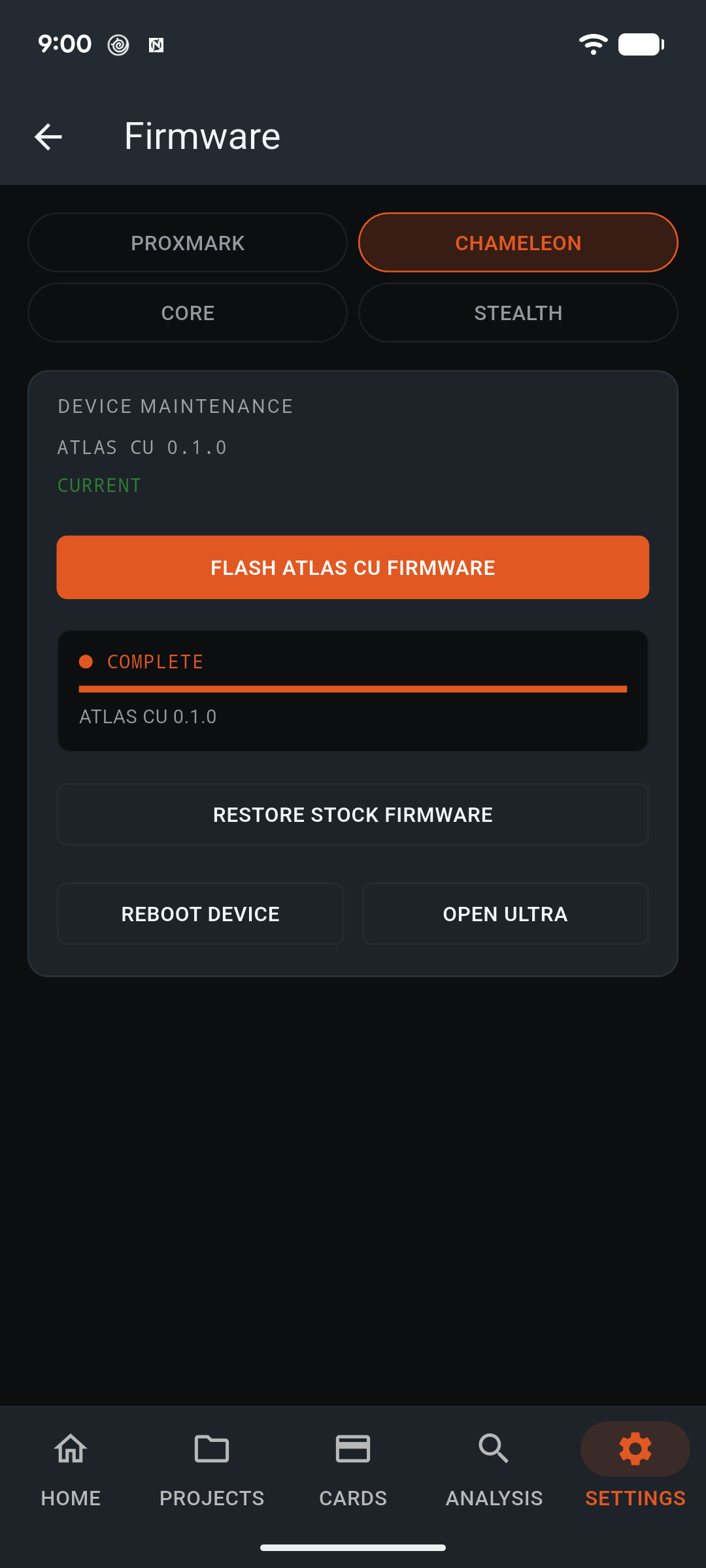
- FLASH FIRMWARE.
- Keep the cable connected until it reports back.
- CANCEL, or FLASH.
- FLASHING, while the run goes.
- The stage, VERIFYING here.
- DO NOT CLOSE ATLAS.
- CURRENT, read off the unit after the reboot.
- COMPLETE, over the image the unit now reports.
- REBOOT DEVICE.
On a unit running official firmware older than the release this build names, the same dialog reads The device is first brought up to the official firmware this build names, then ATLAS CU firmware is installed. Keep the cable connected until it reports back. The run brings it up to that release first, then installs ATLAS CU firmware.
- Plug the ATLAS Chameleon Ultra into the handset by USB cable. ATLAS connects it on its own. If it does not, Settings, Connection Settings, the ULTRA chip, CONNECT.
- Settings, Firmware, then the CHAMELEON chip.
- FLASH ATLAS CU FIRMWARE, then FLASH on the confirmation.
- Leave it alone until it reports COMPLETE. ATLAS reconnects the unit on the cable by itself.
A new unit on older official firmware
Section titled “A new unit on older official firmware”An Ultra out of the box can carry official firmware older than v2.3.0. FLASH ATLAS CU FIRMWARE checks the version first, updates that unit to the official v2.3.0, and only then goes on to the ATLAS image. The progress panel reads UPDATING STOCK FIRMWARE for that step, and the unit reboots one more time than usual.
The official v2.3.0 is downloaded at flash time and never bundled, so that step needs a network connection. Connect the handset to a network before you flash a new unit. With no network the flash stops before the unit reboots, with Could not download the official v2.3.0 firmware. Updating stock firmware needs a network connection. Nothing was sent.
A unit on official firmware older than v2.3.0 may report no USB serial number. ATLAS flashes it only when it is the one Chameleon on the cable, and otherwise stops with This Chameleon reports no USB serial number. Flash it with no other Chameleon on the cable. Nothing was sent. Unplug any other Chameleon before you flash a new unit.
| The unit is on | What FLASH ATLAS CU FIRMWARE does |
|---|---|
| official firmware older than v2.3.0 | updates it to the official v2.3.0 first, then flashes ATLAS |
| official v2.3.0 or later | skips the update and flashes ATLAS, no network needed |
| ATLAS firmware | skips the update and flashes ATLAS, no network needed |
If the unit does not come back reporting v2.3.0, the flash stops there with FAILED and The stock firmware update did not land., and nothing further is sent.
Allow USB access each time the phone asks
Section titled “Allow USB access each time the phone asks”The unit comes back under a new USB name after each reboot of a flash, so the phone asks again whether ATLAS may use it. A new unit reboots more often than one already on ATLAS firmware, so it can ask several times in one flash. Allow access each time, and choose to always allow it when the phone offers that, so the next flash asks less. The flash waits about 25 seconds for an answer. If no one answers in time it stops with USB access to the bootloader was not allowed in time. Nothing was sent., and you flash again.
What the page tells you before you touch anything
Section titled “What the page tells you before you touch anything”DEVICE MAINTENANCE names the image on the connected device and whether it matches the one inside this build of ATLAS.
| Reading | Meaning |
|---|---|
| CURRENT, in green | the device carries the image this app ships, or a newer ATLAS image |
| UPDATE AVAILABLE, in orange | the app carries a newer image than the device |
| UNSUPPORTED, in red | the device is on official firmware, which ATLAS does not support. A new unit reads this |
| UNKNOWN, in orange | ATLAS could not read enough to compare |
The line above the reading is the image itself, ATLAS CU and a version on ATLAS firmware, or the version the device reports on official firmware.
Some units also carry a line in red, ICLASS ONLY UNIT or ICLASS NOT AVAILABLE ON THIS UNIT. It describes the unit, and a flash does not change it.
That comparison is against the app, not against the internet. A newer ATLAS build can carry a newer Chameleon image, so an app update can turn a device that read CURRENT into one that reads UPDATE AVAILABLE without the device changing at all.
ATLAS also raises it for you. Connect a unit that is not on the image this app carries and a prompt offers the Firmware page at once, with LATER and OPEN.
| The unit is on | The prompt reads |
|---|---|
| an older ATLAS image | CHAMELEON ULTRA FIRMWARE IS OUT OF DATE, then Flashing needs a USB cable. |
| official firmware | CHAMELEON ULTRA IS NOT ON ATLAS FIRMWARE, then Open to flash ATLAS firmware. |
The prompt stays quiet while a flash is running, so the reboots of your own flash do not raise it.
OPEN goes straight to the CHAMELEON chip on the Firmware page. On Bluetooth the page opens with both flash buttons gray until the cable is in.
While it writes
Section titled “While it writes”The confirmation is worth reading rather than tapping through, because it tells you the two things that matter.
The image goes over the USB cable, and only over the cable. There is no Bluetooth flash. With the ATLAS Chameleon Ultra connected over Bluetooth alone both buttons are gray and the page reads Connect the Chameleon by USB cable to flash. Keep the cable connected until it reports back.
Leaving the page is safe. The run belongs to the app rather than to the screen. Closing ATLAS is what you must not do.
Progress reports a stage, a percentage while an image is moving, and one line saying what is happening, such as Uploading over USB or Waiting for the device to reboot. A unit already on ATLAS firmware runs LOADING IMAGE, ENTERING DFU, FINDING DEVICE, UPLOADING and VERIFYING. A unit still on the original bootloader adds UPDATING BOOTLOADER once, with a reboot of its own, before the upload. A new unit on official firmware older than v2.3.0 goes through UPDATING STOCK FIRMWARE before that, with another. ENTERING DFU and FINDING DEVICE come round again after each of those reboots.
When it finishes
Section titled “When it finishes”COMPLETE means more than a finished upload. After the reboot ATLAS reconnects the unit on the cable, the same unit it flashed, and reads the image it now runs. COMPLETE appears only when that is exactly the image this app carries, and the line under it names it, for example ATLAS CU 0.1.0. DEVICE MAINTENANCE reads CURRENT again.
Anything else ends FAILED, with the reason.
| The line under FAILED | What happened | Do this |
|---|---|---|
| Device reports, a version, then expected, and the version it should be | the unit came back on a different image | flash again |
| Device still reports, the old version, then expected | the unit came back on the image it had before | flash again |
| Not verified. The device did not come back. | nothing answered on the cable in the time allowed | check the cable, then flash again |
| The device is still in DFU mode with no application. | the unit is waiting in its bootloader | flash again. The bootloader takes the image |
| Flashed, but the device never answered a command. | the unit came back and did not answer | REBOOT DEVICE, then check it reads CURRENT |
| USB access to the bootloader was not allowed in time. Nothing was sent. | the phone asked for USB access and no one answered | flash again and allow access |
| Connect the Chameleon by USB cable to flash. | the unit is not on the cable | plug it in, then flash again |
| A different Chameleon came back on the cable. The image was not sent. | another unit answered after a reboot | flash with one Chameleon on the cable |
| This unit’s bootloader is not a proven one. Nothing was sent. | ATLAS does not recognize the unit’s bootloader, and writes nothing to it | do not flash this unit from ATLAS |
REBOOT DEVICE is there whether or not a flash ran, and stays usable on a unit that has stopped answering. It asks first. OPEN ULTRA, beside it, leaves this page for Cards on the ULTRA tab.
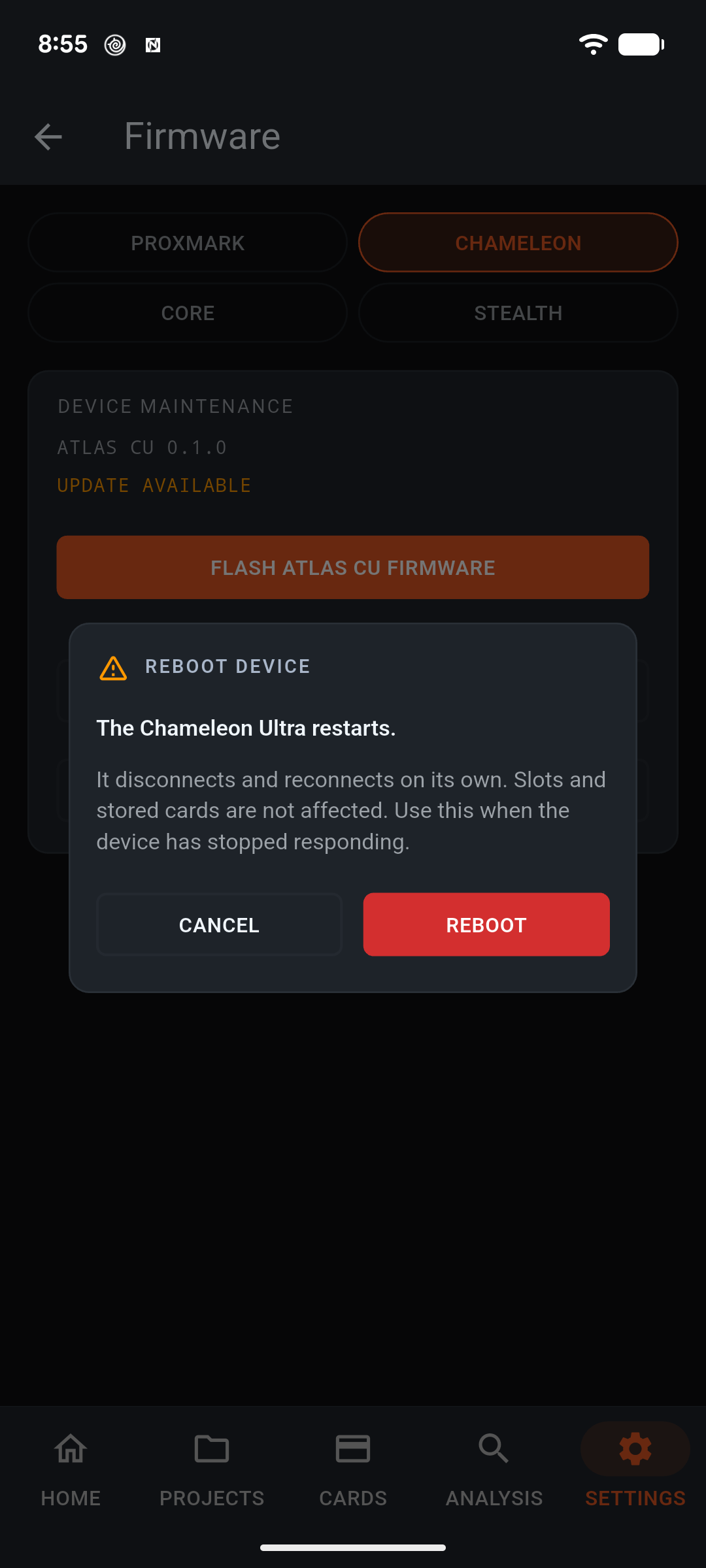
- REBOOT DEVICE.
- It reconnects on its own. Slots and stored cards stay.
- CANCEL, or REBOOT.
Going back to the official firmware
Section titled “Going back to the official firmware”RESTORE STOCK FIRMWARE downloads the official Chameleon release this build of ATLAS names, v2.3.0, at flash time, and refuses it unless it is byte for byte that release. Nothing official is bundled in the app, so this step needs a network connection.
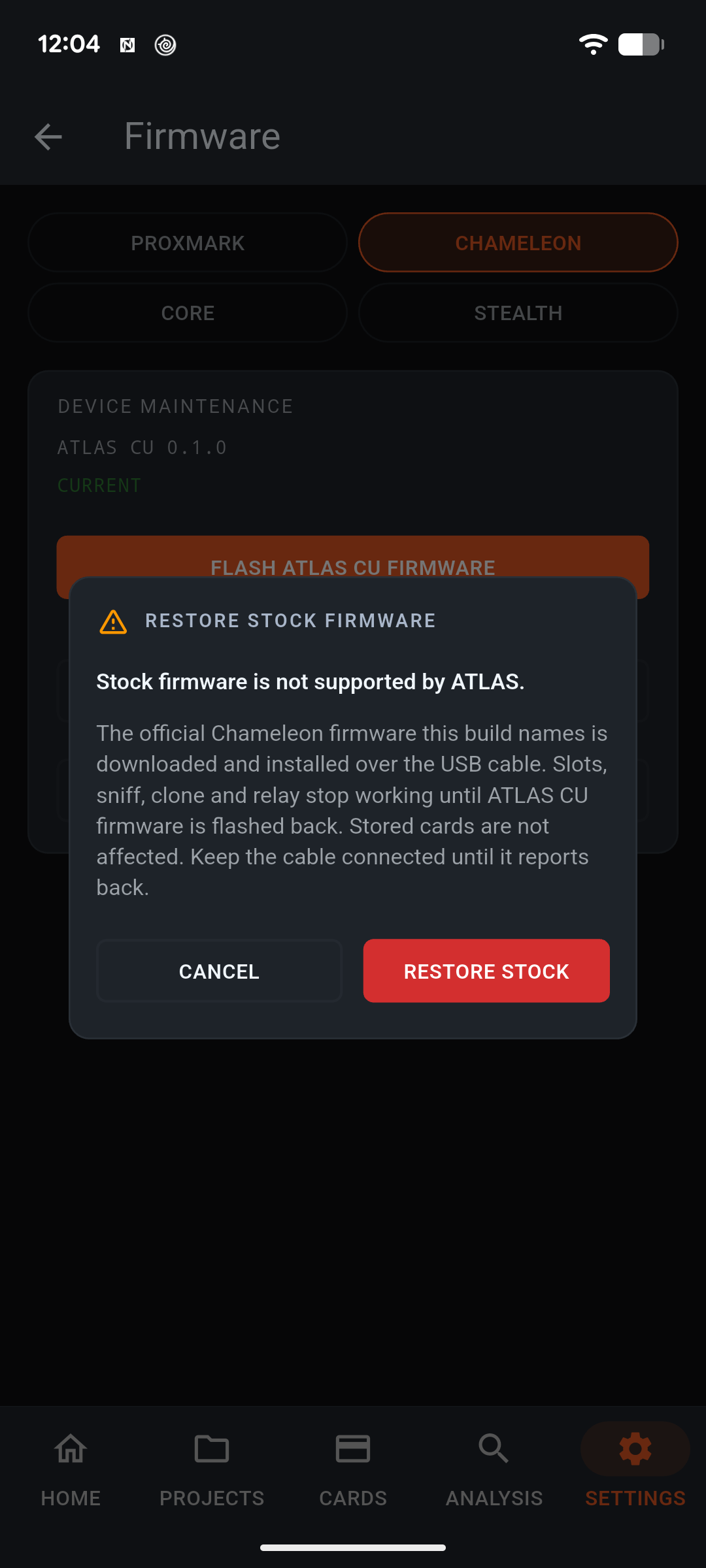
- RESTORE STOCK FIRMWARE.
- Stock firmware is not supported by ATLAS.
- Downloaded, then installed over the cable. The ULTRA tab stops working until ATLAS is back.
- CANCEL, or RESTORE STOCK.
What you lose while it is on the official image is every surface on the ULTRA tab. Those surfaces call into the ATLAS firmware and have nothing to talk to without it.
What you keep is the cards. They live in the app, not on the device.
Flashing back is the same page and the other button.
Where to go next
Section titled “Where to go next”| You want | Page |
|---|---|
| What the ATLAS Chameleon Ultra is for on an assessment | ATLAS Chameleon Ultra |
| Getting it connected and saved | Connection settings |
| Flashing a Proxmark instead | Flash a Proxmark |