
Analyze Frames
A covert recording is wide, shaky and over in seconds, and the thing you needed out of it lasted about a tenth of one. The badge on the lanyard as somebody turned. The keypad as a hand came off it. The plate on the car that pulled into the dock while you were filming something else.
Playing it back again does not get you that. A player shows the frame scaled to the phone, and the phone is 1080 pixels wide while the capture is 4K, so three quarters of what was recorded never reaches your eye. Pausing and taking a screenshot saves the scaled version, which is the one thing you cannot read.
Analyze Frames decodes the stored frame instead of the displayed one. What follows is each screen it puts in front of you and what that screen is for.
1. The player, and the way in
Section titled “1. The player, and the way in”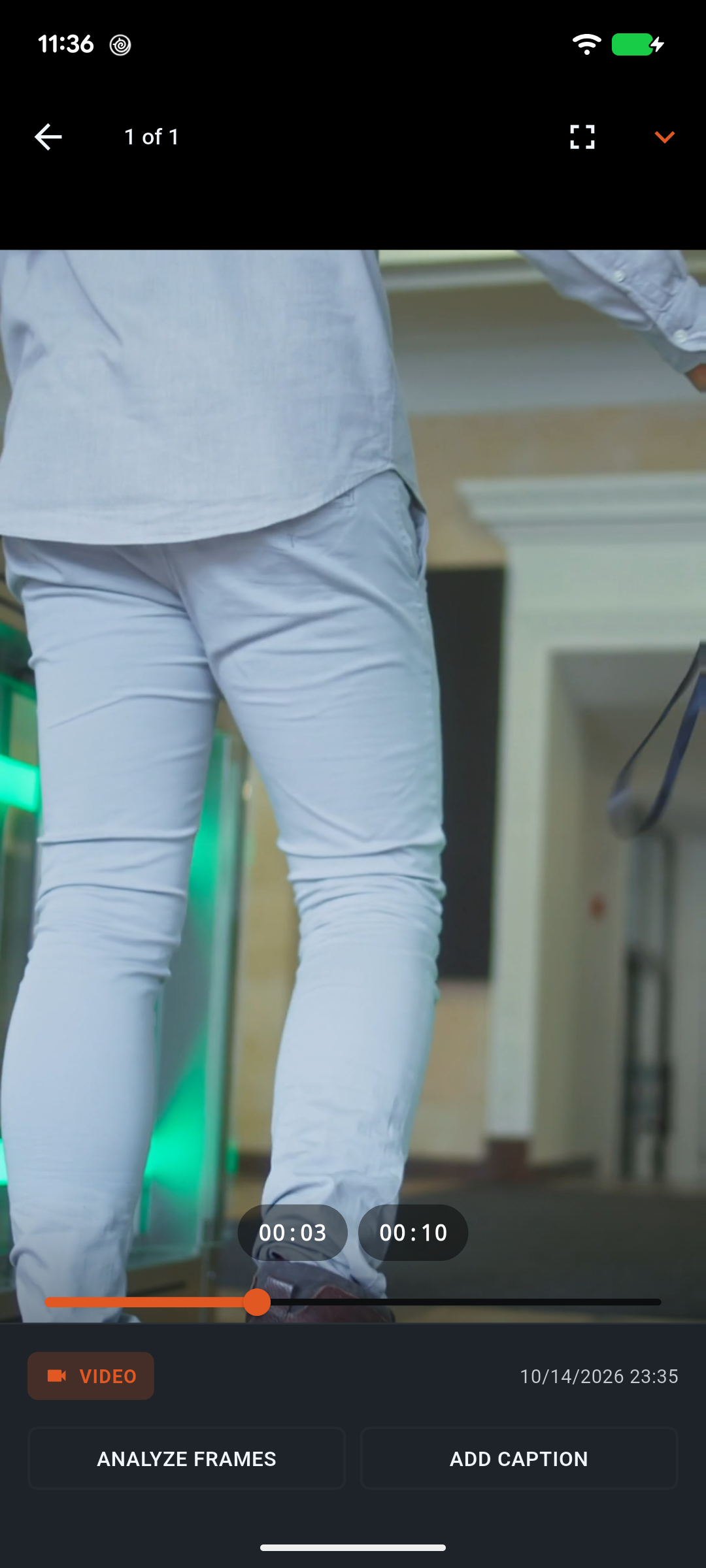
- Which attachment of how many, and the control that opens the bar below.
- Position and length. Scrub roughly to the moment before you hand it over.
- The kind chip and when the recording was made, not when it was opened.
- ANALYZE FRAMES. It appears on a video and on nothing else.
Tap a video attachment on any record and it plays inside ATLAS. Open the detail bar with the control at the top right and ANALYZE FRAMES hands the recording over.
It opens on the frame you were paused at, so the usual way in is to scrub roughly to the moment in the player first.
2. FIND, which is where the frame is
Section titled “2. FIND, which is where the frame is”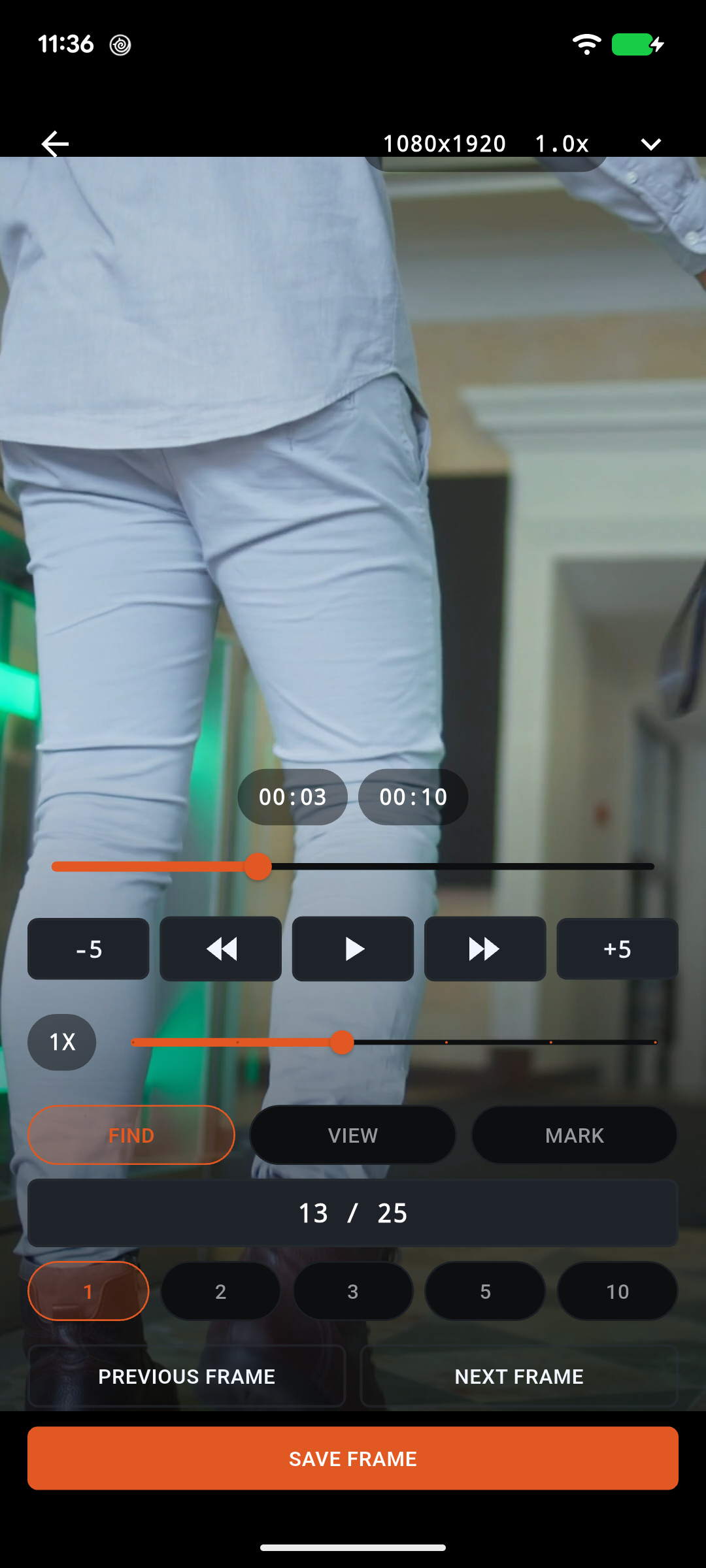
- What was decoded and the zoom. Here it is the full stored frame.
- The same transport the player uses, including hold to crawl.
- Three tools. FIND is position, VIEW is exposure, MARK is evidence.
- Frame 13 of 25. The denominator is this recording's own frame rate.
- How far a step moves. One frame, or ten.
- SAVE FRAME writes the still at the resolution in the header.
| Control | What it does |
|---|---|
| The reading | which frame of the current second you are on, over the recording’s frame rate |
| 1, 2, 3, 5, 10 | how many frames each step moves |
| PREVIOUS FRAME, NEXT FRAME | step by that many, snapping to a real frame boundary |
A badge that was legible for three frames is found by stepping, not by scrubbing.
3. VIEW, which is what you can see
Section titled “3. VIEW, which is what you can see”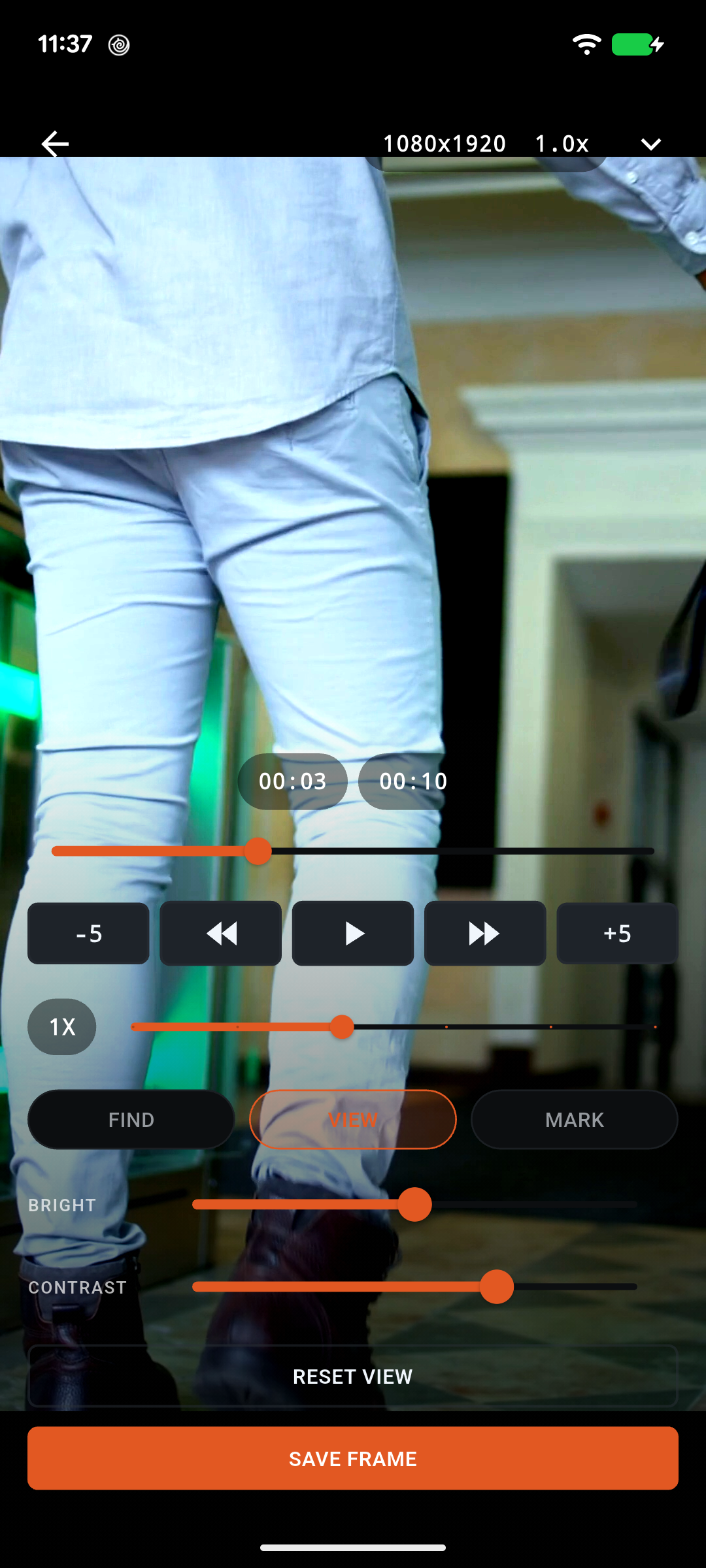
- The decode size, unchanged. These sliders do not touch resolution.
- VIEW selected. The transport above it keeps working.
- BRIGHT, for a recording made in a bag, a pocket or a dark lobby.
- CONTRAST, for separating two dark things from each other.
- RESET VIEW, which puts the zoom and both sliders back at once.
| Control | Range | What it is for |
|---|---|---|
| BRIGHT | -0.5 to 0.5 | lifting a recording that was made somewhere dark, which is most of them |
| CONTRAST | 0.5 to 2.5 | separating a lanyard from a jacket, or a keypad from a hand |
| RESET VIEW | zoom, brightness and contrast together. Dimmed while all three are already at their defaults |
4. MARK, which is what you found
Section titled “4. MARK, which is what you found”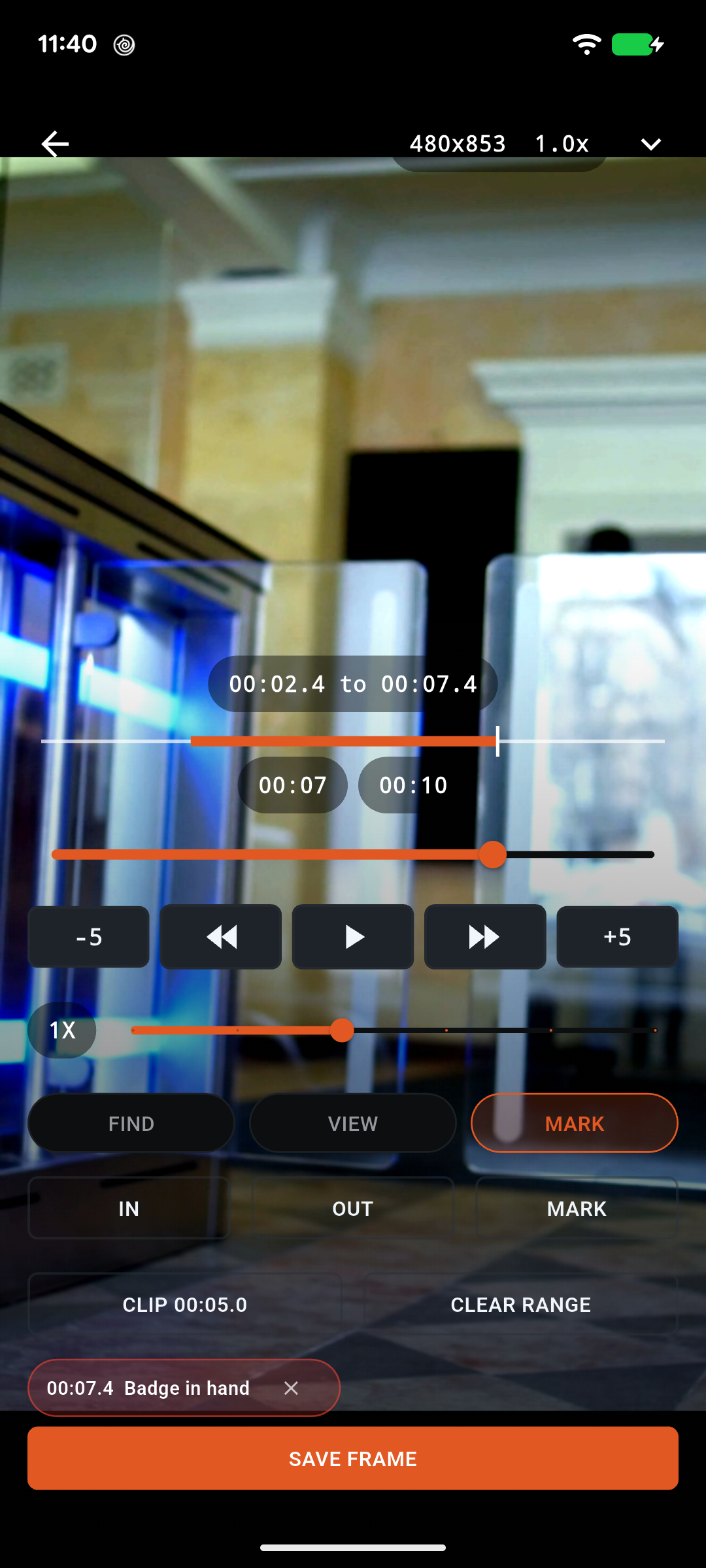
- The range you have keyed, in and out, to a tenth of a second.
- IN and OUT key the range. MARK labels the instant you are on.
- CLIP cuts that range out as its own recording.
- A marker, with its time and its label. The X removes it.
| Control | What it does |
|---|---|
| IN | keys the start of a range at the current frame |
| OUT | keys the end |
| MARK | labels this instant and asks for the label |
| CLIP 00:05.0 | appears once in and out are both keyed, and cuts that range out |
| CLEAR RANGE | drops the in and the out, and leaves the markers alone |
The timeline under the pill draws the range in orange and ticks each marker, so a recording you have worked through reads at a glance.
5. The marker, which is a time and a sentence
Section titled “5. The marker, which is a time and a sentence”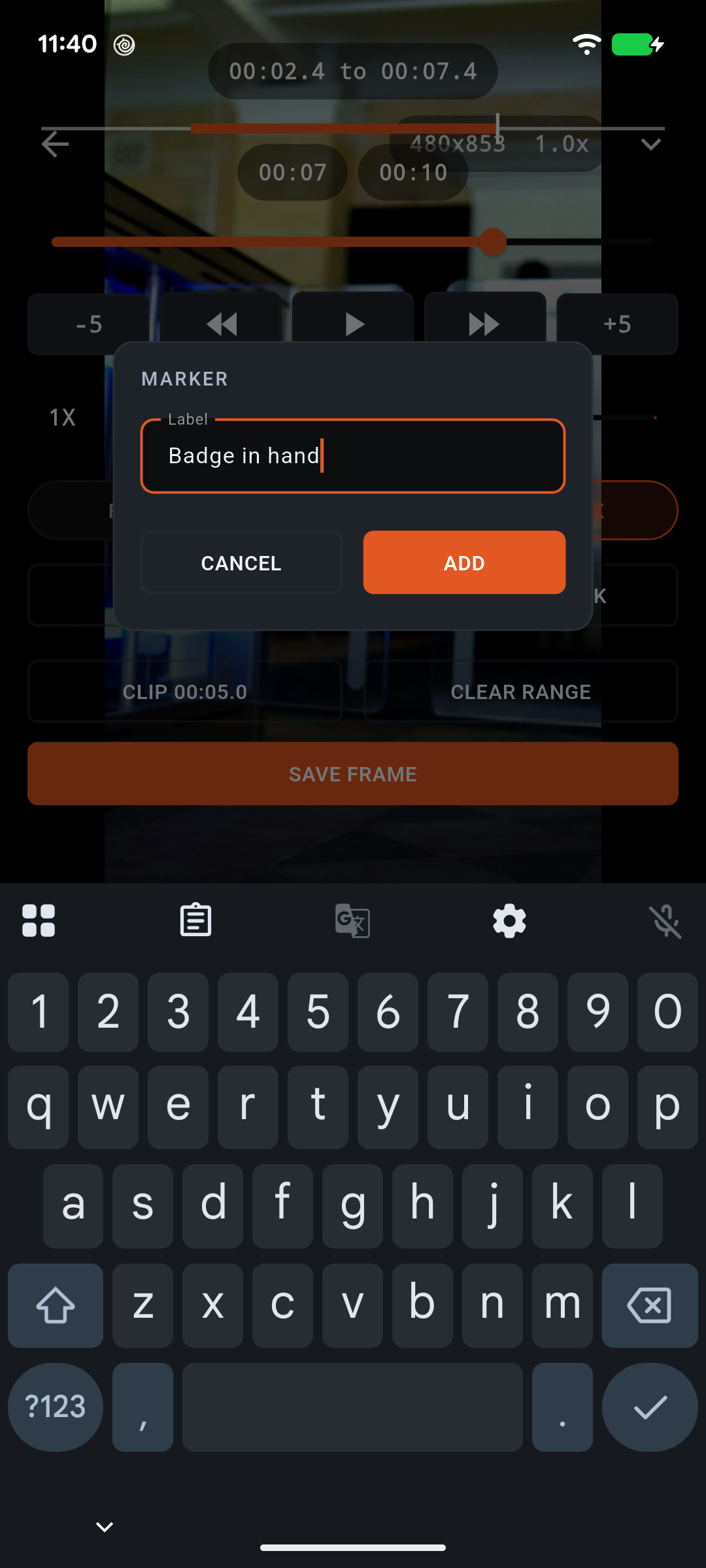
- MARKER, raised by the MARK button at the frame you are on.
- The label, hinted What is here.
- ADD files it. CANCEL leaves the recording unmarked.
Markers are stored on the attachment, so they are there the next time the recording is opened and they travel with a project export.
6. The frame, with the controls out of the way
Section titled “6. The frame, with the controls out of the way”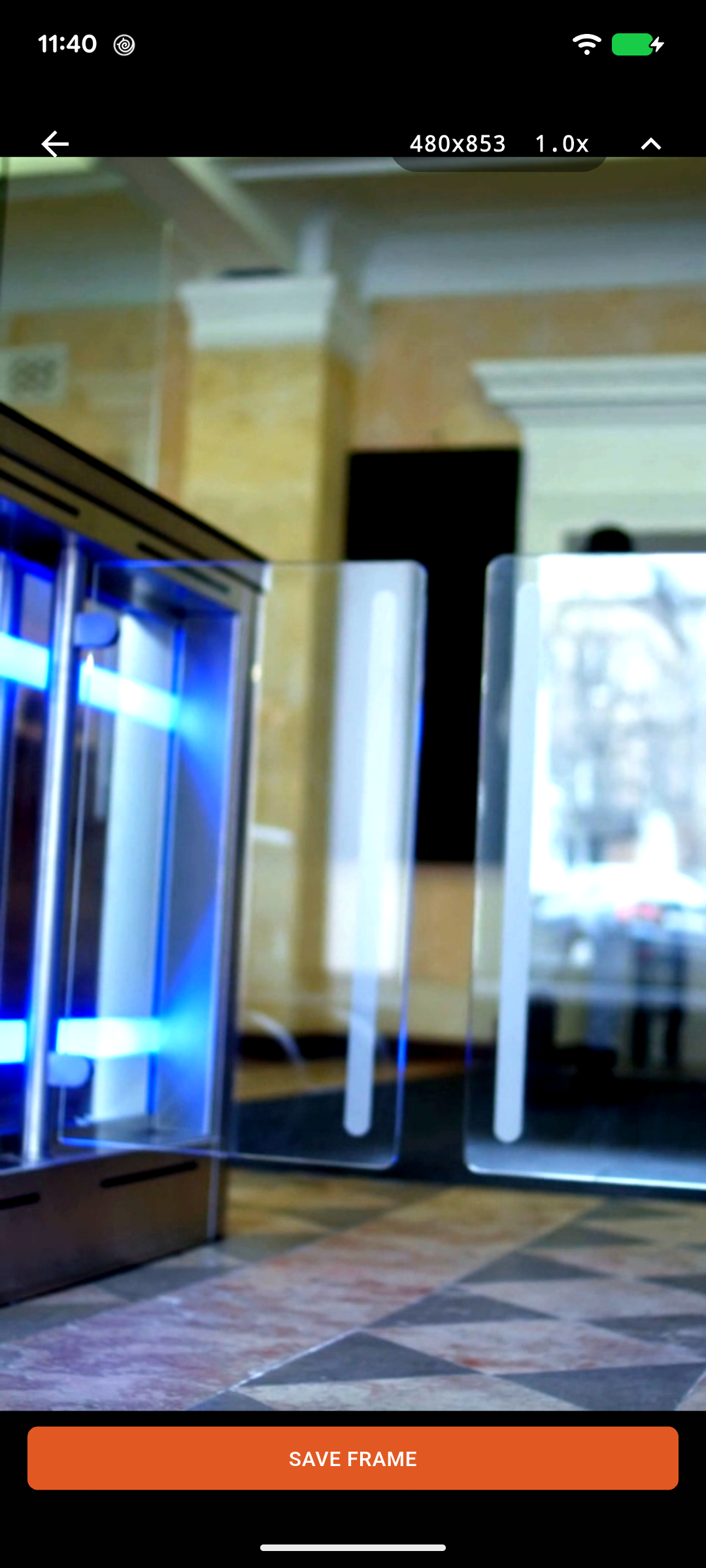
- The chevron, now pointing up, brings the controls back.
- The frame, with nothing over it.
- SAVE FRAME stays, because that is the one thing you still want.
The chevron at the top right folds the control stack away. It is the state to work in once the exposure is set and you are reading the picture rather than hunting for the frame.
What SAVE FRAME writes
Section titled “What SAVE FRAME writes”Not a screenshot. The frame is decoded again at full resolution, with the brightness and contrast you set, and the file that lands is a photo attachment on the same record as the recording.
| It carries | From |
|---|---|
| Latitude, longitude, altitude | the recording |
| Bearing | the recording |
| Captured at | the recording’s start plus the offset into the clip |
| Caption | written for you, as Frame at 15.0 s |
That timestamp is the part that matters. A still pulled from 15 seconds in carries the wall clock moment it actually happened at, rather than the moment you sat down to review the take.
The confirmation names the size, Frame saved, 3840 x 2160, which is the quickest check that you got the stored frame rather than the displayed one.
SAVE REGION
Section titled “SAVE REGION”Pinch to zoom in and the button changes to SAVE REGION. What it writes is the part of the frame you are looking at, cut out of the same full resolution decode, so a badge that filled an eighth of the frame is saved as a badge rather than as a frame you have to crop afterward.
| State | Button | What you get |
|---|---|---|
| Whole frame in view | SAVE FRAME | the entire frame at its stored resolution |
| Zoomed in | SAVE REGION | just the visible part, cut from the same decode |
Panning past the edge does not widen the crop. The region is clipped to the picture, because there are no pixels out there to save.
What CLIP writes
Section titled “What CLIP writes”CLIP cuts the keyed range out and files it as its own video attachment, captioned Clip from 15.0 s, carrying the source’s position and bearing the way a saved frame does.
What it shares with the player
Section titled “What it shares with the player”The transport is the same component in both surfaces, so the clock, the scrub, the five second jumps, the hold to crawl and the speed dial behave identically. What differs is underneath. The player runs the phone’s video engine, and Analyze Frames decodes frames one at a time, which is why it can give you a frame the player cannot.
See Reviewing the take for the player, and Clandestine camera for making the recording in the first place.