
Export, import and merge
Two things force this. The engagement has to leave the phone, because the deliverable is written somewhere else and because a handset carrying a client’s credentials is not where that data should live afterwards. And on anything bigger than one building there is more than one operator, each on their own device, each with their own half of the site.
So: Export writes a project out as a file. Import reads one back in. Merge combines projects already on the phone, and it is the one with real decisions in it, because once two operators’ work is one project the only thing that still says who found what is the attribution you set during the merge.
Merging two projects
Section titled “Merging two projects”Two operators work a site, each on their own handset, each with their own project. Merge is how those become one engagement without losing which of them collected what.
Projects, then the merge icon in the toolbar. It is a four step wizard, and every step is a decision.
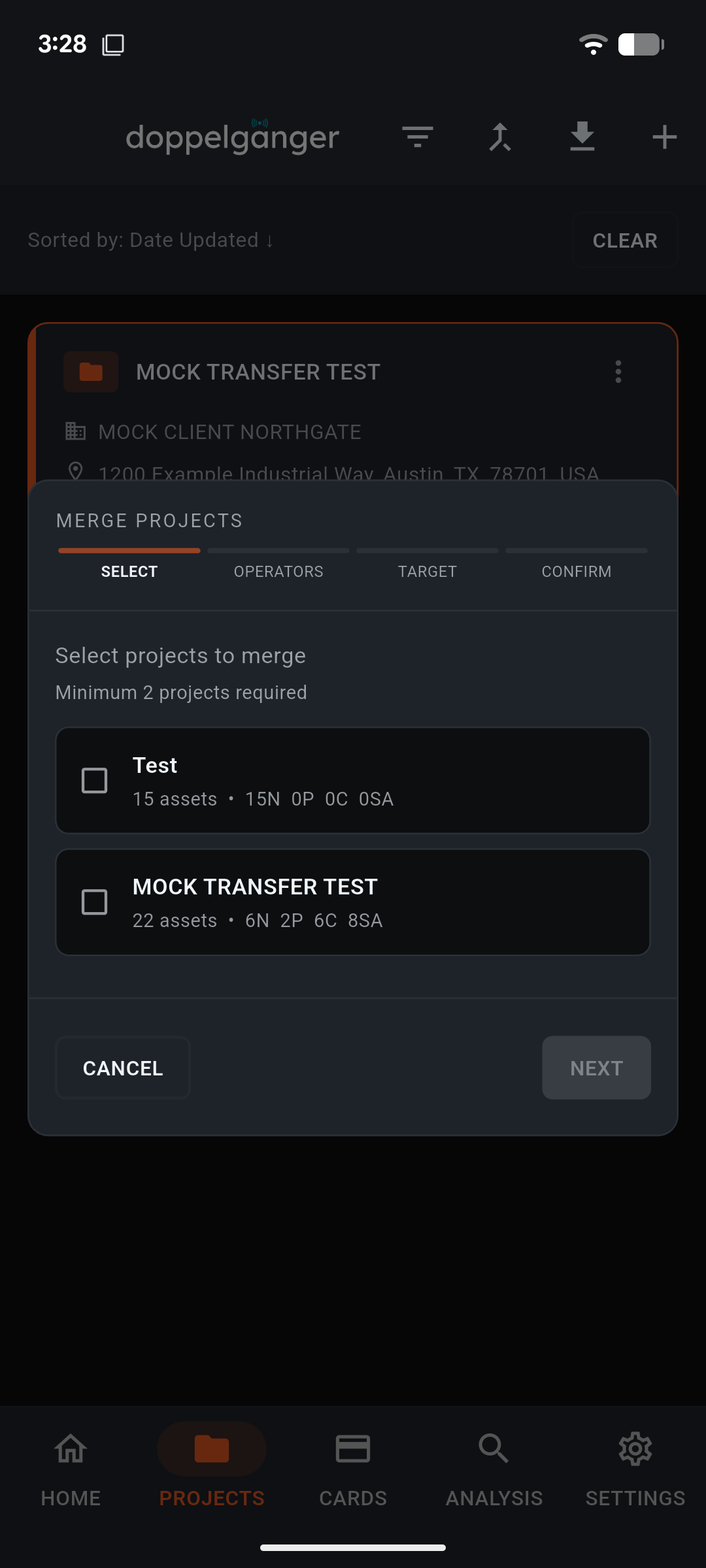
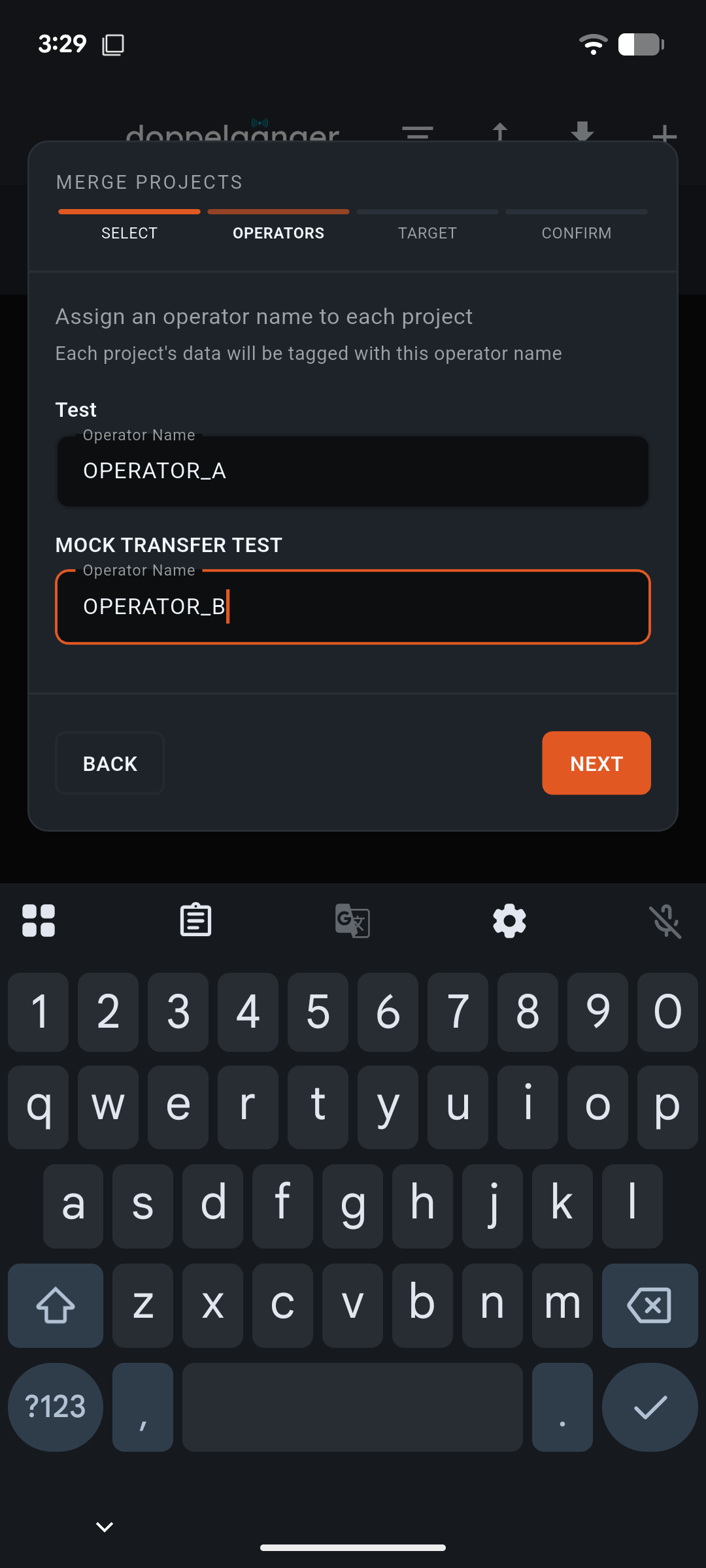
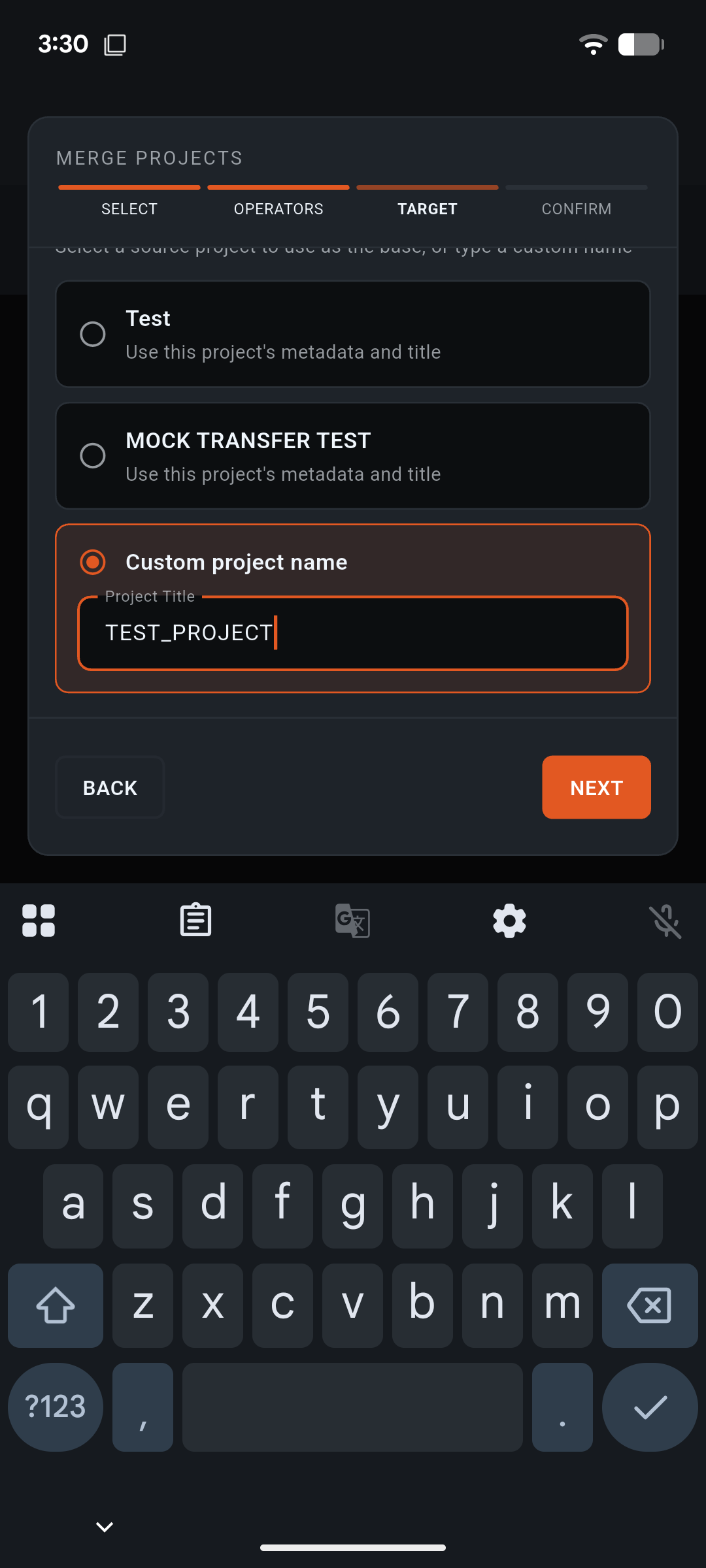
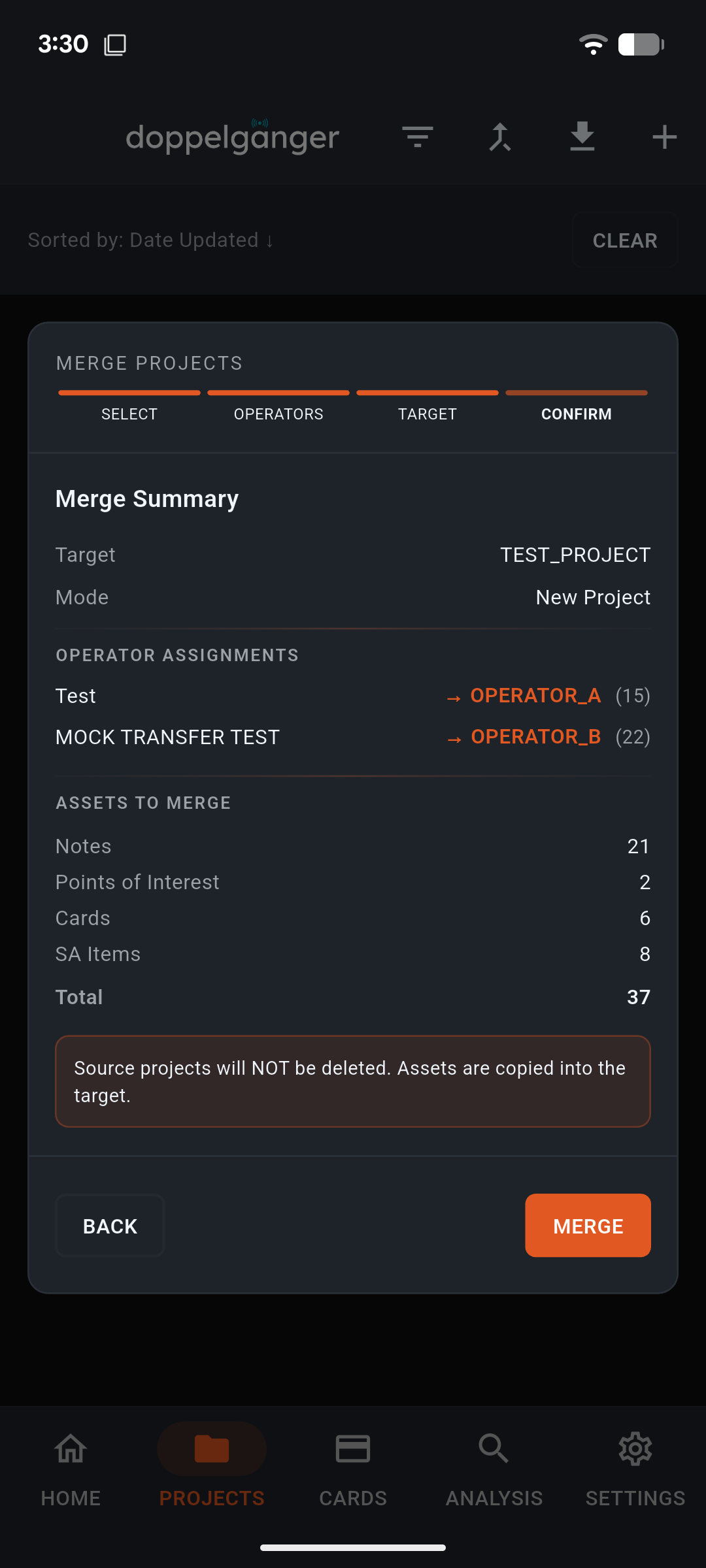
- Each source shows what it is bringing, broken out by type.
- Pick two. The wizard does not merge more than that in one pass.
- An operator per source, which is what makes a merged record traceable afterwards.
- Fill both. This is the only chance to attribute the work.
- Either source can be the base, which keeps its own name and settings.
- Or a custom name, which creates a new project and leaves both sources intact.
- Target and mode, restated before anything is written.
- The totals. Check these against the Select step before confirming.
Select
Section titled “Select”Pick two or more. Each row shows its total and the breakdown, so 22 assets • 6N 2P 6C 8SA is six notes, two points of interest, six cards and eight awareness items. Read those counts before you continue, because they are what the summary at the end has to match.
Operators
Section titled “Operators”Every project gets an operator name, and every asset from that project is tagged with it. This is the step people skip and regret. Once two projects are one, the only thing that still says a camera was logged by the person on the north side is this tag.
Target
Section titled “Target”Either use one source project’s metadata and title as the base, or type a custom project name and get a new project built from both. Pick the custom name when neither source is the real engagement, which is usually the case when two field projects are being combined into the deliverable.
Confirm
Section titled “Confirm”The summary restates the target, the mode, the operator assignments with their counts, and the totals by type. Check the total against what you read on the Select step.
Deleting a project afterwards
Section titled “Deleting a project afterwards”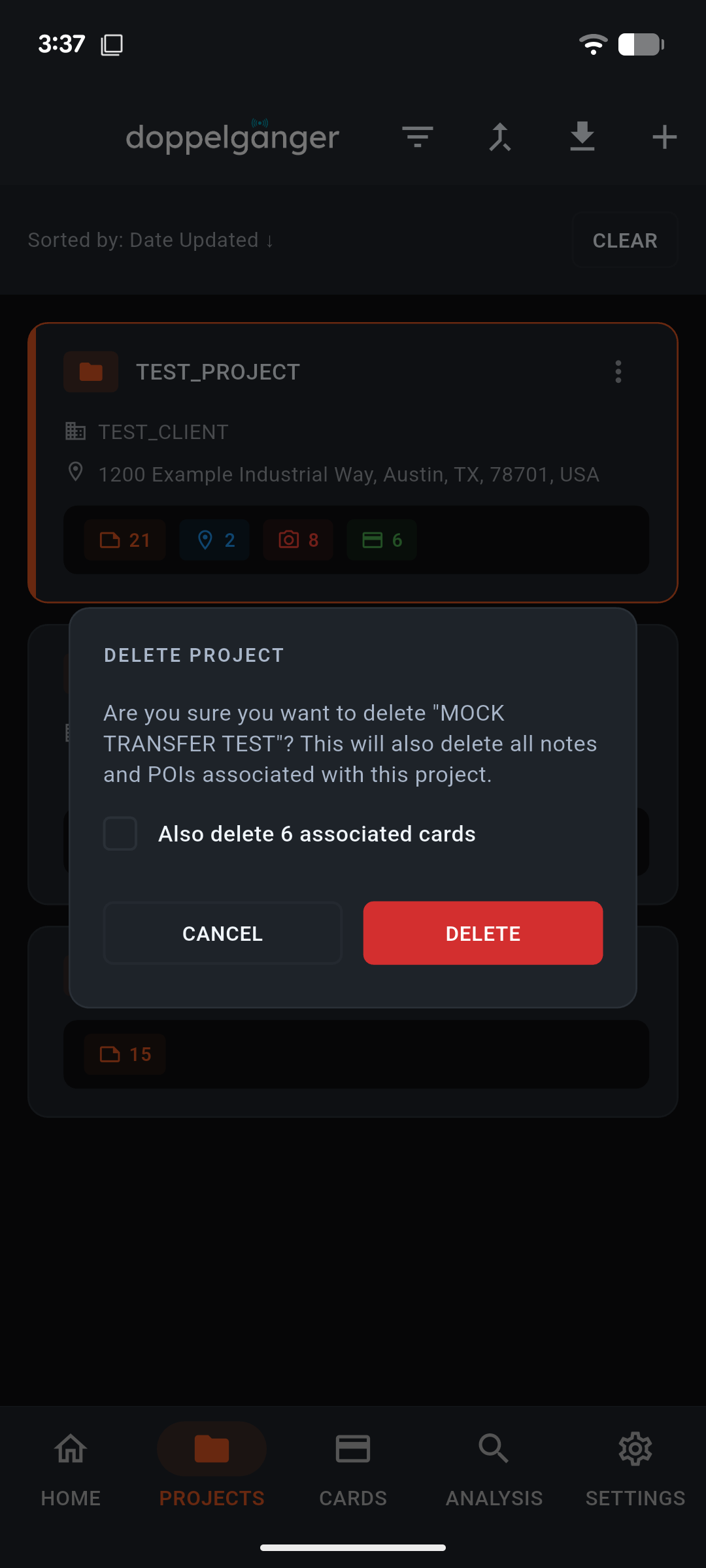
- Notes and POIs go with the project, with no separate choice.
- Cards are a separate unchecked box, so they survive unless you say otherwise.
The confirmation tells you two different things and they are not the same:
- Notes and POIs are deleted with the project. No choice offered.
- Cards are a separate checkbox, unchecked by default, reading Also delete N associated cards.
Exporting a project
Section titled “Exporting a project”The project’s overflow menu offers EXPORT PROJECT JSON, EXPORT GPS DATA and EXPORT MAP SCREENSHOT. The first opens a picker for exactly what travels.
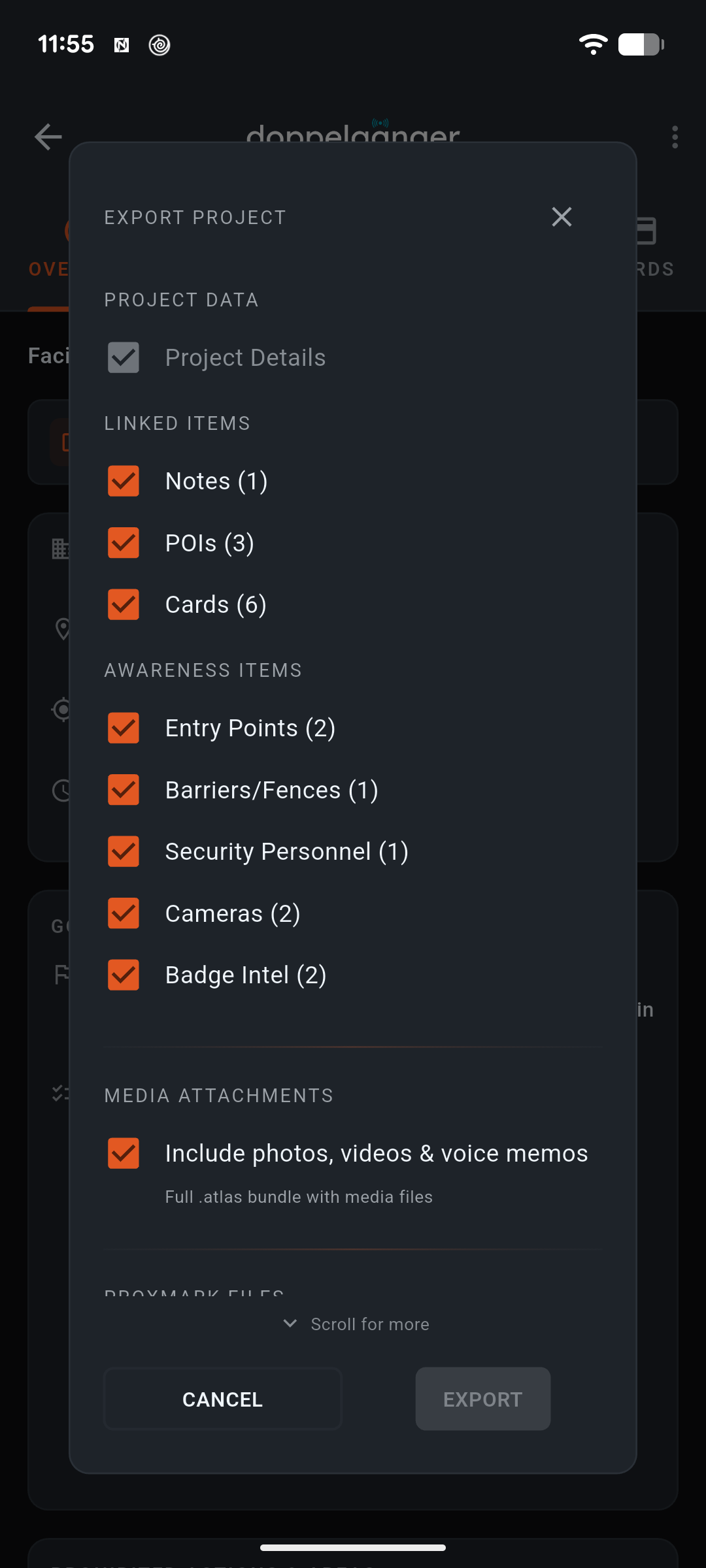
- Project Details, gray and always ticked.
- Everything else the export will carry, itemized with its count.
- Awareness items are broken out by type, so nothing travels unnoticed.
Every category carries its live count, including the ones at zero, which is how you tell an empty category from a forgotten one. Project Details is grayed out and always ticked, because a bundle without its project cannot be imported. Everything below it can be left out. The sections are project details, linked items, awareness items broken out by type, media attachments, Proxmark files tagged through the File Manager, and TAK logs.
Encryption is on by default, and should stay on
Section titled “Encryption is on by default, and should stay on”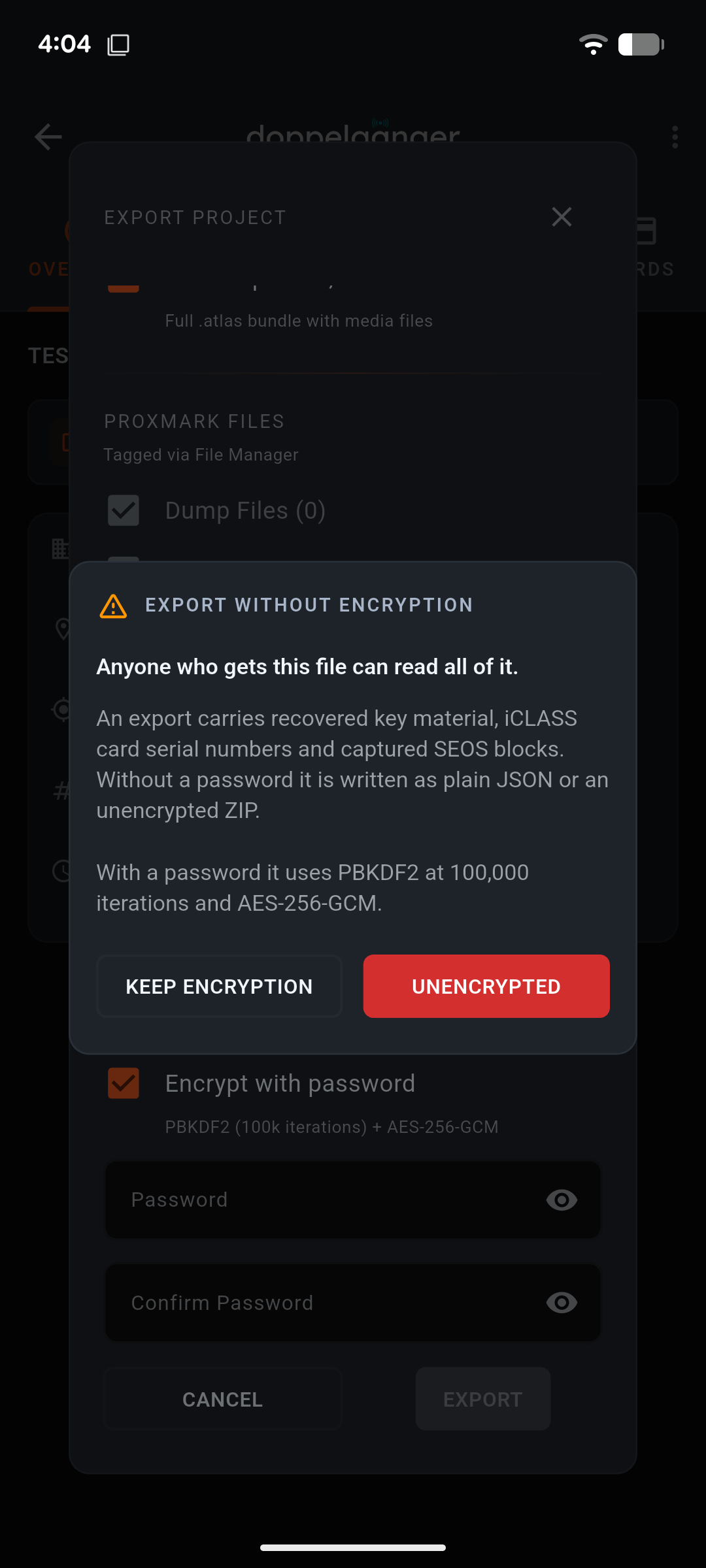
- Unencrypted means readable by anyone who gets the file.
- It names what is actually in there: key material, serials, captured blocks.
Turning it off raises a warning that is worth reading rather than dismissing:
Anyone who gets this file can read all of it. An export carries recovered key material, iCLASS card serial numbers and captured SEOS blocks. Without a password it is written as plain JSON or an unencrypted ZIP.
With a password it is PBKDF2 at 100,000 iterations with AES-256-GCM. The Export button stays gray until the password and its confirmation match, so an encrypted export cannot be created with an empty password by accident.
The two file formats
Section titled “The two file formats”| Contents | Extension | What it is |
|---|---|---|
| with media attachments | .atlas | a ZIP carrying the records and every photo, clip and memo |
| without media | .json | the records alone, and far smaller |
An encrypted export of either is the same file with its payload encrypted rather than a different format.
Importing a project
Section titled “Importing a project”Projects, then the import icon in the toolbar. The picker accepts .json and .atlas, and nothing else is offered.
| Stage | What is on screen |
|---|---|
| ENTER PASSWORD | only for an encrypted file, and only then |
IMPORTING PROJECT, DECRYPTING | the payload is being decrypted |
IMPORTING PROJECT, EXTRACTING | records and media are being written |