
Overview
ATLAS covers Proxmark work on an engagement with purpose-built screens. Detect, Collect, Sniff, the card writers, firmware and the device settings between them handle what a job needs, and each writes its result into the active project.
The terminal is here for the times you need the client directly. It runs the full Iceman client against the connected Proxmark, the same binary a desktop runs.
Work taken here does not land in the active project, nothing names the credential for you, and the terminal holds the Proxmark for as long as it is open.
Launching it
Section titled “Launching it”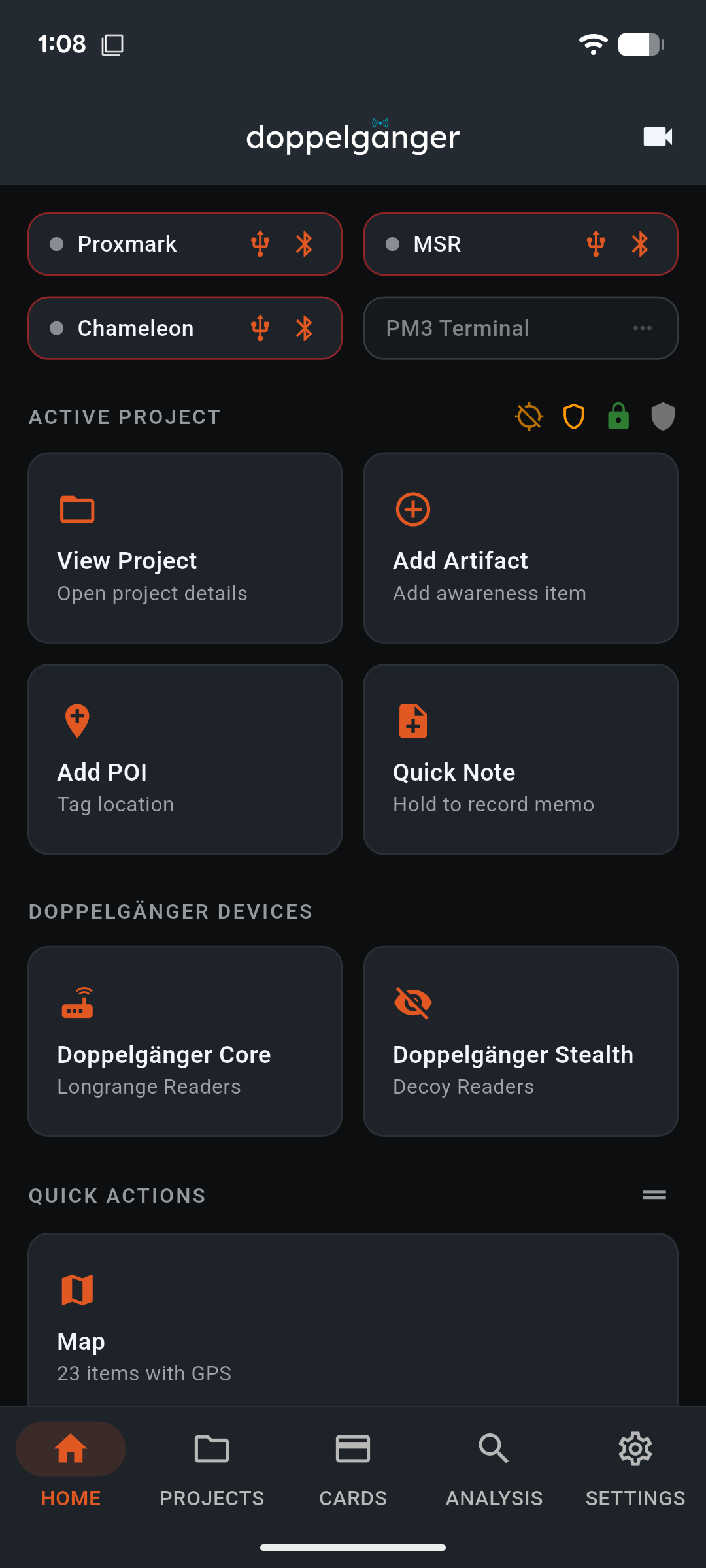
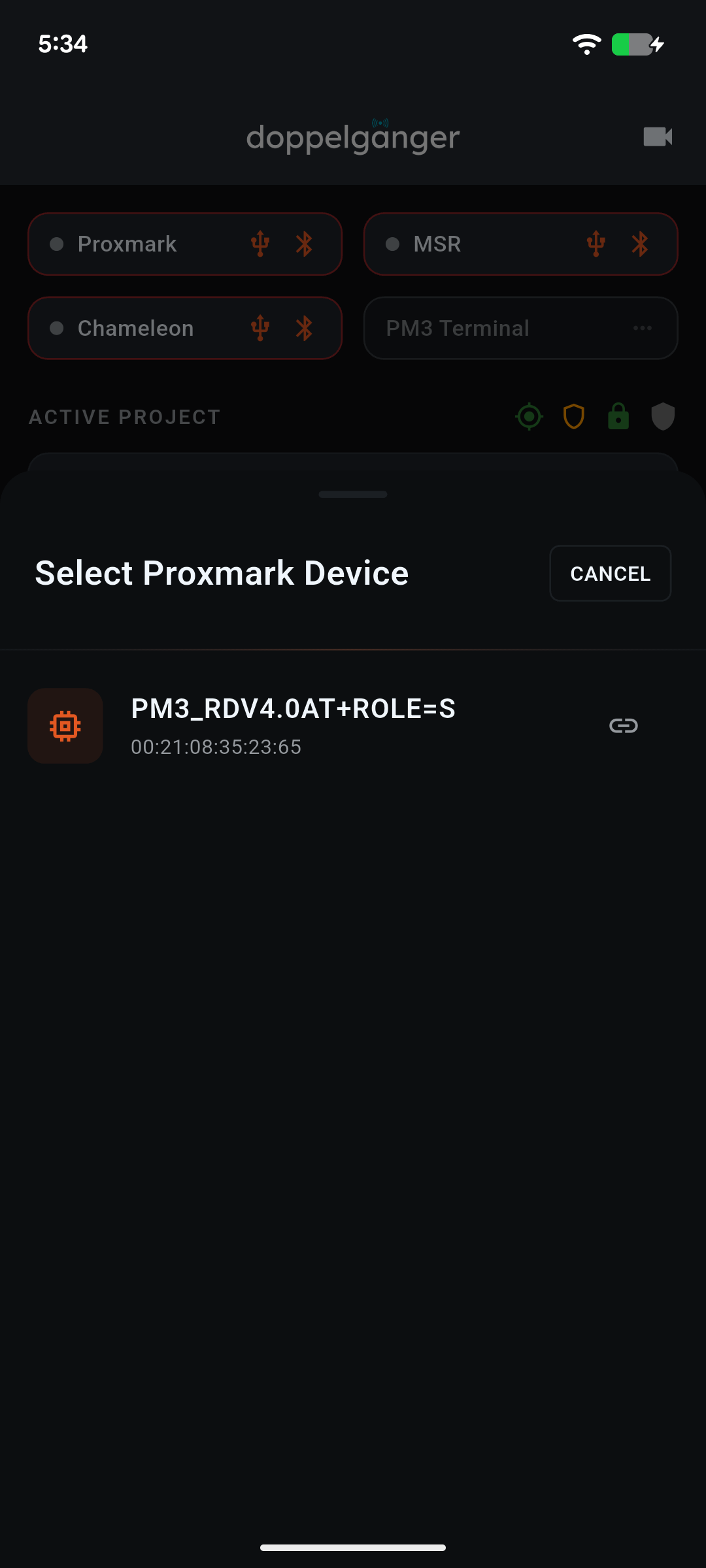
- PM3 Terminal is dim. No Proxmark is connected.
- Tap the Proxmark tile and this opens.
- Pick your device.
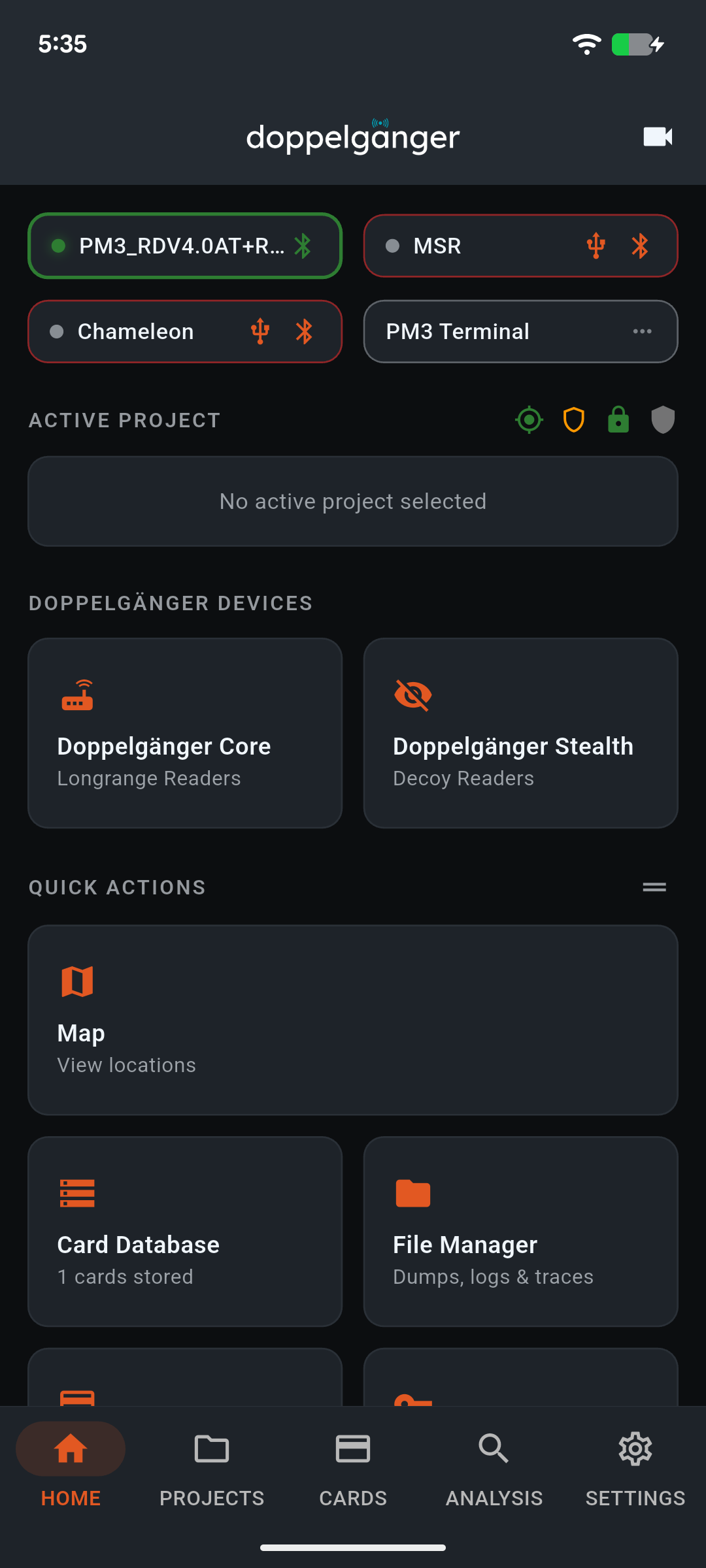
- Green. The Proxmark is connected.
- PM3 Terminal is live. Tap it.
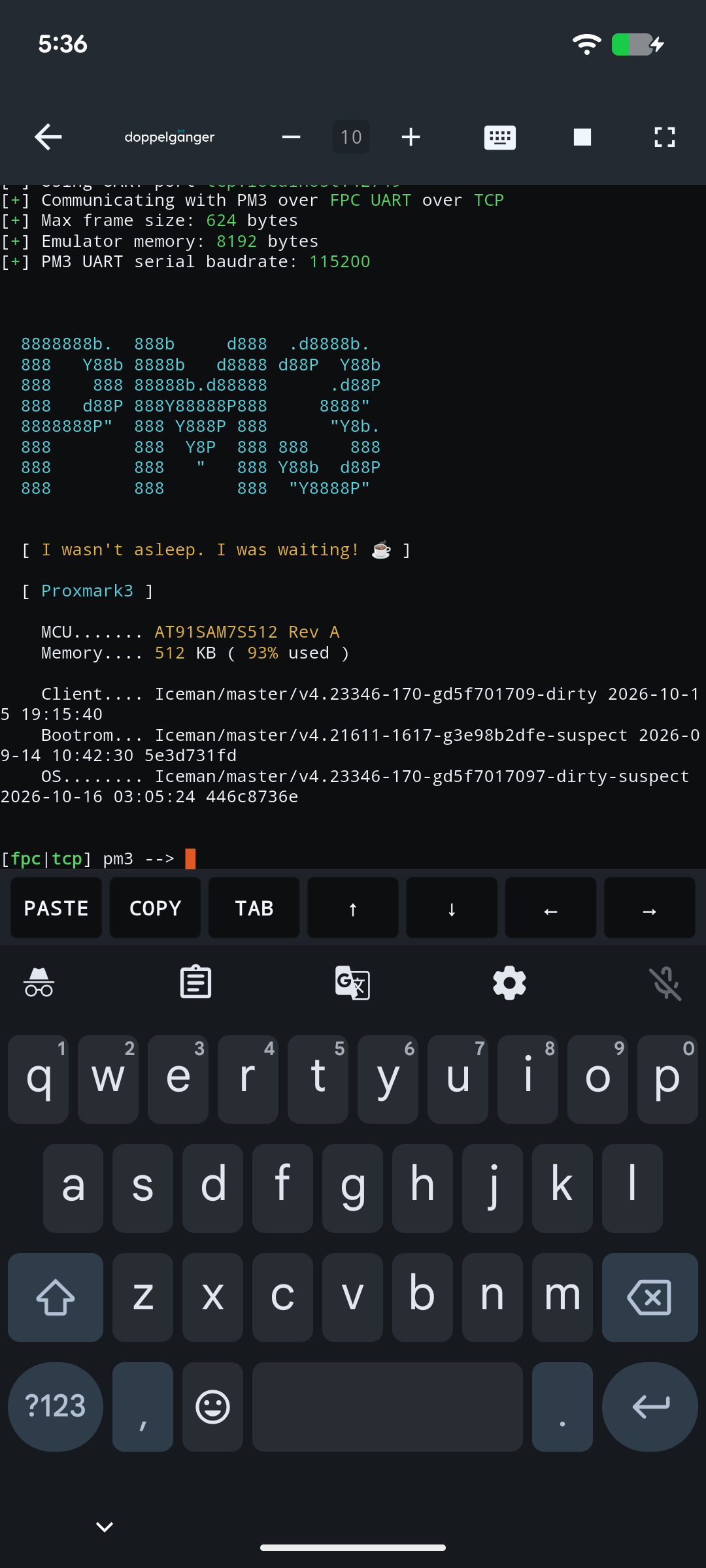
- The prompt. You are in.
- Connect a Proxmark. Tap the Proxmark tile on Home and pick it from the sheet, or plug in a cable. See Setup and connection.
- Tap PM3 Terminal, the fourth tile on Home.
- Wait for the prompt. The client prints its startup text first.
Settings, then READERS & DEVICES, then Proxmark Terminal, subtitled Direct command-line access, reaches the same screen. Typing terminal into the settings search gets there without scrolling.
| Route | Taps from Home |
|---|---|
| The PM3 Terminal tile | one, while it is still that cell’s destination |
| Settings, Proxmark Terminal | three |
Settings, search terminal | three, and no scrolling |
That tile is the Home shortcut cell and the terminal is its default. Holding it swaps the cell for any of twenty destinations. See Home shortcut.
The work that already has a screen
Section titled “The work that already has a screen”Reach for these before the terminal. Each writes its result into the active project, names the credential for you, and takes fewer taps than typing.
| On the job | Surface |
|---|---|
| A card you cannot identify | Detect |
| A card you can name, read in full | Collect, targeted reading |
| A reader left collecting while you walk away | Collect, watch mode |
| A reader and a card recorded mid-transaction | Sniff |
| The raw signal under a capture | Waveform analysis |
| Burning a credential onto a blank | Write and simulate |
| A hotel key | Hotel cards |
| Firmware on the Proxmark | Flash a Proxmark |
| LF sampling before a read | Proxmark settings |
| A write that is not taking | LF write configuration |
| Dumps, keys and traces already captured | File manager |
| How the device is connected | Connection settings |
What is left over
Section titled “What is left over”| Situation | Why the terminal |
|---|---|
| A tag family ATLAS does not surface | the client carries far more than any screen exposes |
| A command added upstream since this build | it is in the client whether or not a screen wraps it |
| A result that looks wrong | the screen reports a verdict, the client prints every line behind it |
| A Lua or Python script | there is no screen for scripts |
| You already know the command | typing beats three taps |
Reading the startup text
Section titled “Reading the startup text”The client prints its setup before the first prompt. Three lines of it are worth reading rather than scrolling past.
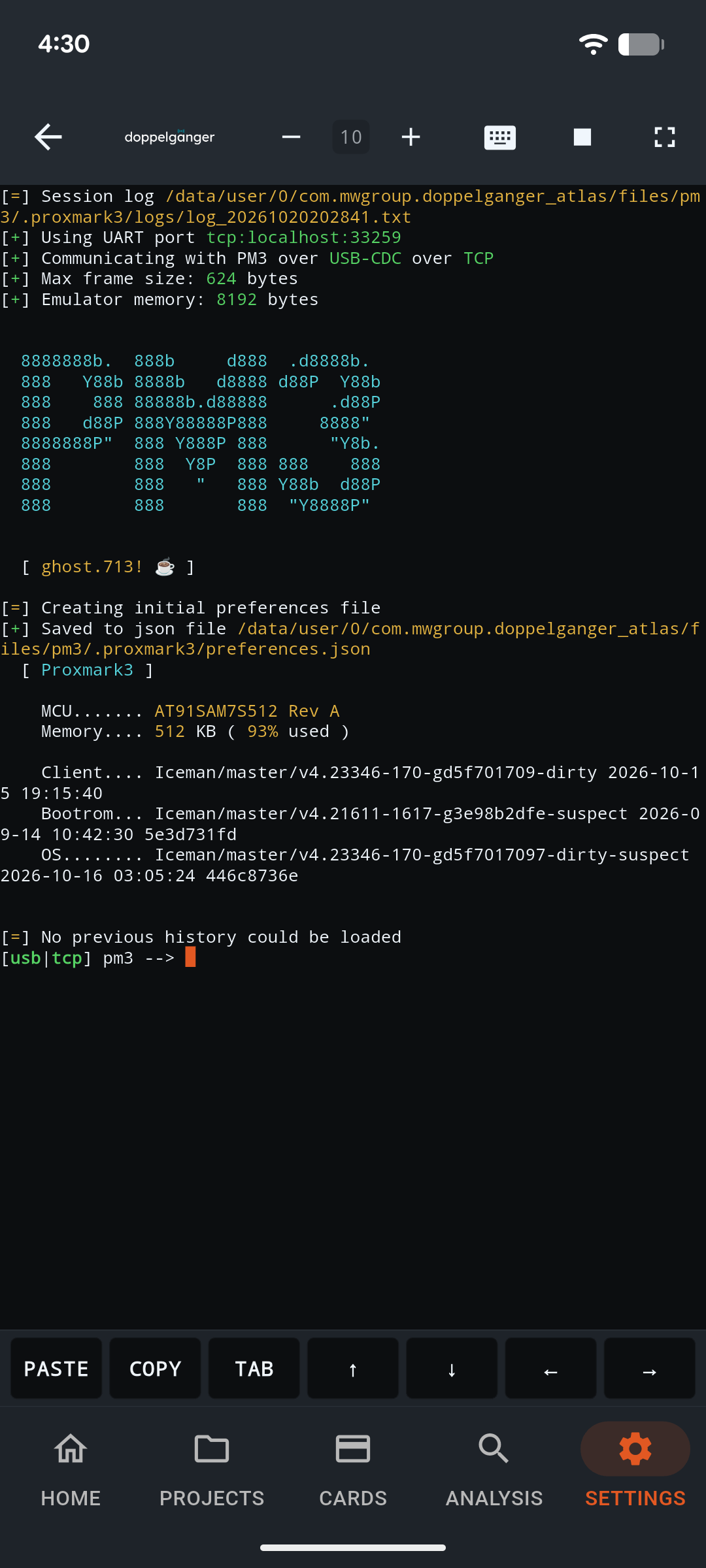
- Where this session is being written, without being asked.
- How the client reached the device.
- Client, bootrom and firmware, read off the hardware.
- A first run, so there is no history to load yet.
| Line | What it is for |
|---|---|
Session log ... | every line of this session is written to that file, and it outlives the session |
Communicating with PM3 over ... | how the client reached the device, the first thing to check when it did not |
Client / Bootrom / OS | the client version against the firmware on the device |
Leaving, and ending
Section titled “Leaving, and ending”Leaving the screen and ending the session are different things, and only one of them is recoverable.
| Action | What happens |
|---|---|
| Back arrow | the session keeps running, scrollback intact |
| Another tab | the same, and the terminal is where you left it |
| A command from another screen | the session pauses and stays paused. Nothing resumes it |
| Opening the terminal again after that | the session comes back as a restarted client, scrollback kept |
| Stop, the square | the client is killed and the scrollback is gone |
Scrollback holds up to 10,000 lines.
The pause is the row that catches people. It stops the client process, and the only thing that starts it again is you walking back to the terminal. What comes back is a new process, so the scrollback is kept and nothing inside the client is. A graph buffer filled by data load is empty, a half-typed command line is gone, anything you set at the prompt is back to its default, and a fresh startup block lands under your old output.
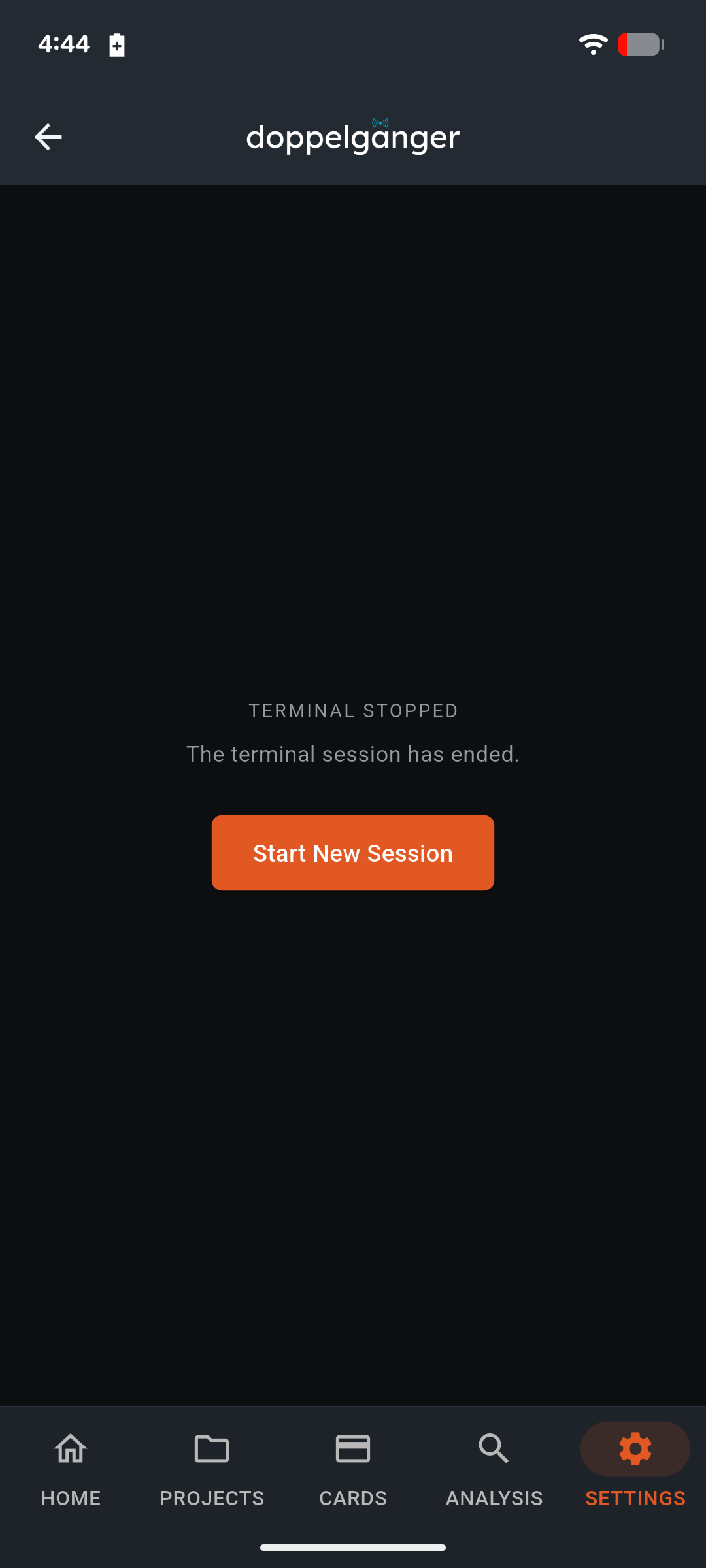
- Every control gone except Back.
- Ended on the tap, with no prompt first.
Stop is also the only clean shutdown, and a clean shutdown is what writes your command history for next time. Start New Session brings the client back with a fresh startup block and that history reloaded.