
ATLAS Chameleon Ultra Settings
Settings, then Connection Settings, then the ULTRA chip. Connect the ATLAS Chameleon Ultra and the card adds DEVICE SETTINGS and BUTTONS under the link rows. The link rows themselves, Transport, Scan duration, the USB row and saved devices, are on Connection Settings.
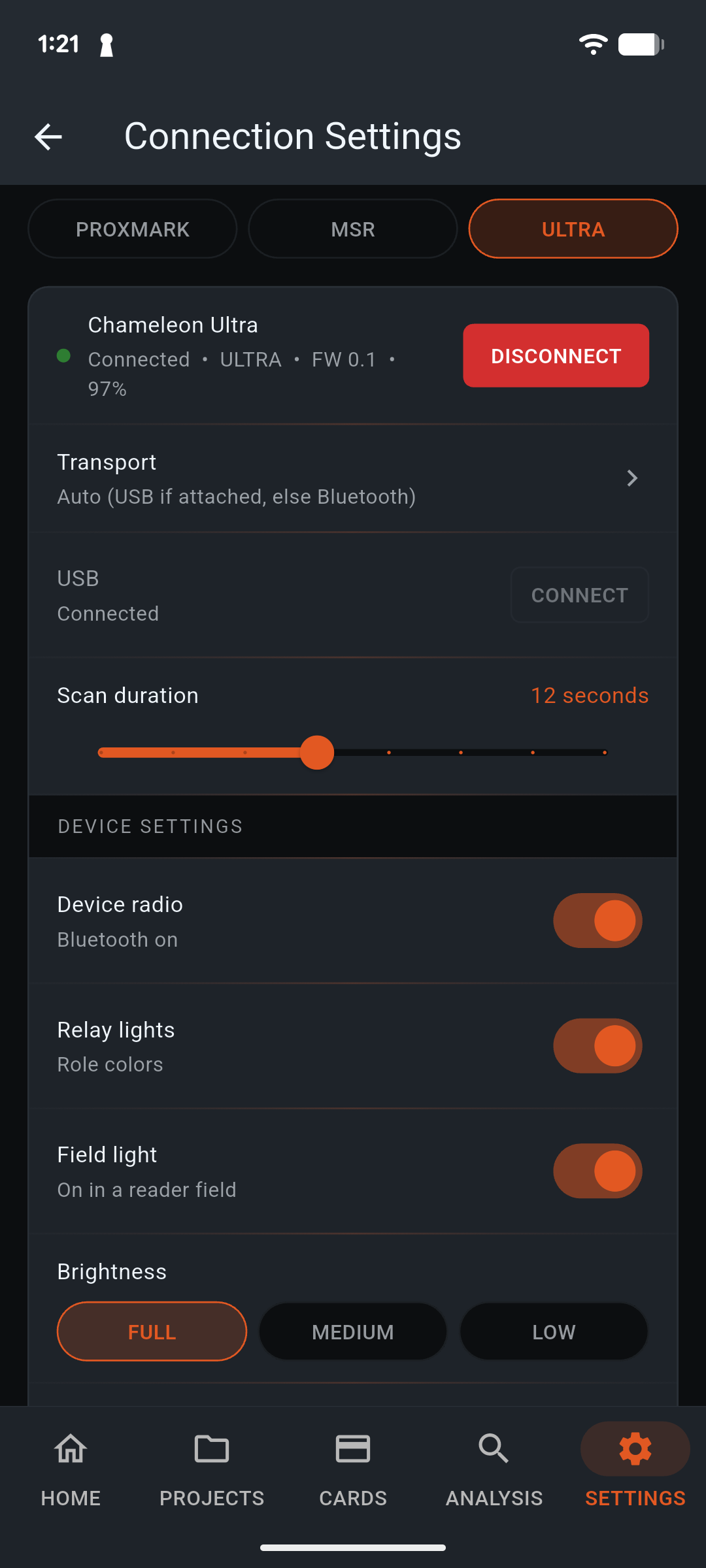
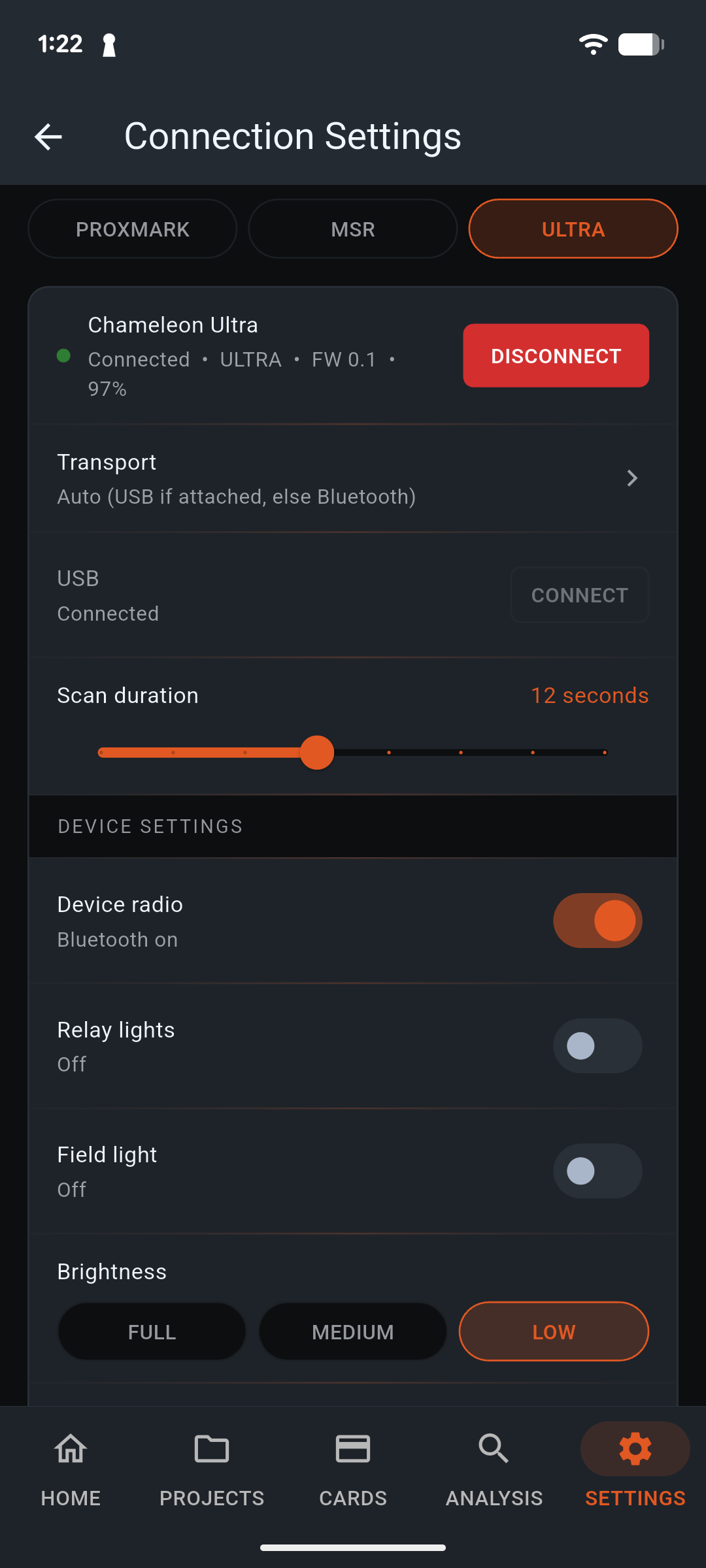
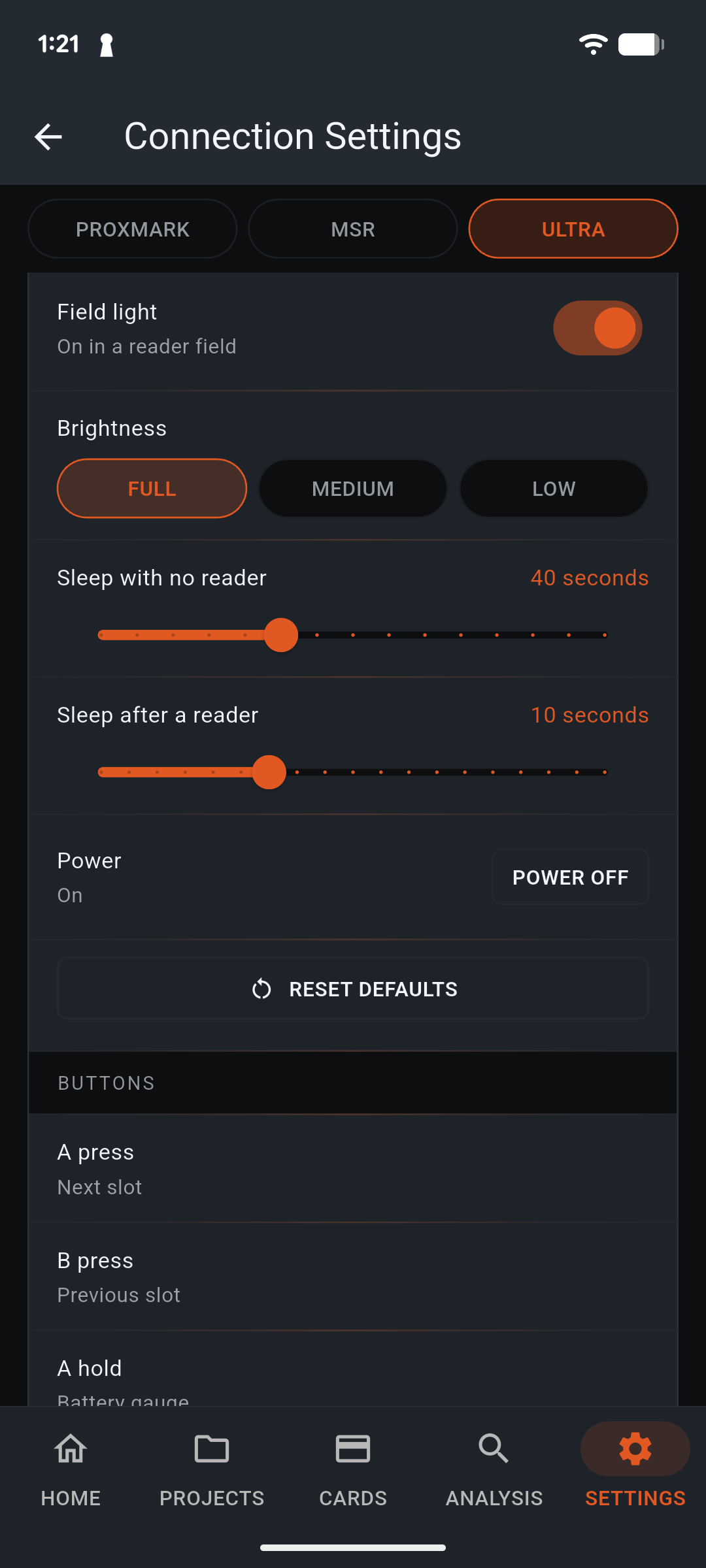
- The connected unit: its link, firmware and battery.
- Device radio. Bluetooth on.
- Relay lights. Role colors.
- Field light. On in a reader field.
- Brightness, on FULL.
- Relay lights, Off. No role color during a relay.
- Field light, Off. Nothing lights when a reader energizes the unit.
- Brightness on LOW, for the slot light that remains.
- Sleep with no reader. How long a selected slot waits for a reader.
- Sleep after a reader. How soon it sleeps once the reader is gone.
- Power, with POWER OFF.
- RESET DEFAULTS puts every row back.
- Connect the ATLAS Chameleon Ultra and open Settings, Connection Settings, the ULTRA chip.
- Scroll to DEVICE SETTINGS.
- Switch Relay lights and Field light off and tap LOW. Each change is written to the device as you make it.
- Set Sleep with no reader to cover the walk to the door.
- Leave the page. The settings stay on the unit.
The ATLAS Chameleon Ultra spends most of an engagement out of sight, behind the handset or in a pocket, and it is on its own battery. Three things about it decide whether it helps or gives you away: whether it lights up, whether it is still awake when you reach the door, and whether it is advertising a Bluetooth name to anyone scanning the lobby. Those are set here, on the ULTRA card, under the heading DEVICE SETTINGS.
They are settings on the device. Each one is saved on the ATLAS Chameleon Ultra and read back from it when it connects, so they travel with the unit to any handset, and a different ATLAS Chameleon Ultra shows its own values.
| With | Every row under DEVICE SETTINGS reads |
|---|---|
| no ATLAS Chameleon Ultra connected | Connect to change, and its control is gray |
| an ATLAS Chameleon Ultra whose firmware does not carry the setting | Not on this firmware, and its control is gray |
| an ATLAS Chameleon Ultra on current ATLAS firmware | its value, and its control is live |
The rows, in the order the card draws them
Section titled “The rows, in the order the card draws them”| Row | Control | Reads | Default |
|---|---|---|---|
| Device radio | switch | Bluetooth on or Bluetooth off | on |
| Relay lights | switch | Role colors or Off | Role colors |
| Field light | switch | On in a reader field or Off | on |
| Brightness | three chips, FULL, MEDIUM, LOW | the lit chip | FULL |
| Sleep with no reader | slider | seconds, for example 40 seconds | 40 seconds |
| Sleep after a reader | slider | seconds, for example 10 seconds | 10 seconds |
| Power | POWER OFF | On | |
| RESET DEFAULTS |
Device radio
Section titled “Device radio”This is the ATLAS Chameleon Ultra’s Bluetooth. Off, the unit does not advertise and cannot be reached over the air, only on the cable.
| Set it | When |
|---|---|
| on | you connect to the ATLAS Chameleon Ultra over Bluetooth, which is the usual way at a door |
| off | the ATLAS Chameleon Ultra rides on the handset’s cable for the whole job, and nothing on site should see a Bluetooth device named for what it is |
Turning it off while you are connected over Bluetooth cuts the link you are using, so ATLAS asks first. The dialog DEVICE RADIO names Chameleon Ultra and reads Bluetooth goes off and this link drops. USB turns it on., with CANCEL and TURN OFF. Over the cable there is no dialog.
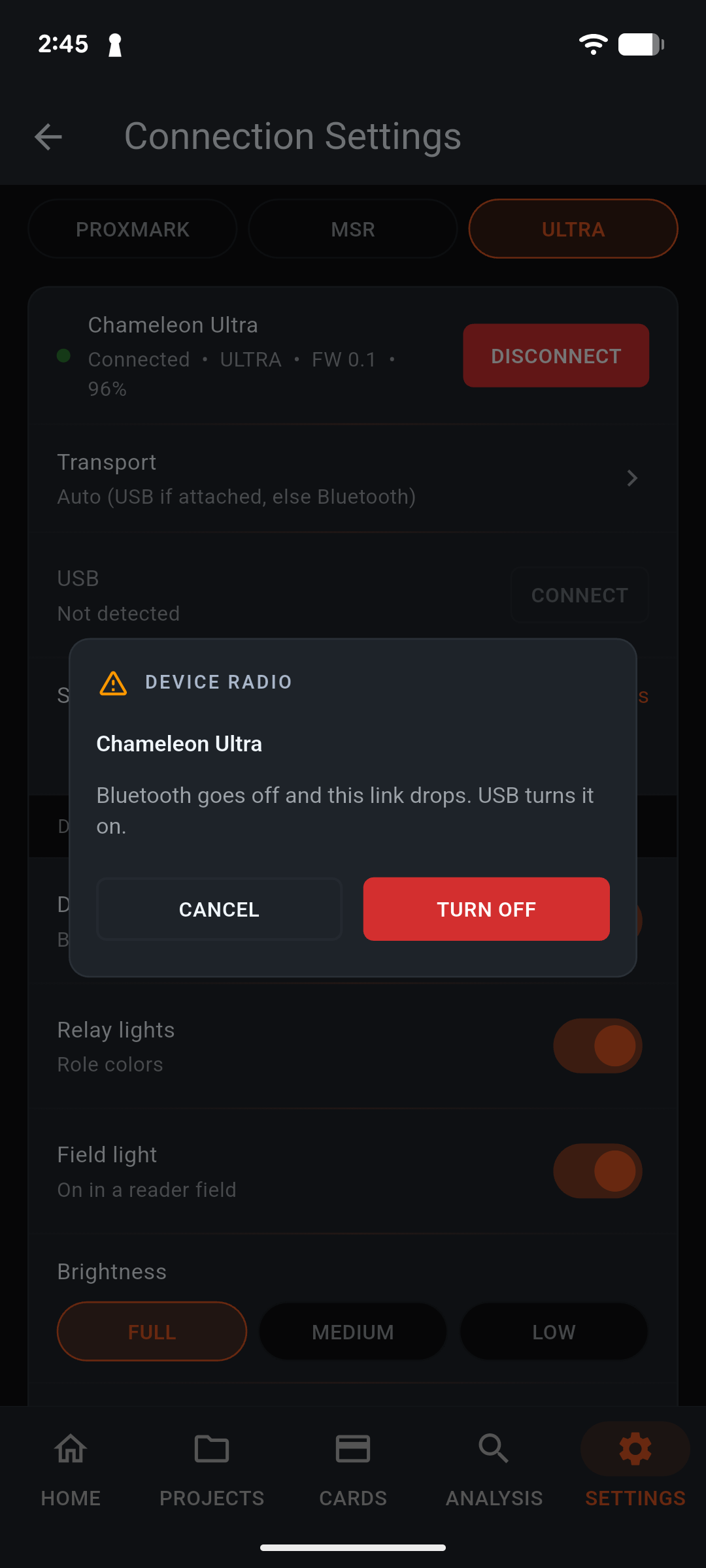
- DEVICE RADIO.
- The link you are on drops. The cable turns the radio back on.
- CANCEL, or TURN OFF.
| After the change | Message |
|---|---|
| turned on | Chameleon Bluetooth on |
| turned off over the cable | Chameleon Bluetooth off |
| turned off over Bluetooth | Chameleon Bluetooth off. This link drops now. Turn it on over USB. |
Relay lights and Field light
Section titled “Relay lights and Field light”| Row | On | Off | Turn it off when |
|---|---|---|---|
| Relay lights | during a relay, light 1 shows red on the unit at the card and light 8 shows green on the unit at the door | no role light during a relay, and the field light stays dark during it too | the unit is in view during a relay |
| Field light | the small single light comes on while a reader’s field is present, and on an iCLASS slot while the card is answering a reader | it never comes on | the unit must stay dark at a door |
The field light is the quickest confirmation there is that a reader is energizing the ATLAS Chameleon Ultra, which makes it worth leaving on at the bench and worth turning off in a lobby.
Brightness
Section titled “Brightness”FULL, MEDIUM or LOW, one tap, for every light on the unit: the eight slot lights and the field light. Pick LOW for a unit that is carried in the open, and FULL for a bench in daylight.
The two sleep timers
Section titled “The two sleep timers”On the cable the ATLAS Chameleon Ultra never sleeps. On battery it does, and these two sliders decide when. Getting them wrong shows up at the worst moment, as a unit that went to sleep on the walk from the car.
| Slider | Counts from | Range | Default | Stops |
|---|---|---|---|---|
| Sleep with no reader | powering on, a press of either control on the device, a Bluetooth drop, a cable pull, or a relay ending | 10 to 600 seconds | 40 | 15: 10, 15, 20, 25, 30, 40, 50, 60, 90, 120, 180, 240, 300, 450, 600 |
| Sleep after a reader | a reader’s field waking the unit, or a reader’s field leaving | 2 to 600 seconds | 10 | 19: 2, 3, 4, 5, 6, 8, 10, 15, 20, 30, 45, 60, 90, 120, 180, 240, 300, 450, 600 |
The limits come from the device, so a unit that reports a narrower range shows fewer stops. As with Scan duration, the value follows the thumb and is saved when you let go, and a stored value that is not one of the listed stops is kept as a stop of its own. A value the device refuses reads Sleep timer with the reason.
Sleep with no reader does two jobs. It is how long a selected slot waits for a reader, and it is also how long a unit woken from the device stays findable over Bluetooth, because the unit advertises for that whole time when Device radio is on.
| Set Sleep with no reader | When |
|---|---|
| short, 10 to 30 | the unit is always on the handset’s cable, where the timer does not apply, and you want a stray battery wake to end quickly |
| the default, 40 | you wake it at the door and present within half a minute |
| long, 120 and up | you wake it in the car and walk in, or you need time to connect over Bluetooth after waking it. It costs battery, and it advertises for longer |
Sleep after a reader is how long the unit stays awake once a reader has let go of it.
| Set Sleep after a reader | When |
|---|---|
| short, 2 to 6 | one door, one presentation, and the unit should go quiet behind you |
| the default, 10 | a second try at the same reader is likely |
| long, 30 and up | a run of doors in a row, where a unit that sleeps between them costs a wake each time |
What the timers do not override, because the device stays awake regardless while any of these is true:
| The ATLAS Chameleon Ultra does not sleep while |
|---|
| a relay is running |
| Bluetooth is connected |
| a slot is answering a reader |
| a sniff is armed |
| a control on the device is held |
| a command from the handset arrived in the last ten seconds |
A unit left sitting on a reader wakes to answer it, stays for Sleep after a reader, sleeps, and wakes again on the next field. It does not advertise from a wake caused by a reader’s field. Bluetooth advertising also pauses whenever a card is answering a reader and resumes when the field leaves, and a handset that is already connected stays connected.
An iCLASS slot follows the same two timers on battery, with one cap: it also comes off the air after ten minutes of continuous reader traffic. After a sleep, a reader’s field wakes the unit and the iCLASS card presents again about a second later.
Below 3 percent battery on two readings in a row, the unit powers itself off with three red flashes.
POWER OFF
Section titled “POWER OFF”Power reads On with POWER OFF beside it. The dialog POWER OFF names Chameleon Ultra and offers CANCEL and POWER OFF.
| Connected over | The dialog reads |
|---|---|
| the cable | The device goes off. Either button turns it on. |
| Bluetooth | The device goes off and this link drops. Either button turns it on. |
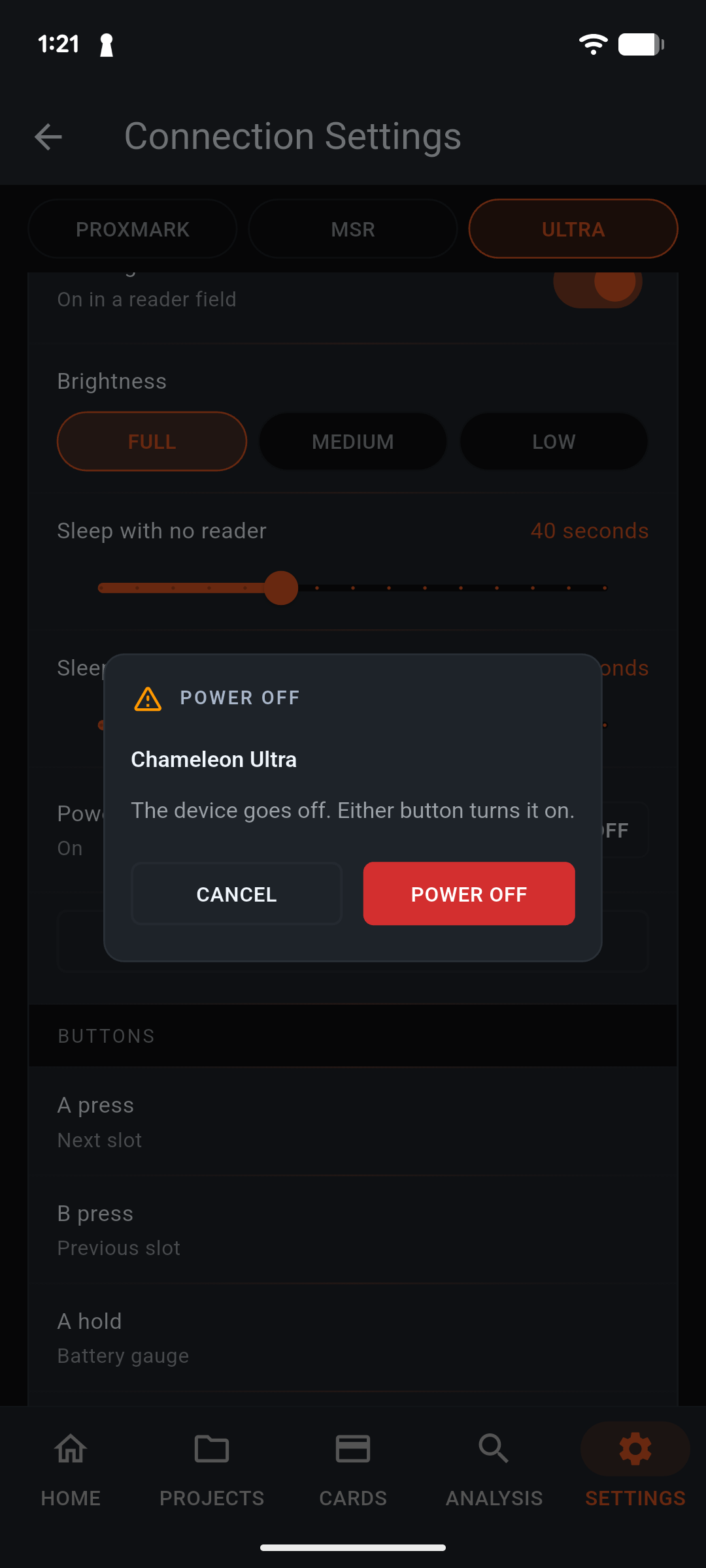
- POWER OFF, naming the unit.
- What happens, and how to turn it back on.
- CANCEL, or POWER OFF to commit.
It ends Chameleon Ultra powering off. Use it before the unit goes back in the kit, so a slot is not left answering readers on the way out of the building.
RESET DEFAULTS
Section titled “RESET DEFAULTS”RESET DEFAULTS is live while an ATLAS Chameleon Ultra is connected. The dialog RESET DEFAULTS names Chameleon Ultra and reads Every setting on this card returns to its default., with CANCEL and RESET. It ends Reset to defaults.
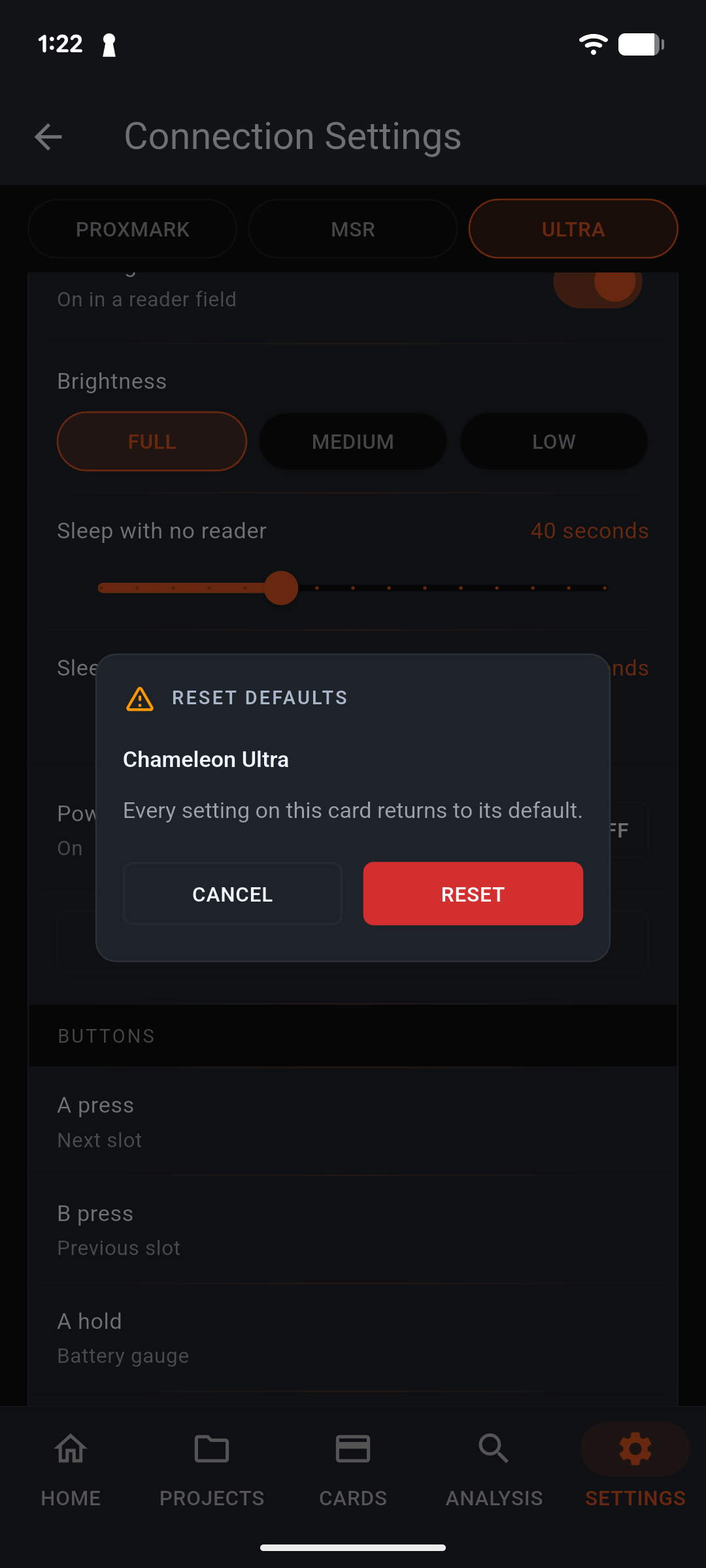
- RESET DEFAULTS, naming the unit.
- Every setting on the card, not only the device rows.
- CANCEL, or RESET to commit.
| It sets | To |
|---|---|
| Device radio | on |
| Relay lights | Role colors |
| Field light | on |
| Brightness | FULL |
| Sleep with no reader | 40 seconds |
| Sleep after a reader | 10 seconds |
| Transport | Auto (USB if attached, else Bluetooth) |
| Scan duration | 12 seconds |
The first six are on the device. The last two are on the handset, and Scan duration is shared, so resetting here also resets it for the PROXMARK and MSR cards. It does not touch slots, saved devices or firmware.
BUTTONS: what the two controls on the device do
Section titled “BUTTONS: what the two controls on the device do”Under the settings the card carries a heading, BUTTONS, over five rows. They are readings, not settings. The gestures are fixed in the firmware and cannot be remapped, and the rows are there so the answer is in the app when you are holding the unit and cannot remember which is which.
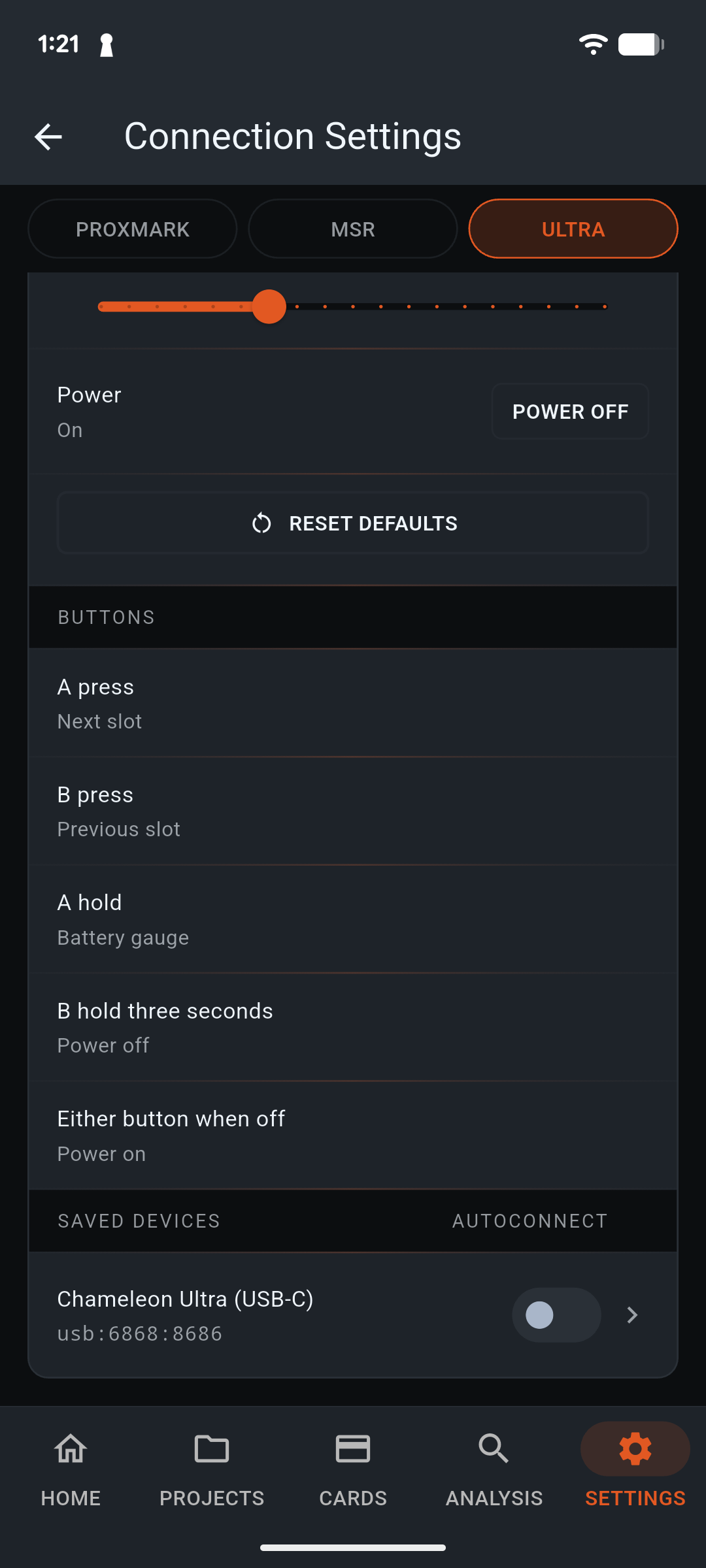
- BUTTONS. Readings, not settings.
- A press, Next slot.
- B press, Previous slot.
- A hold, Battery gauge.
- B hold three seconds, Power off.
- Either button when off, Power on.
A is the control nearer the USB port. B is the one farther from it.
| The row reads | Gesture | What the device does |
|---|---|---|
| A press, Next slot | under one second | selects the next occupied slot and puts it on the air |
| B press, Previous slot | under one second | selects the previous occupied slot and puts it on the air |
| A hold, Battery gauge | one second | while you are still holding, the slot lights show the charge for two seconds |
| B hold three seconds, Power off | three seconds | powers off while you are still holding. Let go once the red fade has run |
| Either button when off, Power on | a press | powers on. On a cable only A does, because B is the bootloader’s update control |
What the lights are telling you while you do it:
| You see | It means |
|---|---|
| one light solid | that slot is selected and on the air, and its color is the kind of card. The colors are listed on Slots |
| no light | nothing selected, the selected slot is empty, or the app parked the relay slot |
| all eight fade in green | powering on from a press |
| all eight fade out red | powering off |
| one brief flash on boot | a reset, or a cable plugged in |
| three red flashes | refused: the radio switch is off, a slot change during a relay, nowhere to move, or a reading not ready |
| one green flash | done |
| some lights green, yellow or red for two seconds | the battery gauge. The count is the charge in eighths, eight lights is full. Green at 50 percent and above, yellow from 20 to 49, red under 20 |
| light 1 red | a relay is running and this unit is at the card |
| light 8 green | a relay is running and this unit is at the door |
Moving onto an iCLASS slot, and powering off from one, each pass through a short dark gap. A wake on an iCLASS slot fades in green, goes dark for the gap, and comes back solid yellow, on the air.