
Missions and access
A mission is the container ATLAS pushes into. Handsets connected to the same server share nothing until each one is set to the same mission.
A mission also decides who can read a capture afterwards, which is the access question a client is most likely to ask about.
Getting it wrong is quiet. Everything connects, the push count climbs, and a teammate’s map stays empty.
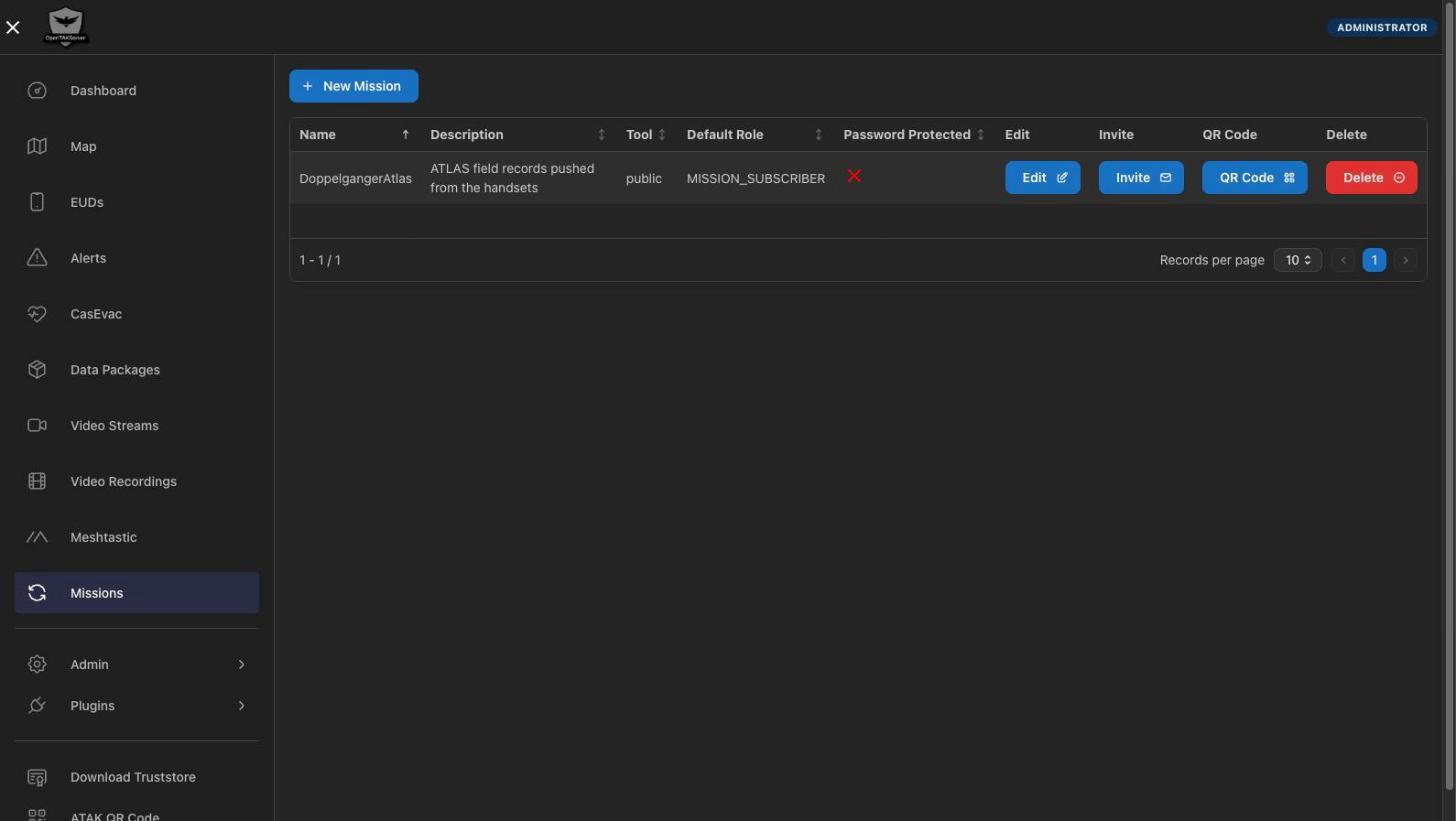
- New Mission. It needs a device checked in before it can be made at all.
- Default Role, which decides what a handset may do once it joins.
Once it exists, every handset picks it up and commits to it separately.
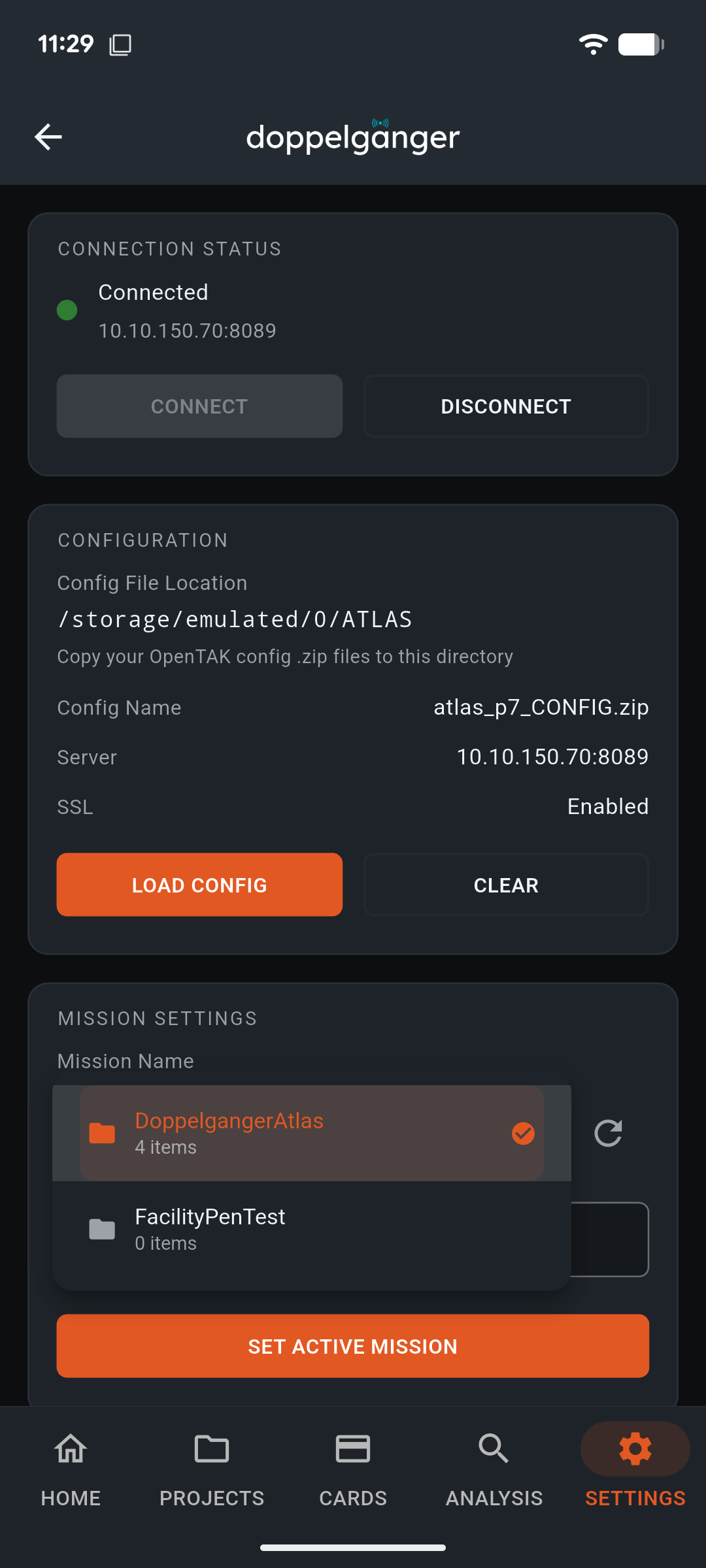
- The mission in use, ticked, with the count of what is in it.
- A second mission, empty, because nothing has been pushed to it yet.
- SET ACTIVE MISSION, which is what commits the choice.
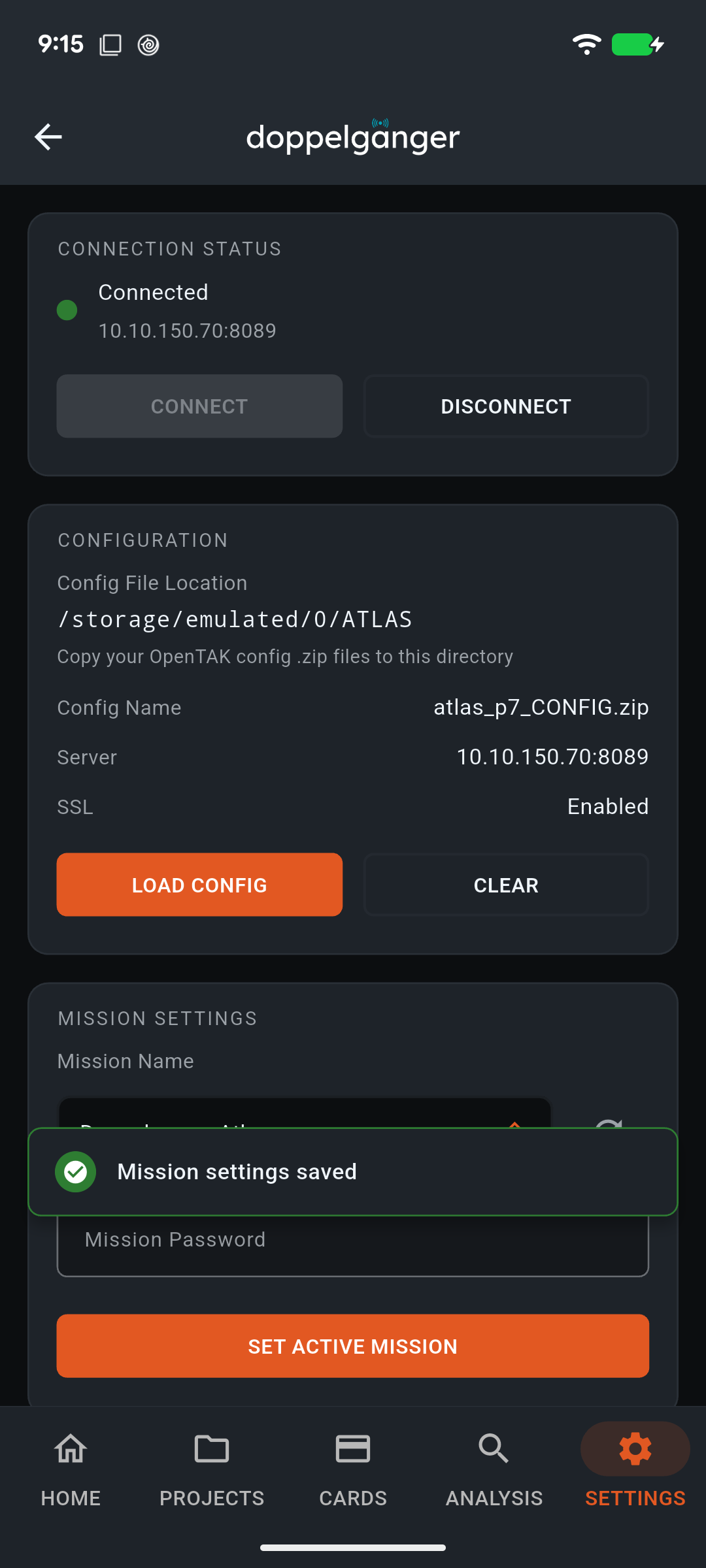
- Mission settings saved. Picking in the dropdown alone changes nothing.
A mission cannot be created before a device has connected
Section titled “A mission cannot be created before a device has connected”This is the first wall, and it looks like a broken form.
New Mission asks for a Creator, described on screen as The callsign of the EUD that owns this mission, and that field is a dropdown of devices the server has seen. A server nobody has connected to yet has an empty dropdown and a required field you cannot fill.
So the order is connect first, create second. Get one handset onto the server through Connect a handset, then come back and make the mission.
| Field | Required | What goes in it |
|---|---|---|
| Name | yes | the mission name, which is what operators pick from |
| Description | no | free text, shown in the mission list |
| Groups | no | a checkbox per group, reading No groups available when there are none |
| Default Role | yes | Subscriber, Owner or Read Only |
| Creator | yes | a callsign, from the devices the server has seen |
| Password | no | typing one here is what makes the mission password protected for everybody else |
ATLAS makes missions as well as joining them, so an administrator with a handset does not need the server’s own console for this. SERVER MANAGEMENT, then Missions, then the add control at the top right.
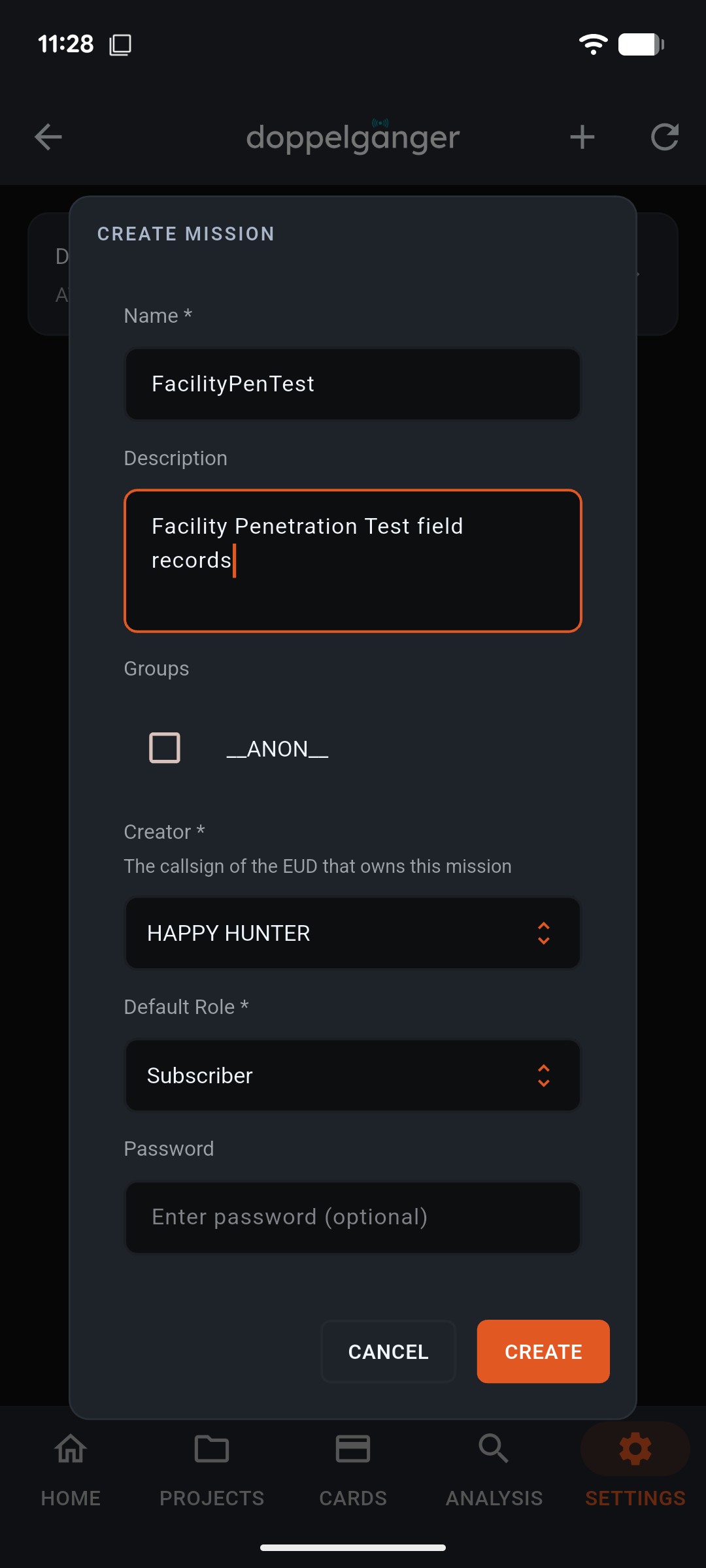
- Name. This is what operators pick from in the dropdown.
- Creator, a callsign from the devices the server has already seen.
- CREATE. The mission appears on the server and in every handset's dropdown after a refresh.
Setting it on a handset
Section titled “Setting it on a handset”A mission picked in the dropdown is not a mission joined. SET ACTIVE MISSION is what commits it, and until that is tapped the handset keeps pushing wherever it was pushing before.
- An item count underneath means the server really has this mission.
- A mission with no items yet still lists, because the server returned it.
- SET ACTIVE MISSION. Selecting above does not save anything.
The difference between a real mission and a typed one is visible. A mission the server returned carries an item count. A name you typed that the server does not have is kept in the list and subtitled Custom (will be created if needed).
Beside the dropdown is a refresh, tooltipped Refresh Missions, which re-asks the server. Use it after the administrator creates something, because the handset does not find out on its own.
When the mission list comes back empty
Section titled “When the mission list comes back empty”The screen says the reason itself, under the dropdown. Missions may be filtered by group membership. If you need to use a mission not shown here, contact your server administrator.
That is almost always what an empty list means on a server you know has missions. SERVER MANAGEMENT, then Groups, shows which groups this handset is in, badged IN where you are a member and OUT where you are not. A mission owned by a group you are OUT of will not appear, and no amount of refreshing will change that.
Devices, and why one account per handset matters here
Section titled “Devices, and why one account per handset matters here”The device list is where the mission’s membership becomes legible. Every device reports which account it authenticated as, so a capture can be traced to a person rather than to a pool of shared credentials.
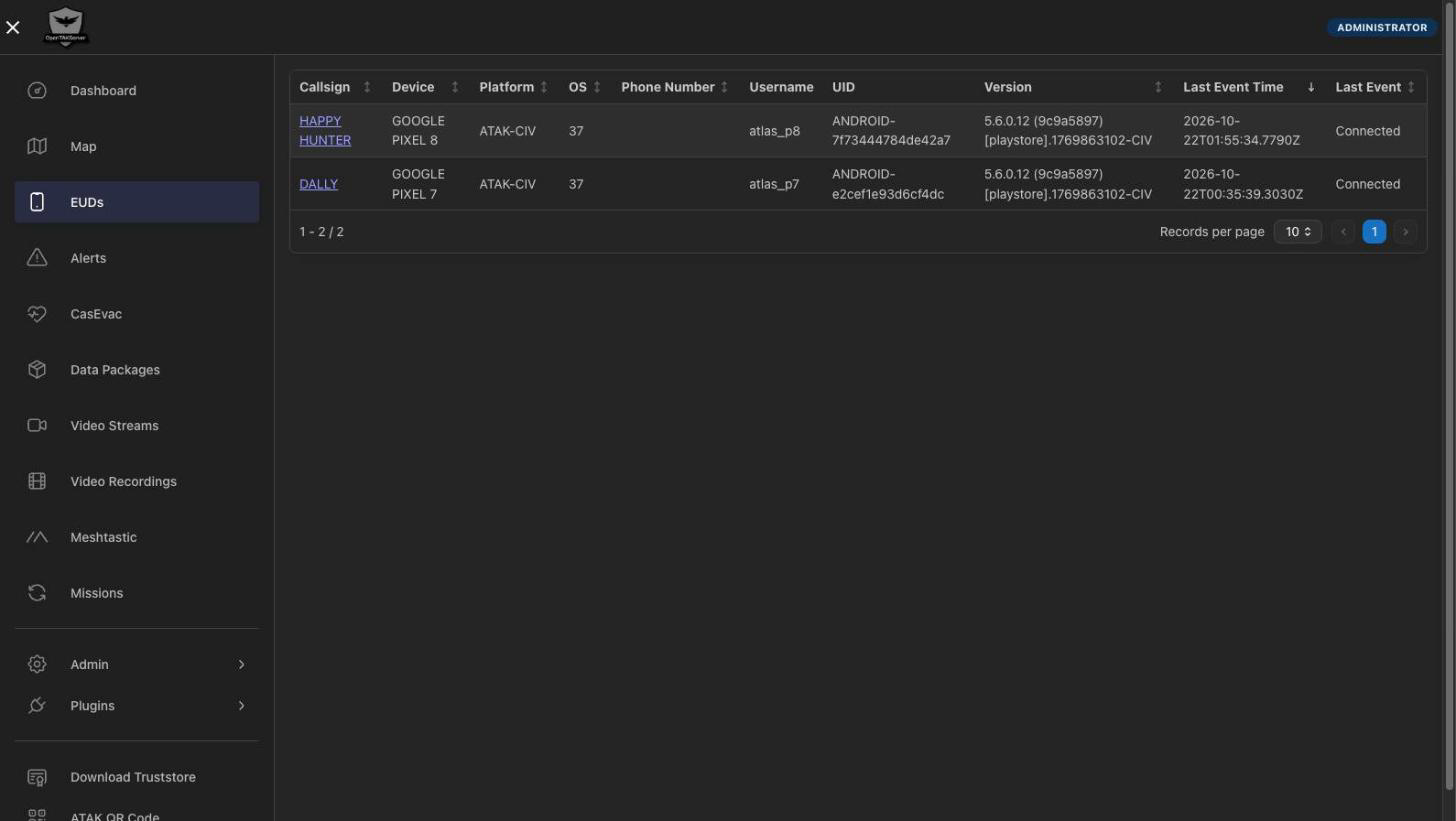
- Username. This column is the whole argument for one account per handset.
- Callsign, model and client version for one device.
- The other device, with its own account and its own certificate.
ATLAS reads the same list without leaving the handset, under SERVER MANAGEMENT, then End User Devices.
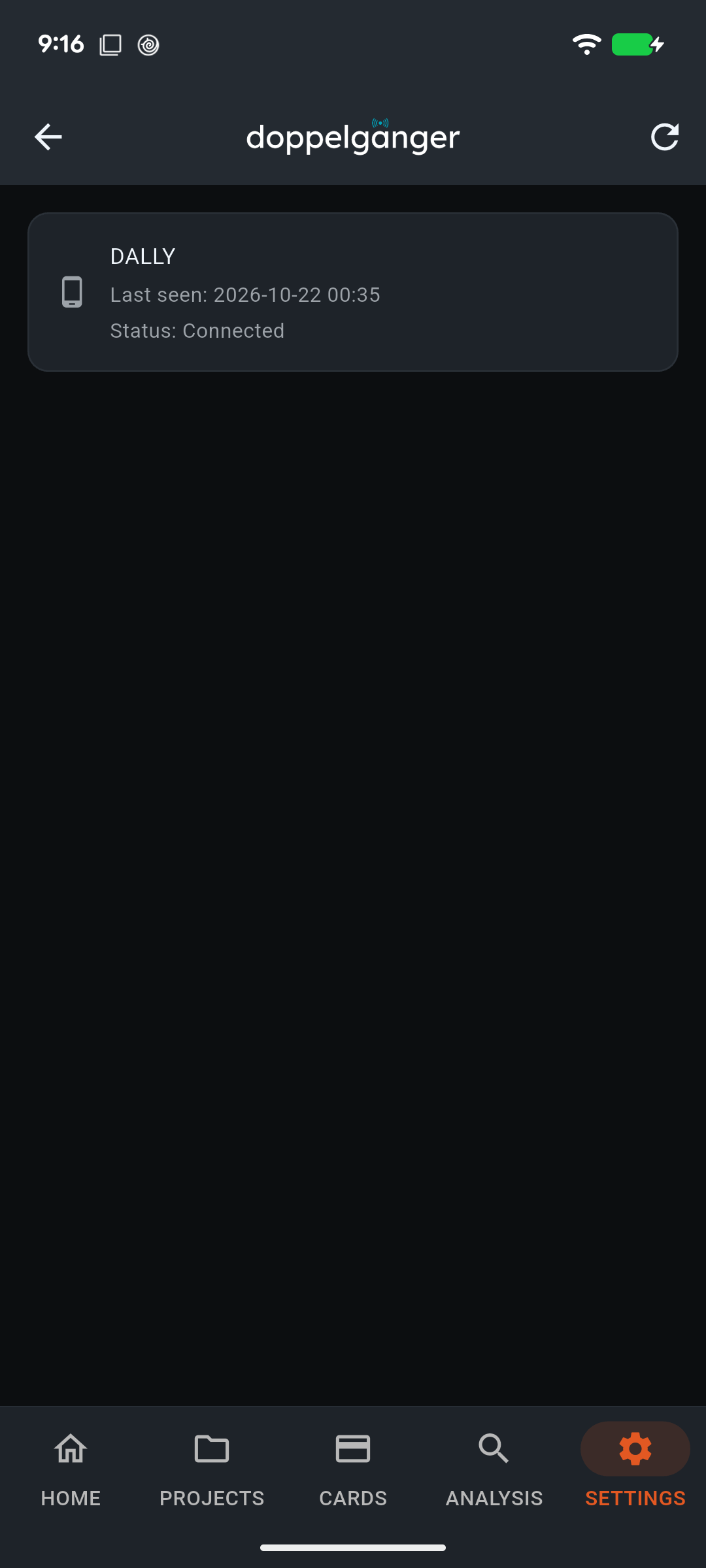
- The callsign, or the unique identifier where a device has none.
- Last seen and Status. This screen answering proves the HTTP API, not just the stream.
This is also where Creator gets its options, so a server with no devices checked in cannot have a mission created from the handset either.
Proving the mission is carrying records
Section titled “Proving the mission is carrying records”Set the mission on both handsets, capture something on one, and read the count on the other side rather than trusting the dot.
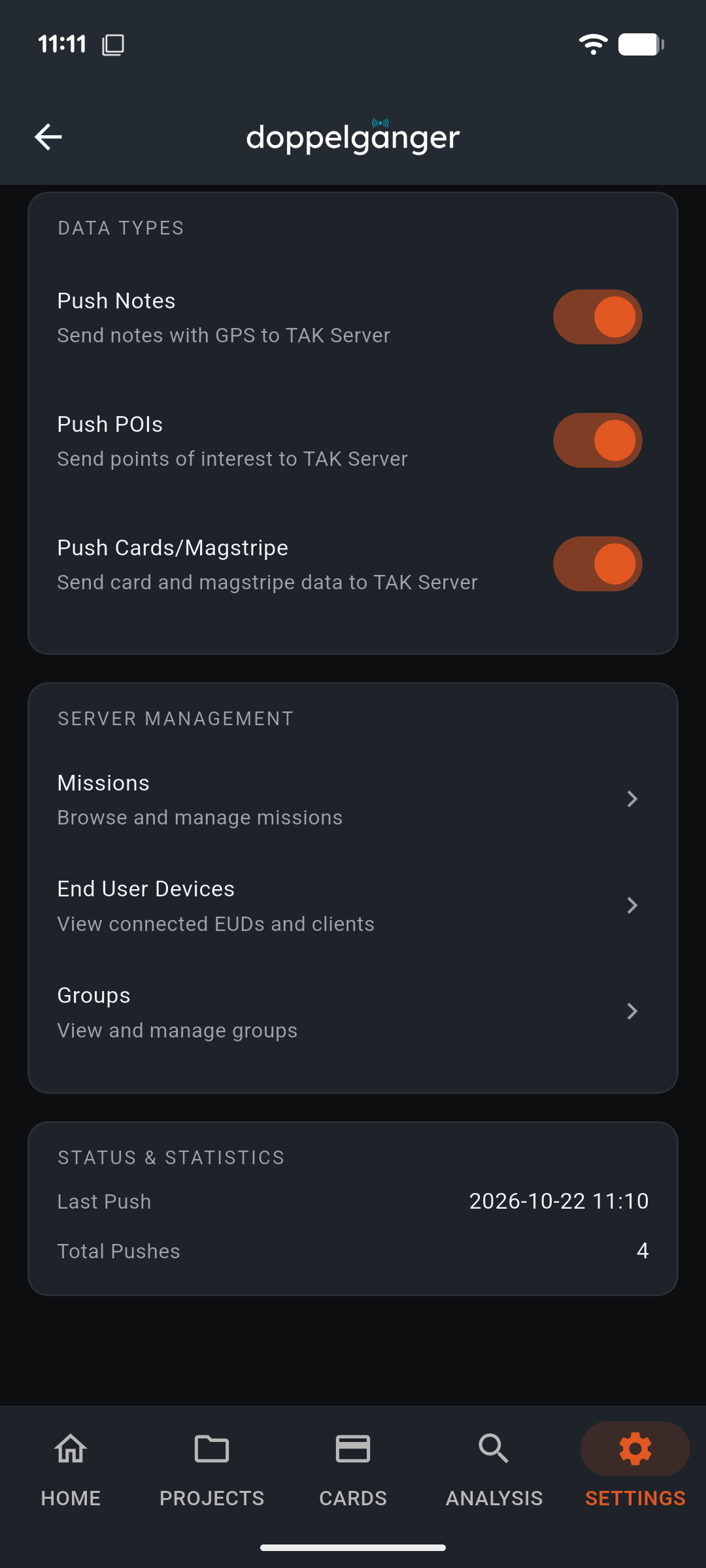
- Last Push. Compare this against when you actually saved the record.
- Total Pushes, a lifetime count with no control to reset it.
Three things to check, in order, when a record does not arrive. The switch in DATA TYPES for that record type. The mission, on both handsets. Then the record’s own position, because a note written with no fix has nothing to draw.
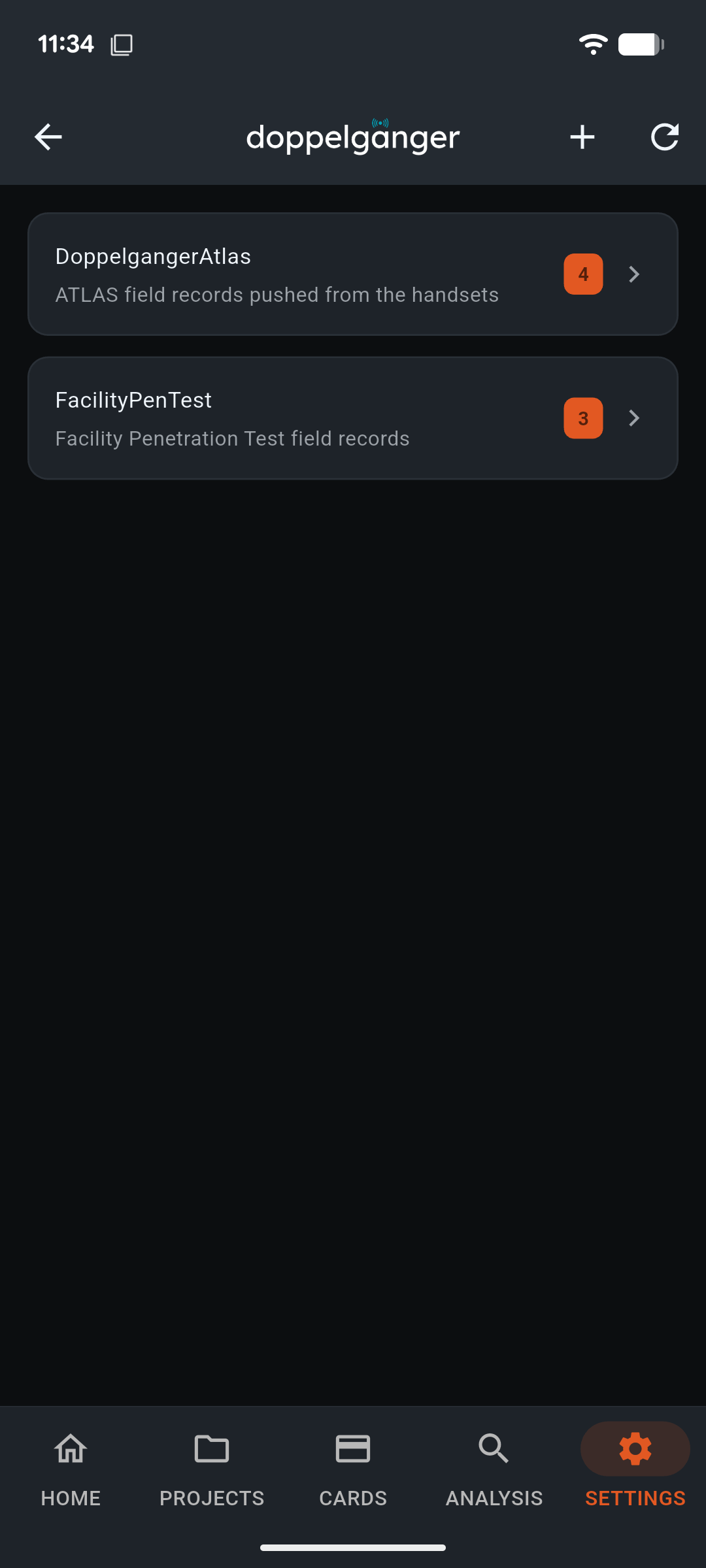
- One mission and what it holds, read from the server rather than from this handset.
- The other, with its own count. A count that has not moved means nothing reached it.
Read this screen rather than the push counter when two operators disagree. Total Pushes is what one handset believes it sent. The badge here is what the server actually holds.
An administrator with shell on the server can settle it without either handset, because the missions and the devices are rows in its database.
run on the OpenTAK Server host $ sudo -u postgres psql -d ots -t -A -F' | ' \ -c "select callsign, platform, last_status from euds order by callsign;"DALLY | ATAK-CIV | ConnectedHAPPY HUNTER | ATAK-CIV | Connected$ sudo -u postgres psql -d ots -t -A -F' | ' -c "select name from missions order by name;"DoppelgangerAtlasFacilityPenTest